

ADDRESS Function (Gnumeric)
Build Gnumeric cell-reference text with ADDRESS, including absolute and relative modes, sheet names and verified argument examples.
Verification status: See the evidence and test scope described in this guide. How formula examples are checked
ADDRESS turns numeric row and column coordinates into a cell-address string. It is useful for audit labels, navigation instructions, and building an address that another function will interpret. The result is text: ADDRESS does not read the value stored at that location.
Syntax and arguments
ADDRESS(row_num, col_num, [abs_num], [a1], [text])
row_numis the row coordinate;col_numis the column coordinate. In A1 mode, 1 means the first row or column.abs_numdefaults to 1. Use 1 for absolute row and column, 2 for absolute row only, 3 for absolute column only, or 4 for neither.a1defaults to TRUE. FALSE requests R1C1 notation.textoptionally supplies the worksheet name. Omitting it produces an address without a sheet prefix.
Use integer coordinates. Gnumeric’s implementation converts coordinates and the reference-mode selector to integers; fractional values do not identify fractional cells. A1 coordinates outside the selected sheet’s dimensions return #VALUE!. For portable workbooks, use the documented mode values 1 through 4.
Worked example: describe a selected record
In a blank sheet, put 5 in A1 and 4 in A2. Enter these formulas away from those inputs:
| Formula | Expected text |
|---|---|
=ADDRESS(A1,A2) |
$D$5 |
=ADDRESS(A1,A2,2) |
D$5 |
=ADDRESS(A1,A2,3) |
$D5 |
=ADDRESS(A1,A2,4) |
D5 |
=ADDRESS(A1,A2,1,FALSE) |
R5C4 |
The dollar signs are characters in the returned address, not a currency format. Changing A1 from 5 to 6 updates the row in the address. It does not move a value from D5 to D6.
Advanced use: retrieve a dynamically chosen cell
Put 275 in D5 and keep A1=5 and A2=4. =INDIRECT(ADDRESS(A1,A2)) should return 275: ADDRESS makes $D$5, and INDIRECT resolves that string to a reference. Keep the coordinate inputs separate from the destination cell to avoid a circular dependency.
For a sheet-qualified label, use =ADDRESS(5,4,1,TRUE,"Sales 2026"). Gnumeric quotes names when needed. A sheet name in generated text does not establish that the named sheet exists. An invalid name can therefore produce apparently plausible text that a later INDIRECT call cannot resolve.
R1C1 relative mode requires particular care. With a1=FALSE and a relative component selected, the corresponding input is an offset; Gnumeric also checks the resulting position against sheet bounds. Do not reuse a positive A1 coordinate as an R1C1 offset without considering the formula cell’s position.
Errors and troubleshooting
=ADDRESS(0,4)in ordinary A1 mode returns#VALUE!; row and column numbering starts at one.=ADDRESS(5,4,9)returns#VALUE!because 9 is not a supported selector.- If a downstream calculation receives text instead of a number, use a reference-resolving function where appropriate, rather than merely changing the address cell’s number format.
- Moving or renaming a target does not make a constructed text address behave like an ordinary direct reference. Recheck address-generating logic after structural workbook edits.
The 1.12.57 help text says selectors above 4 are errors, but its implementation additionally accepts 5–8 as the corresponding 1–4 modes. These undocumented aliases are not recommended for new formulas; the standard four choices express the intent clearly.
Version and verification
This guide is scoped to the official Gnumeric 1.12.57 implementation. The official release notes introduce ADDRESS in Gnumeric 0.27. No retirement or last-working-release claim is made. Official source was checked on 17 October 2026. The worked address cases, INDIRECT composition, and selected error cases were recalculated by the actual Gnumeric 1.12.57 engine under C.UTF-8 on that date. These multi-case checks are headless calculation evidence. The selected ADDRESS example was additionally displayed in the actual application, as shown below.
Related guides
Official references
Native application screenshot
This separate screenshot worksheet uses B1 = 5; A2 = Column; B2 = 4. In B4, =ADDRESS(B1,B2) returns $D$5. The screenshot layout is independent of the cell positions in the earlier tutorial. Only this selected example is GUI-verified; the other checks retain their stated engine-test scope.
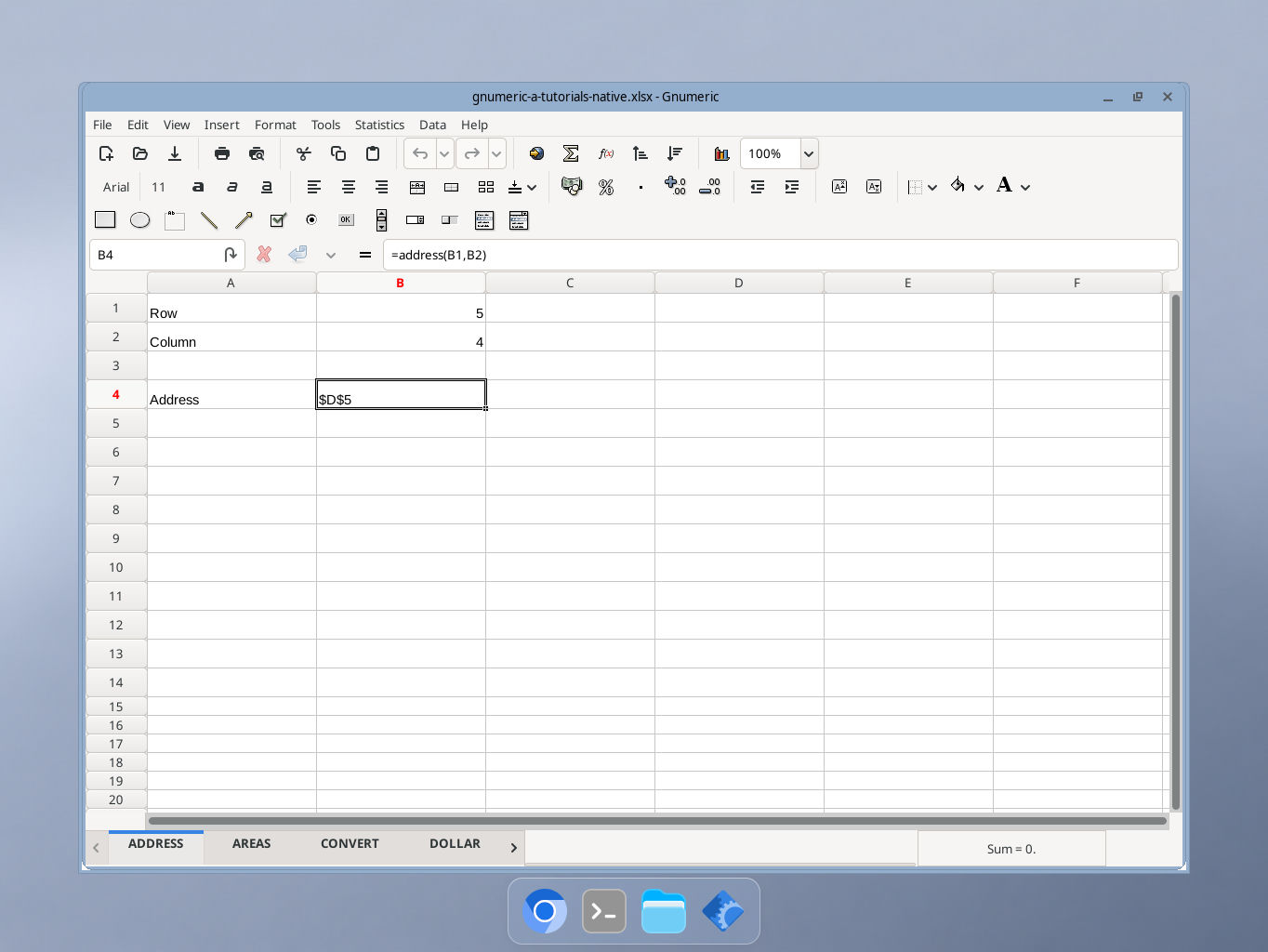
Actual Gnumeric 1.12.57 application, captured 17 October 2026. GUI locale was not independently recorded.