

Gnumeric · Formatting · Beginner
Highlight Duplicate Values in Gnumeric with COUNTIF
Use a COUNTIF expression in Gnumeric conditional formatting, fix the comparison range and test which duplicate cells should highlight.
Duplicate-expression and threshold rules verified in Gnumeric 1.12.57 with change tests · Editorial standards
To highlight every occurrence of a repeated code, use a conditional-format expression that counts that code in a fixed range and tests whether the count exceeds one. Gnumeric 1.12.62 exposes a condition called Expression x evaluates to TRUE.
What is verified
The duplicate rule and threshold example below were tested on 2026-10-16 in Gnumeric 1.12.57, Debian 13.6 Linux, English interface/C locale. Official 1.12.62 source was also reviewed because the manual’s conditional-formatting chapter is incomplete; 1.12.62 was not the tested runtime. The screenshots below are genuine Gnumeric captures. Saved-file reopening, other formats and every blank/text edge case were not tested.
Download synthetic duplicate codes. Import into A1:A7, or enter:
| Cell | Value |
|---|---|
| A1 | Code |
| A2 | A101 |
| A3 | B202 |
| A4 | A101 |
| A5 | C303 |
| A6 | B202 |
| A7 | D404 |
Check the duplicate logic first
Enter this in B2 and fill it down through B7:
=COUNTIF($A$2:$A$7,A2)
Expected counts are 2, 2, 2, 1, 2, 1. The fixed range stays A2:A7 while the last reference advances down the rows. The values repeated in this dataset are A101 and B202; both occurrences of each should be highlighted, not just their second appearances.
These independently calculated counts also appeared in the native Gnumeric 1.12.57 test. If your locale uses semicolons between function arguments, use them in place of commas. Resolve formula errors before adding the visual rule.
Create the Gnumeric rule
-
Select A2:A7, starting with A2 as the active cell. This matters: the 1.12.62 source parses expressions relative to the current editing position.
-
Open Format → Cells → Conditional Formatting. The source identifies the window as Conditional Cell Formatting.
-
In the condition editor, choose Expression x evaluates to TRUE. Enter this in x, without a leading equals sign:
AND(A2<>"",COUNTIF($A$2:$A$7,A2)>1)Unlike worksheet formulas, this dialog’s x field did not accept a leading
=in the tested build: Add remained disabled until it was removed. Function names may be normalized to lowercase. -
Under Applicable Style Components, select Background. Use Edit Style to choose an obvious background fill, such as pale yellow, and confirm that style editor. Keep unrelated style components out of this simple rule.
-
Use Add to add the condition to the selected cells. The 1.12.62 dialog uses Add/Replace controls rather than an assumed Excel-style New Rule wizard. Close the conditional-formatting dialog after adding it.
-
Compare the sheet with the checks below. Reopen the same command with A2:A7 selected to inspect the installed condition if the results differ.
Expected highlighting and a change test
Only A2, A3, A4 and A6 should receive the chosen background. A5 and A7 are unique. The A2<>"" term excludes empty cells; the COUNTIF term tests repetition.
Change A4 from A101 to Z999. A2 and A4 should then stop matching, while A3 and A6 remain matches. Restore A4 to A101. Both the original highlighting and this change test passed in Gnumeric 1.12.57. This small test detects a fixed current-cell reference or an incorrectly applied range more effectively than inspecting the first cell alone.
The rule is deliberately limited to A2:A7. New rows outside that range are neither counted nor automatically covered by the instructions. Extend both the selected formatting range and the absolute COUNTIF range when the dataset grows.
Compare with a simple threshold rule
For a separate practice check, use a clean scratch sheet so this rule does not overlap the duplicate example. Enter 92, 105, 130 and 87 in B2:B5.
Select B2:B5 and open Format → Cells → Conditional Formatting. Choose Cell value is > x. and enter 100 for x. Select the Background style component, choose a visible fill through Edit Style, and use Add to install the rule. This comparison option is present in the checked 1.12.62 source.
The expected matches are B3 (105) and B4 (130). The values 92 and 87 do not exceed 100. As a change check, replace B2 with 101: B2 should then join B3 and B4. Restore 92 afterward. The original and changed threshold results were both observed in the native Gnumeric 1.12.57 test.
The threshold check isolates a simple numeric comparison; the earlier duplicate example tests a formula and its relative references. If their results differ from these expectations, inspect the selected range, condition, style and installed version before trusting the formatting.
Native rule and result captures
Select a screenshot to open the full-size image.
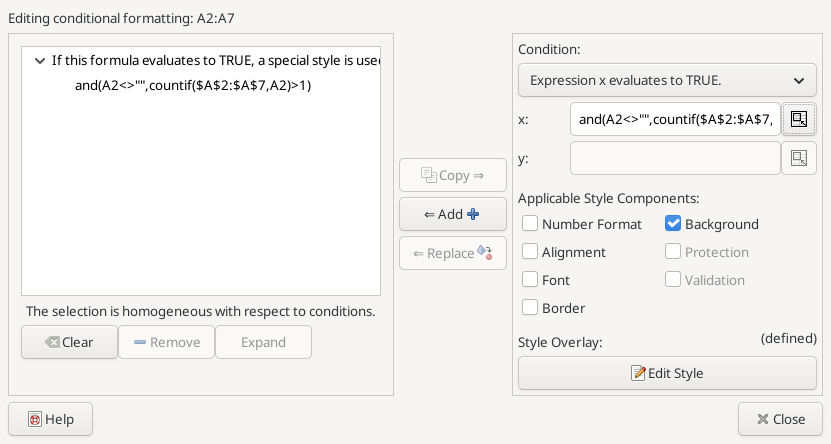
Actual expression rule applied to A2:A7, captured 2026-10-16. The x expression has no leading equals sign.
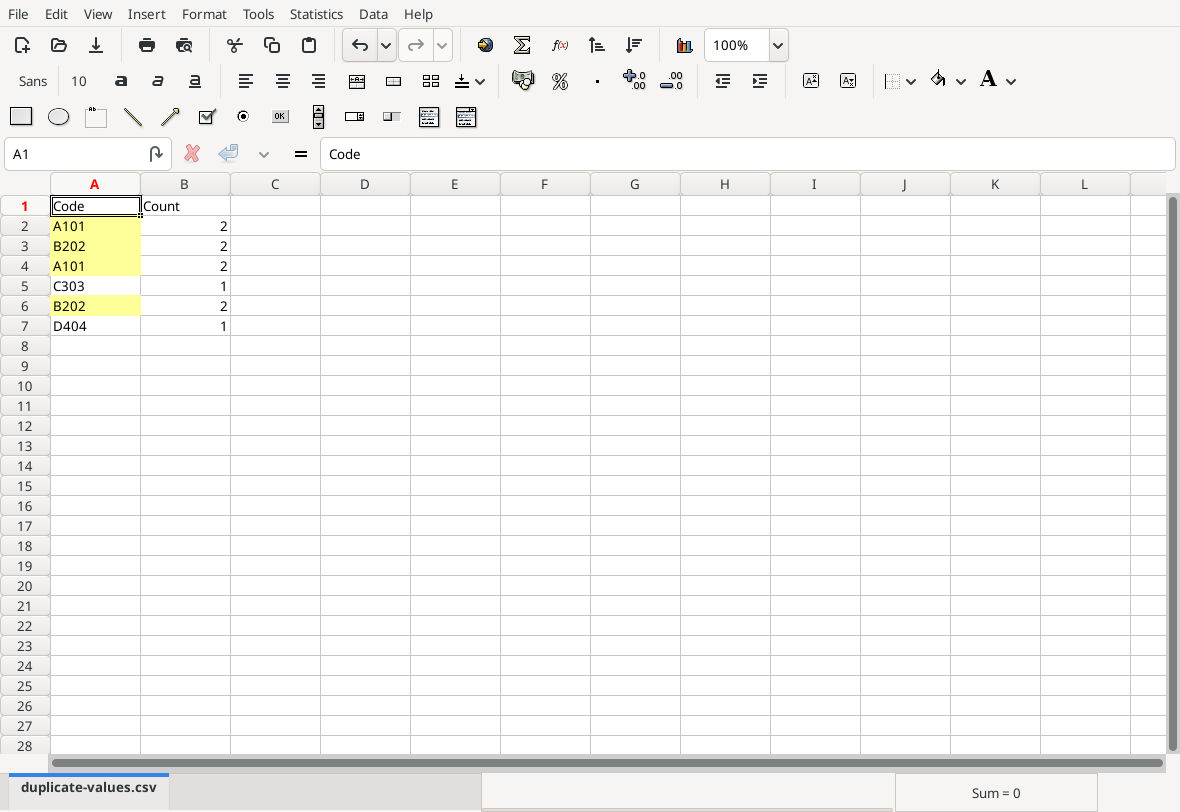
Both occurrences of A101 and B202 are highlighted; helper counts are 2, 2, 2, 1, 2, 1.

The separate greater-than-100 example highlights 105 and 130.
Download the saved native practice workbook, containing both examples with their original values restored. Native saving was verified; closing and reopening this file was not tested.
Troubleshooting
- Add stays disabled: remove a leading
=from the conditional x field. Keep=at the start of worksheet helper formulas. - Every cell follows A2: check that the criterion reference is
A2, not$A$2, and that A2 was the active cell when the condition was created. - Counts are right but no fill appears: inspect the Background component and its style, and confirm you clicked Add. Existing conditions may complicate the visual result; start with a clean copy rather than deleting another person’s rules.
- Similar codes do not match: inspect leading/trailing spaces and source data. This example does not promise case-sensitive or whitespace-normalized matching.
- Real codes contain
*or?: COUNTIF criteria may treat these as patterns. Do not apply this simple recipe to arbitrary identifiers without checking literal wildcard handling. - Labels differ in an older release: use the documented feature as a starting point, but verify the installed controls before distributing instructions.
Save a Gnumeric workbook to retain the condition. CSV preserves values only. For the underlying logic see COUNTIF and AND.
Official references
- Gnumeric menu reference.
- Conditional Formatting of Cells, whose documentation is incomplete.
- Official Gnumeric 1.12.62 source:
src/dialogs/dialog-cell-format-cond.candcell-format-cond.uiestablish the expression option, active-cell parsing, style components and Add behavior;doc/C/func.defsdocuments COUNTIF.