

Gnumeric · Sheet and cell protection · Beginner
Why a Protected Cell Can Still Be Edited in Gnumeric
Separate a cell’s locked attribute from active sheet protection in Gnumeric, test input and formula cells, and understand the limits.
Representative cell-lock and sheet-protection behavior verified in Gnumeric 1.12.57, including reopen · Editorial standards
A cell’s locked attribute alone is not enough to establish that editing will be blocked. In the official Gnumeric 1.12.62 source, starting an edit is rejected when the cell is locked and the workbook or current sheet is protected.
This matters because the older online manual says cell protection has no effect in Gnumeric. That blanket statement conflicts with the newer implementation and should not be treated as a current guarantee of either protection or editability.
Scope and safe starting point
The ordinary cell-editing workflow was tested on 2026-10-16 in Gnumeric 1.12.57, Debian 13.6 Linux, English interface/C locale, including a full application exit and reopen. Official 1.12.62 source and the older manual were also reviewed; 1.12.62 was not the tested runtime. This test does not establish that paste, imports, scripts, structural operations, workbook-level protection or file conversions enforce the same restrictions. No password was set or tested.
Work on a disposable copy. Decide whether your goal is preventing accidental edits, controlling access to a file, or encrypting it. These are different problems; cell locking is not encryption or a collaborator-permission system.
Keep the original practice layout
Download the synthetic practice data, which leaves the formula cells empty. Enter the following formulas after importing into A1:C3:
| Item | Quantity input | Calculated total |
|---|---|---|
| Notebook | 2 | =B2*4.50 |
| Pen | 3 | =B3*1.25 |
The intended totals are 9.00 and 3.75. The goal is editable B2:B3 and protected C2:C3. If your locale uses decimal commas, adapt the numeric constants accordingly. CSV cannot retain protection settings or workbook formulas established afterward.
Check both levels of protection
- With the practice sheet initially unprotected, select B2:B3, press Ctrl+1, and open Protection. Clear Lock and apply it. These are the intended entry cells.
- Select C2:C3, open the same tab and enable Lock. This records which cells should be guarded when protection is active; it does not by itself activate the sheet’s protection state.
- Open Edit → Sheet → Manage Sheets. The 1.12.62 implementation exposes a Lock column with padlock indicators. Check the row for the practice sheet and enable its lock. The source connects that control to the sheet’s protected property.
- Return to the sheet and try editing B2 from 2 to 4. In the native test this was permitted and C2 calculated 18 (numerically 18.00; the test used General display format). Restore B2 to 2.
- Try starting an ordinary edit in C2. The native 1.12.57 test rejected starting an edit with F2 in that locked cell while sheet protection was active, matching the reviewed 1.12.62 source. If it is editable in your installed build, stop treating the workbook as protected and review the conditions below.
- Save as a Gnumeric workbook, reopen it and repeat both tests before distributing it. The native 1.12.57 test repeated the editable-B2/blocked-C2 checks successfully after a full exit and reopen. It did not test an Excel round trip.
The Manage Sheets control is an accidental-edit aid, not a password-security promise. Do not experiment on a shared or irreplaceable workbook.
Observed native behavior
With the sheet unprotected, the locked C2 cell accepted a replacement value in the disposable test copy; Undo restored its formula. After enabling sheet Lock, B2 remained editable while starting an ordinary edit in C2 was rejected. This directly checks the distinction between a cell attribute and an active sheet restriction.
Select a screenshot to open the full-size image.
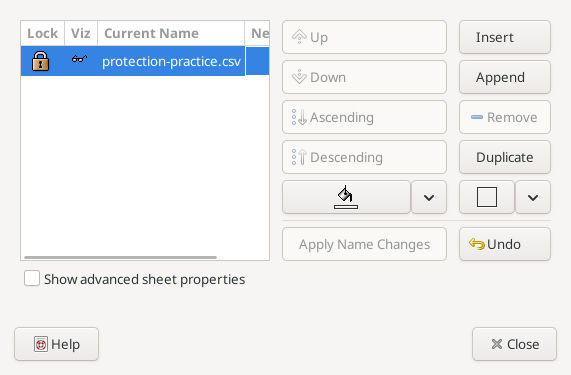
Actual sheet Lock setting, captured 2026-10-16.
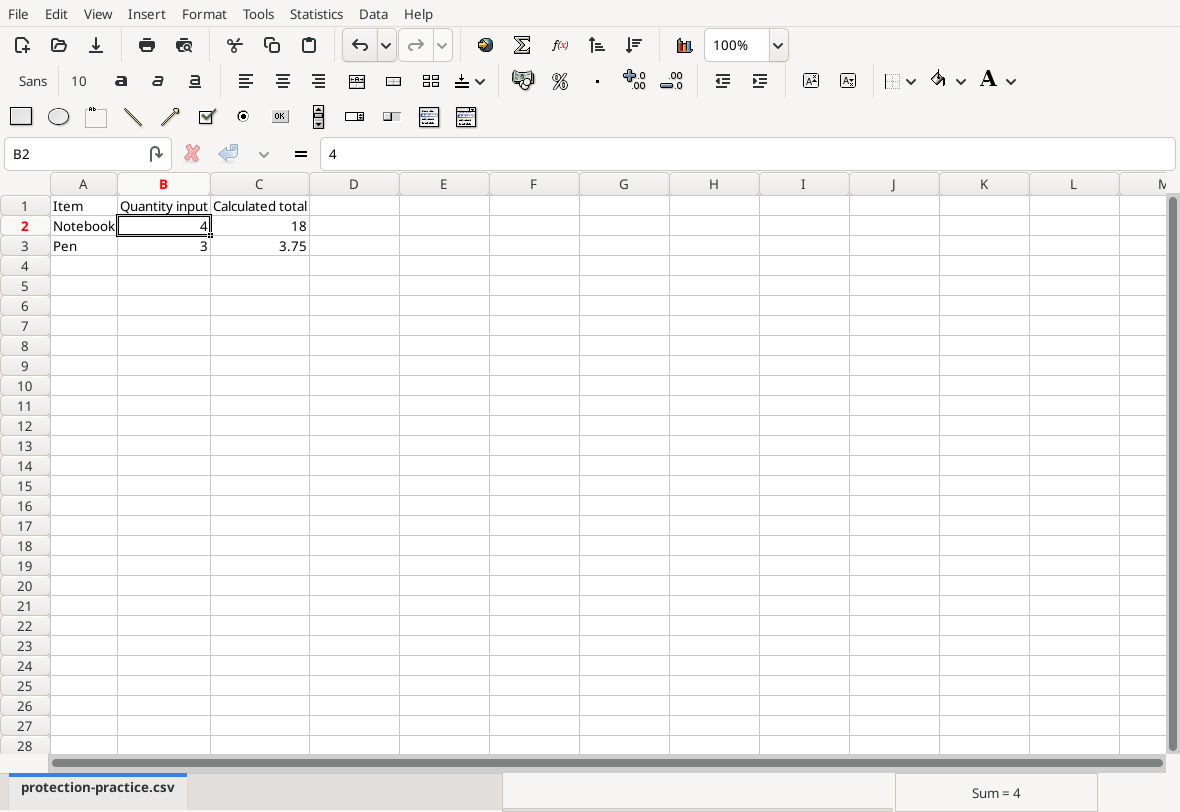
After reopening, B2 accepted 4 and C2 recalculated to 18. The saved example was subsequently restored to quantity 2.

Actual rejection when starting an edit in C2 after reopening.
Download the tested native protection workbook. It retains the original quantities 2 and 3 and the two formulas. The test checked representative B2/C2 operations; it did not separately attempt every input/formula cell or demonstrate a security boundary.
Diagnose unexpected behavior
- Locked formula still editable: check the exact cell’s locked attribute, the current sheet’s Lock state and the installed version. An older manual sentence cannot settle a newer build’s behavior.
- Every cell is blocked: check whether intended input cells were explicitly unlocked. Avoid blanket locking when entry cells must remain usable.
- An unlocked cell behaves unexpectedly: check whether workbook-level restrictions or another condition is involved. Preserve the file and record the observed operation rather than assuming that all protection modes are identical.
- Excel export/import changes behavior: compare the actual file in both applications. The manual discusses retention of Excel protection metadata; retained metadata is not proof of identical enforcement.
Verify before sharing
Test editable inputs and locked formulas separately. Also test any specific operation you intend to restrict, such as paste or structural changes, and repeat after reopening the exact file format you will distribute. Keep backups and use appropriate file permissions or controlled distribution for access control. If confidentiality matters, separately evaluate the actual encryption or sharing feature rather than inferring it from a padlock icon.
For arithmetic verification see SUM; =SUM(C2:C3) should be 12.75 with the original inputs. That sum is independently calculated and was not entered during this native run.
Official references and the documentation conflict
- Gnumeric Format Cells: Protection contains the older no-effect statement and describes Excel metadata retention.
- Official Gnumeric 1.12.62 source:
src/wbc-gtk-edit.cchecks both active protection and the cell’s locked style;src/workbook-view.cdefines the active protection test;src/dialogs/dialog-sheet-order.cimplements the Lock toggle.
The distinction above is supported by source inspection and the representative native editing tests. It deliberately avoids claiming security coverage beyond those checks.