

Gnumeric · Data management · Beginner
Audit Duplicate Records with Sort and Filter in Gnumeric
Flag repeated order IDs and matching rows, sort a review copy, and use Gnumeric filters without deleting source records.
Duplicate counts, review-copy sorting and separate-output filtering verified in Gnumeric 1.12.57 · Editorial standards
Use helper columns to count repeated keys and matching records, then sort a copy for review. A repeated order number is not automatically a duplicate transaction, and a unique-record filter is not an audit trail.
Scope and preserve the original practice data
The duplicate-helper, review-copy sort and separate-output Advanced Filter examples were tested on 2026-10-16 in Gnumeric 1.12.57, Debian 13.6 Linux, English interface/C locale. The manual and official 1.12.62 source were also reviewed; 1.12.62 was not the tested runtime. In-place filtering, clearing hidden rows, AutoFilter dropdowns, Unique records only, reopening and the comparison edge cases below were not tested. The manual’s Auto Filters subsection remains unfinished; that is not evidence that AutoFilter is unavailable.
The original six-order practice table is retained in this CSV:
| Order | Region | Product | Amount | Status |
|---|---|---|---|---|
| 1001 | East | Cable | 120 | Open |
| 1002 | West | Adapter | 85 | Closed |
| 1003 | East | Stand | 160 | Open |
| 1004 | North | Cable | 95 | Open |
| 1005 | West | Hub | 140 | Closed |
| 1006 | North | Adapter | 70 | Open |
It has six rows and Amount totals 670. To practice duplicate review, download the eight-row audit CSV. It contains those six rows plus an exact repeat of order 1002 and a second order 1003 with Amount 165 instead of 160. Import the audit file into A1:E9 on a sheet named Source.
Define what “duplicate” means
For this exercise, a repeated key means the same Order number. A matching record means all five fields agree under the formula’s comparison rules. Both are review signals; neither establishes that a row should be deleted.
Add F1 OrderCount and G1 RecordCount. In F2 enter and fill to F9:
=COUNTIF($A$2:$A$9,A2)
In G2 enter and fill to G9:
=COUNTIFS($A$2:$A$9,A2,$B$2:$B$9,B2,$C$2:$C$9,C2,$D$2:$D$9,D2,$E$2:$E$9,E2)
Use your locale’s function-argument separator if commas are not accepted. Each criteria range has the same eight rows, excludes headings and stays fixed while the current-row references advance.
Expected counts in source order:
| Source row | Order | OrderCount | RecordCount |
|---|---|---|---|
| 2 | 1001 | 1 | 1 |
| 3 | 1002 | 2 | 2 |
| 4 | 1003 | 2 | 1 |
| 5 | 1004 | 1 | 1 |
| 6 | 1005 | 1 | 1 |
| 7 | 1006 | 1 | 1 |
| 8 | 1002 | 2 | 2 |
| 9 | 1003 | 2 | 1 |
The two 1002 records match in every field. The 1003 records share a key but have different amounts. The audit Amount total is 920, not 670. These independently calculated counts and the 920 total matched the native run.
Select a screenshot to open the full-size image.
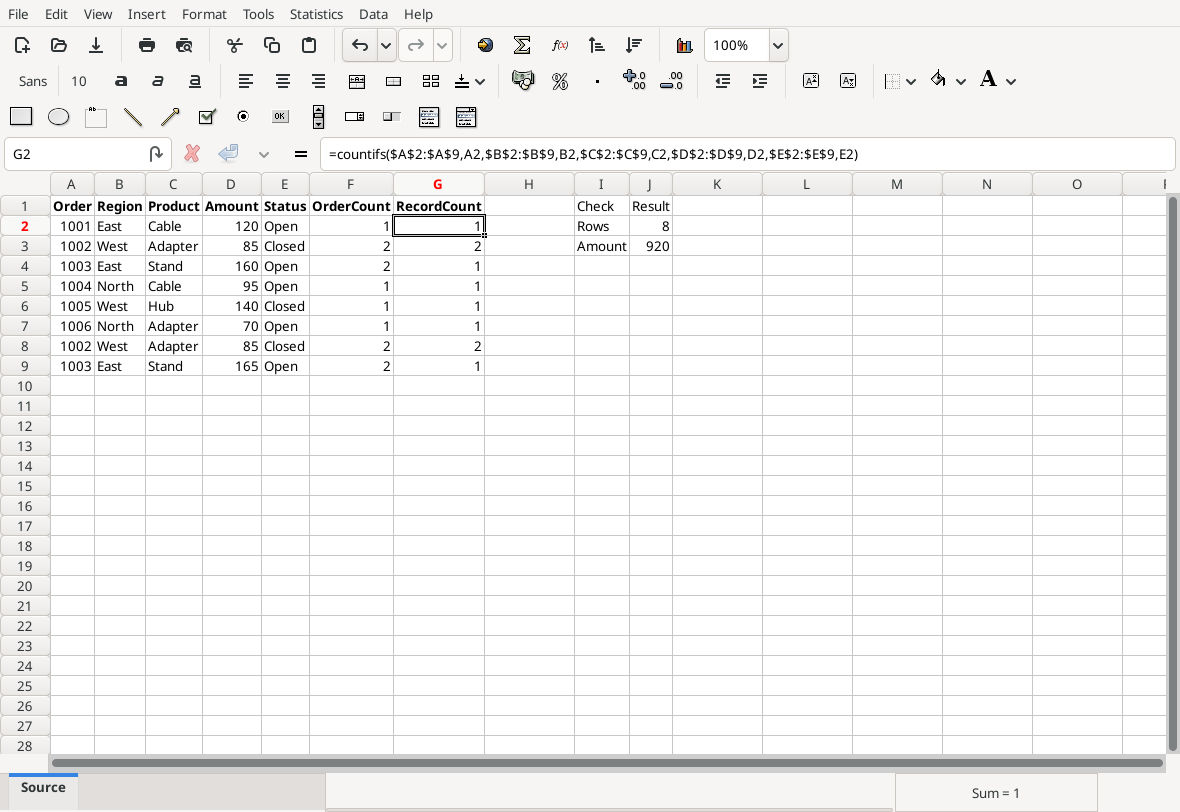
The 1002 rows match in every field; the two 1003 amounts differ.
Sort a review copy, keeping records together
- Preserve the Source sheet. Use Edit → Sheet → Duplicate to make a copy. In the tested version this created Source(2) but left Source selected. Explicitly select the new copy before renaming it Review or sorting it.
- Select A1:G9 on Review and choose Data → Sort. Use Top-Bottom and enable Sort range has a header.
- Clear the default all-field sort specification, then add RecordCount and toggle its direction to descending. Add Order as the second key, leaving it ascending. The tested dialog retained Sorting preserves formats checked. Verify the selected range includes all original fields and both helpers before applying the sort.
- Inspect the two matching 1002 rows at the top. The full observed order is 1002, 1002, 1001, 1003, 1003, 1004, 1005, 1006: 1001 precedes the two 1003 rows among the records with RecordCount 1. The 1003 amounts remain 160 and 165. Recheck helper results and confirm there are still eight data rows totaling 920.
- Return to Source and confirm it retains the imported order. Add decisions or review notes to a separate column if useful; do not remove records merely because their count exceeds one.
Gnumeric also supports left-to-right sorting and multiple keys; this record table needs top-to-bottom sorting. Sorting a single column independently would break the relationship between an order, product, amount and status.
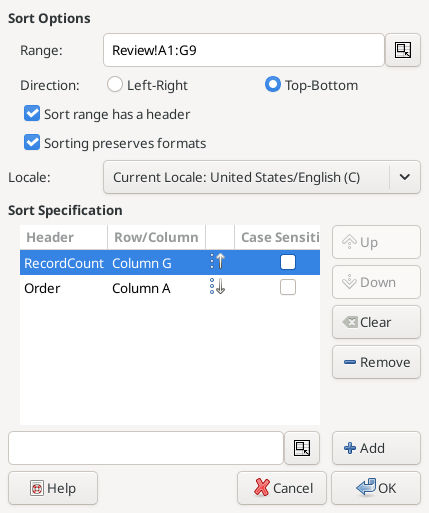
Review includes all seven columns and a header; the first key is descending and the second ascending.

The native check also revisited Source and confirmed its original order was unchanged.
Keep the documented filter workflow
The 1.12.62 source defines Data → Filter actions for Add Auto Filter, Clear Advanced Filter, and Advanced Filter. The actual Clear Advanced Filter menu label was also observed in 1.12.57, disabled before in-place filtering. The older manual calls it Show All; use the label in your installed version. The manual documents Alt+Down for opening an AutoFilter dropdown in its current cell; this article does not invent a full dropdown walkthrough from the unfinished section.
For a reproducible Advanced Filter exercise, use the original six-row table, not the extended audit:
- Copy its five headings to J1:N1. In K2, under Region, enter
East; in N2, under Status, enterOpen. Leave the other criterion cells blank. - Open Data → Filter → Advanced Filter. Set List range to A1:E7 and Criteria range to J1:N2.
- On Output, choose New sheet, as tested, and leave Autofit columns checked. This keeps the source sheet’s visibility and row order untouched. A separate empty output location is another documented choice, but was not tested here. This audit does not require Filter in-place.
- Leave Unique records only off. Run the filter. The native output was order 1001 and 1003, with Amount total 280. The generated sheet included metadata in rows 1:3, headings in row 4 and the two records in rows 5:6. Check
=COUNT(A5:A6)for 2 and=SUM(D5:D6)for 280, adapting ranges if your output starts elsewhere.
The same criterion row expresses both conditions together. Keep criteria outside the source.
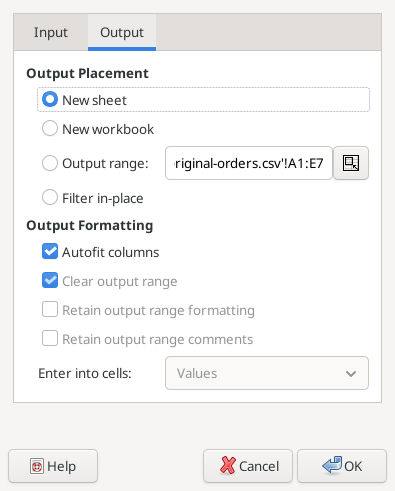
New sheet was selected; Unique records only remained unchecked on Input.
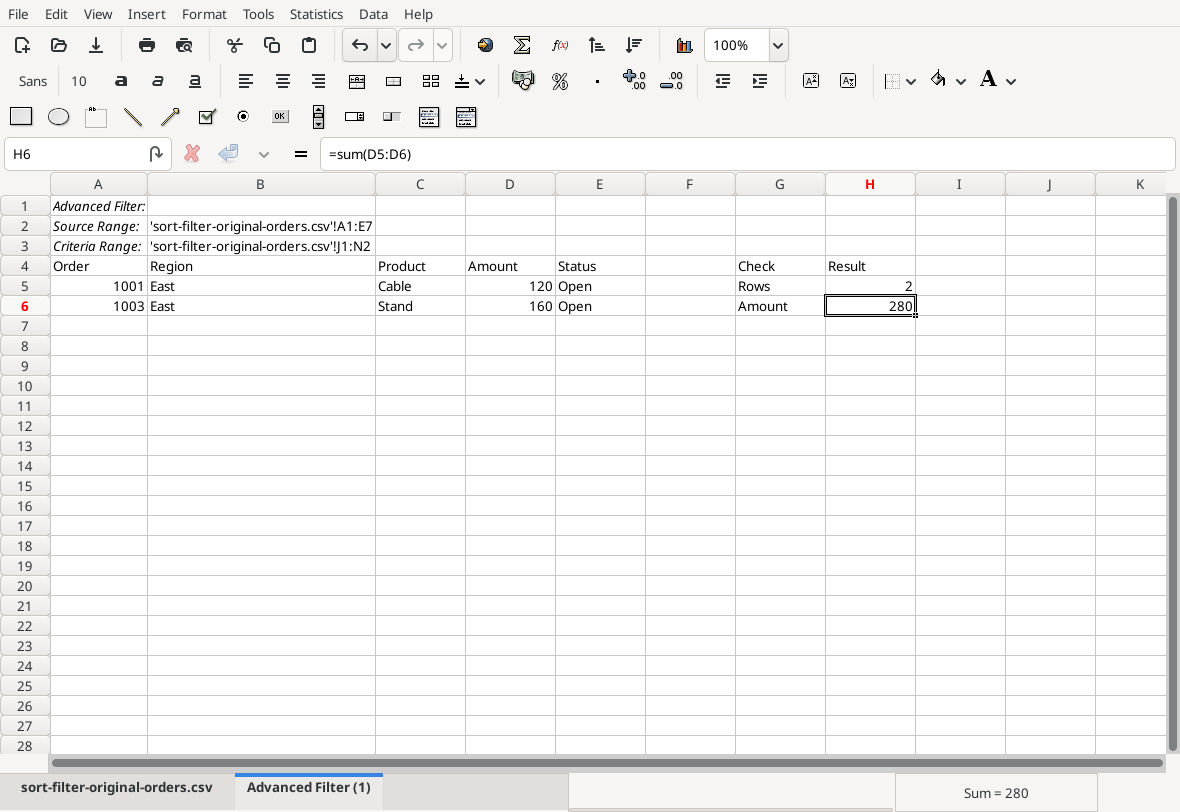
Actual output includes metadata above the headings. The original six rows and criteria remain unchanged in the source sheet.
Download the saved duplicate-audit workbook and separate Advanced Filter workbook. Saving was verified; reopening, changed-input propagation after sorting and rerunning the filter were not tested.
The older manual warns of lost rows for in-place filtering, but the 1.12.62 implementation inspected here hides nonmatching rows and shows matching rows; it does not delete those source records. Clear Advanced Filter restores rows hidden by an advanced filter. These are source-derived behaviors, not native application results. Keeping separate output remains useful because it leaves the source view unchanged. The documented Unique records only option creates deduplicated filter output; it should not replace the helper audit when you need to see every member of a repeated group.
Limits and recovery
COUNTIF/COUNTIFS comparisons are not a byte-for-byte, case-sensitive identity test. Wildcards in text, leading/trailing spaces, blanks, mixed text/numeric identifiers and rounded displays can change the intended meaning. This fixture avoids such ambiguities; define normalization rules before auditing real data. Extend every helper range when adding rows. If sorting or filtering looks wrong, return to the untouched Source copy and verify selection and criteria.
No deletion is required anywhere in this workflow. See COUNTIF, COUNTIFS and SUM.
Official references
- Filtering Data, for criteria and alternate output destinations; its older in-place warning is qualified above against the current source.
- Gnumeric Menus.
- Official 1.12.62 source:
src/dialogs/cell-sort.ui,advanced-filter.ui,src/wbc-gtk-actions.c,src/tools/filter.c, anddoc/C/func.defsestablish the sort controls, duplicate-sheet action, filter inputs, hide/show in-place implementation, clearing action and COUNTIFS syntax.