

LibreOffice Calc · Cell formatting and layout · Beginner
Embed, Link and Anchor Worksheet Images in LibreOffice Calc
Keep a worksheet photo with its record, choose embedded or linked storage, and check image proportions, sharing and printed output.
Documentation-qualified; image-size arithmetic checked, native positioning, links, save/reopen and printing not executed · Editorial standards
Embed an image when the workbook must travel alone. Link it only when you can also maintain access to its source file. Then choose an anchor separately: storage determines where the picture comes from; anchoring determines how it relates to the sheet.
This guide uses free desktop Calc, with English standard-menu instructions from Calc Guide 26.2 and Help labelled 26.8, checked on 21 October 2026. It does not cover browser editors. The size calculations below were checked independently of Calc; native image movement, link refresh, save/reopen and printing were not executed, and no application screenshot was captured for this guide. Treat the inspection steps as tests to run on your own build, not reported test results.
Prepare an identifiable practice image
Use a small local PNG or JPEG that you own, such as a photograph of an empty storage box. Avoid private information or a remote image URL. Copy it into a practice folder as box-photo.png or box-photo.jpg; use the extension that matches the actual file format. Do not rename a JPEG to PNG to convert it.
Create image-practice.ods in the same folder. On a sheet named Inventory, type Item in A1, Photo in B1 and BOX-01 in A2. Leave surrounding cells empty. Widen column B and increase row 2’s height enough to inspect a thumbnail. Keep the item code in a cell even when a picture is present: a photograph is not a substitute for a searchable record identifier.
Insert an embedded picture
Select B2, choose Insert → Image, and select your practice file. Leave Link unchecked and choose To cell in the insertion dialog’s anchor options, then open it. If your dialog differs, insert the image and set its anchor from the image’s context menu afterward.
Embedding stores the picture in the document. A linked image instead depends on a separate source file, so moving only the workbook can break that dependency. These are different choices from adding a clickable hyperlink. See Calc Guide 26.2, Chapter 5.
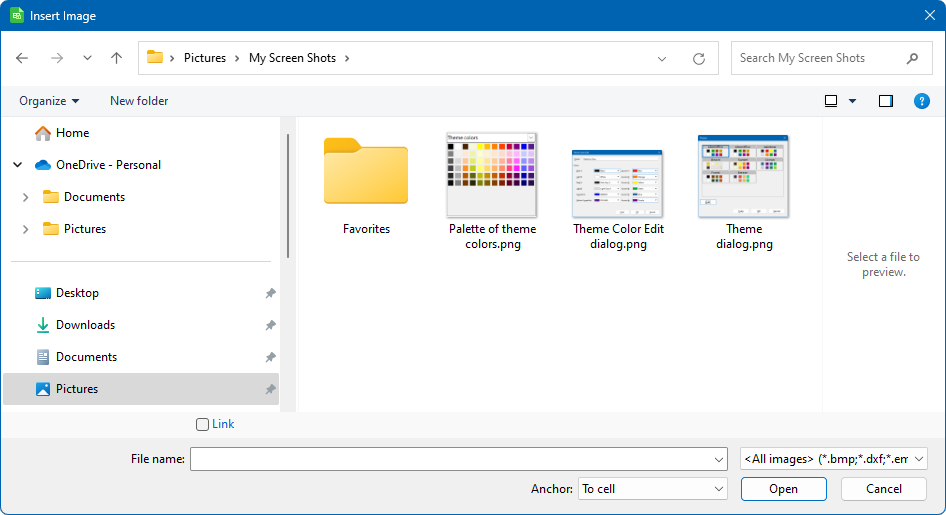
Publisher-provided documentation illustration, reproduced unchanged from Calc Guide 26.2, Chapter 5, Figure 1. © 2026 LibreOffice Documentation Team, CC BY 4.0. The guide is based on Calc 26.2; the image’s exact capture build and operating system are not identified by the publisher. This is not a screenshot captured or a native test performed for this tutorial.
Save the workbook. Do not judge portability solely from the still-open sheet: later, reopen a copy from a separate folder and inspect it.
Choose what should move and resize
Select the image and right-click Anchor. For this exercise, use To Cell and inspect the anchor marker at B2.
| Anchor | Useful intention | Check before relying on it |
|---|---|---|
| To Cell | A photo belongs beside a particular record | Insert a row above the record and inspect the new association |
| To Cell (resize with cell) | The thumbnail should change size with its cell | Change both column width and row height, watching for distortion |
| To Page | A fixed-position illustration should not follow inserted cells | Insert rows, then inspect its relationship to the table and print layout |
The Anchor help distinguishes cell anchoring from cell anchoring with resizing. With resizing enabled, later changes to the cell’s proportions can change the image’s proportions too. A page anchor is not a promise that a logo repeats on every printed page.
Try this in the saved practice copy:
- With the image anchored to B2, insert one whole row above row 2.
BOX-01should now be in A3. The documented cell-anchor behavior predicts an anchor at B3; inspect both the marker and the visible picture. - Undo that insertion. Confirm the code is back in A2 before the next test.
- Change the image anchor to To Cell (resize with cell). Widen column B without changing row 2’s height. Inspect the image’s shape, then undo the width change.
- Change to To Page, insert the row again, and compare the fixed picture position with the shifted record. Undo, then restore To Cell for this record-photo example.
These checks do not certify sorting, filtered rows, merged cells or other file formats. Test those separately on a disposable copy if your real workbook needs them.
Resize deliberately rather than stretching to fit
Right-click the selected image and open Position and Size. Use the width and height controls to inspect dimensions. Choose measurements that fit without covering the item code or headings.
For a hypothetical 4 cm × 3 cm image, proportional enlargement to 6 cm wide requires 4.5 cm height: the scale factor is 6 ÷ 4 = 1.5, and 3 × 1.5 = 4.5. Setting it to 6 cm × 3 cm instead changes the ratio from 4:3 to 2:1 and stretches its appearance. Your practice photo may have a different starting ratio; use its actual measurements rather than these sample dimensions.
Do not confuse image size on the sheet with print scaling. A proportional 80% print scale would make the hypothetical 6 cm × 4.5 cm image approximately 4.8 cm × 3.6 cm on paper. Printer output and clipping still need inspection.
Compare a linked copy safely
Save a second workbook as image-practice-linked.ods. Remove its practice picture, then reinsert the same local file with Link selected. Keep the embedded workbook unchanged for comparison.
Open Edit → Links to External Files; some builds label it External Links. Select the graphic and inspect its source path. Use Update to request the latest saved image, then inspect the result. Do not promise automatic graphic refresh: current Edit External Links help explicitly describes linked graphics as manually updated.
To make the linked copy self-contained, first ensure the displayed image is the correct, current one. In the links dialog select only that graphic, choose Break Link, and confirm your intended conversion. The last updated image is retained in the document; subsequent edits to the separate photo no longer supply changes through that link. Save under a new name and reopen it.
Use only your own local files for this test. Do not accept update prompts from an untrusted workbook: external links can contact remote locations. A missing or disabled links command may simply mean the document contains no external links; it does not indicate that ordinary clickable hyperlinks are broken.
Check sharing and printed output
Copy the embedded workbook alone into a separate test folder, close it, reopen that copy, and confirm the picture is still present. For a deliberately linked workbook, transfer the image too and verify that the recipient’s source path resolves; do not assume your original computer’s path will work elsewhere.
Open Format → Page Style → Sheet and check Objects/images under the print settings. This controls printable inserted graphics for sheets using that page style. Sheet print settings also separate image printing from chart and drawing-object settings.
Inspect print preview, including the right edge and any page break through the record. Check that the item code and photograph remain visibly associated and that no image covers another row’s data. If you change scale or paper orientation, preview again. Use the printing and PDF guide for print ranges and output setup.
If the result is wrong
- Picture disappears after sending: determine whether it was linked. Restore the correct local source, update and inspect it, then embed a verified copy if the workbook needs to travel alone.
- Picture stays behind when a row is inserted: inspect its anchor. For a record photo, use a cell anchor and repeat the row-insertion test.
- Picture becomes wide or tall: inspect the resize-with-cell setting and the actual image dimensions. Restore proportional dimensions and use ordinary cell anchoring if later cell resizing should not reshape it.
- Picture appears on screen but not in print: check Objects/images in the applied page style, then the print range, page boundaries and preview. Changing anchoring alone does not enable image printing.
Keep your original ODS and photo until the reopened copy and intended output both pass your checks. If exporting to XLSX, repeat the tests in the receiving application; this documentation-qualified ODS workflow does not establish cross-application image parity.