

LibreOffice Calc · Images and report objects · Beginner
Create and Check a QR Code in a LibreOffice Calc Report
Generate a Calc QR code from harmless practice text, distinguish its stored payload from a cell formula, and verify edits before printing or sharing.
Guide 26.2 and Help labelled 26.8 reviewed; original payload checks passed; native generation and scanning pending · Editorial standards
Calc can generate a code from text through Insert → OLE Object → QR and Barcode. For this exercise, use harmless plain text, not a login URL, payment request, password or personal record. A QR image is a way to carry data, not a security boundary or evidence that its contents are correct.
This guide follows Calc Guide 26.2, Chapter 5 and QR and Barcode Help labelled 26.8, checked 23 October 2026. It uses the English desktop standard-menu route on Windows/Linux. We checked the original payload strings independently; no native code generation, scanner result, screenshot or printed label has been tested for this article.
Prepare one unambiguous payload
In a new practice workbook, enter the following:
| Cell | Entry |
|---|---|
| A1 | Item ID |
| B1 | Revision |
| A2 | BOX-014 |
| B2 | 1 |
| D1 | Payload |
| D2 | ="ITEM="&A2&";REV="&B2 |
The expected D2 text is ITEM=BOX-014;REV=1, exactly 18 characters. The leading zero belongs to the text identifier; this is not the number fourteen. The separators are literal semicolons inside quoted text, not formula-argument separators.
Put the same human-readable payload beside the intended code location. This gives a reader a useful fallback when scanning is unavailable and gives you something precise to compare with a decoded result. Do not encode more information merely because a code has room for it.
Generate the practice QR code
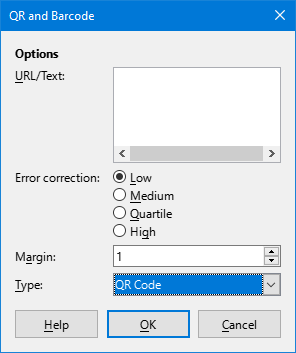
Publisher illustration reproduced unchanged from Calc Guide 26.2, Chapter 5, Figure 17. © 2026 LibreOffice Documentation Team, CC BY 4.0. It shows an empty dialog, not this exercise’s generated code or a scan result. The guide was published in February 2026 and based on LibreOffice 26.2; the image’s actual capture build and platform are unknown. This is not our native execution or a screenshot captured for this tutorial.
- Read D2’s displayed result, then open Insert → OLE Object → QR and Barcode.
- Enter the actual text ITEM=BOX-014;REV=1 in the dialog’s URL/Text field. Do not enter the worksheet formula or the address D2 and assume the dialog will evaluate or link to it.
- Use the QR-code option offered by the dialog. This tutorial does not certify every linear-barcode type or its character restrictions.
- Inspect the QR error-correction and surrounding-margin settings, record what you use, and confirm with OK. Leave a visible clear margin around the resulting object rather than cropping tightly to its marks.
- Position the object so it does not cover the visible payload or other report text. Keep it square rather than stretching it differently in each direction.
The shared Help describes four QR error-correction levels, from Low to High, and a margin control. A higher setting is not a guarantee that a small, blurred or obstructed print will scan. This exercise does not prescribe an untested minimum size, printer resolution or damage tolerance.
Treat the entered text as a separate value
The documented workflow takes text in the dialog and inserts a graphical object. The checked references do not document a live link from that object to D2. Treat the value you supplied as a separately maintained payload unless your exact build and workflow establish otherwise.
Change B2 to 2. D2 should now display ITEM=BOX-014;REV=2. That cell result alone is not evidence that the existing code changed.
Right-click the code and choose Edit Barcode, as described in the guide. Inspect its stored URL/Text. If it still contains revision 1, explicitly replace it with ITEM=BOX-014;REV=2, then confirm. Reopen Edit Barcode to verify the saved dialog text. Update the adjacent human-readable payload too if it is ordinary text rather than a formula-driven cell.
For a revert check, return B2 to 1 and deliberately restore the object’s text to revision 1. Both strings should again match the original 18-character payload. Do not call the workflow automatic merely because you updated the two places during the same session.
Verify decoding without following unknown destinations
If you already have a permitted scanner, inspect its decoded text for this plain-text exercise. The expected result is the exact payload, including capitalization, leading zero, hyphen and both separators. Compare it with the workbook and the object’s stored text.
A scanner displaying a plausible item number is not enough if the revision is wrong. If a scanner offers to open a website, stop and inspect why: this practice payload is not a web URL. Never activate an unfamiliar link simply to test a code. No scanner installation, account or paid service is required by this guide; if you cannot scan, record that decoding remains untested.
Check the actual output you will use
Save and reopen the ODS, inspect Edit Barcode and the adjacent text, then test the actual print or exported report at its intended size. Screen readability does not establish print readability, and a successful scan from one device does not certify all scanners.
If output is clipped, inspect page layout, object placement and the surrounding clear margin. If a code decodes old text, check the stored payload rather than regenerating the cell formula repeatedly. If changing rows or columns moves the object unexpectedly, inspect its anchor; the existing image and drawing-object workflow covers placement separately.
Keep the original editable workbook and a record of the payload/version used for an issued report. This tutorial deliberately generates no downloadable QR image: such an image would not demonstrate native Calc generation or scanner acceptance. The useful result is a reproducible payload and an explicit generation, update and verification procedure.