

LibreOffice Calc · Data entry and editing · Intermediate
Validate Row-Specific Quantities with a Custom Rule in LibreOffice Calc
Use a relative Custom validity formula to limit each quantity to its row's capacity, then audit existing values when the limits change.
Documentation-qualified recipe; logical cases independently checked, native validity workflow not executed · Editorial standards
Choose Data → Validity → Criteria → Custom when an entry must satisfy several conditions or refer to a different limit on each row. Keep the row references relative so the rule checks the destination row, rather than one fixed example cell.
This free desktop Calc recipe follows online LibreOffice Help labelled 26.8, checked on 21 October 2026, using English standard menus and semicolon formula separators. It is a source-qualified procedure: the sample’s logical and arithmetic cases were checked independently, but the native dialog, alerts, paste behavior and file persistence were not executed for this article. Menu and formula-locale details can differ on your installation.
Build a small quantity table
Use a disposable ODS workbook with one sheet named Practice. Enter this table in A1:C4:
| Row | A: Item | B: Quantity | C: Capacity |
|---|---|---|---|
| 2 | Crate A | 4 | 10 |
| 3 | Crate B | 2 | 3 |
| 4 | Closed bin | 0 | 0 |
All three initial quantities are valid. The intended rule permits a numeric whole quantity from zero through the capacity on the same row. Zero is deliberately allowed; a zero-capacity row therefore permits only zero.
For this bounded exercise, C2:C4 are trusted, nonnegative whole-number limits that you maintain separately. The rule below validates column B, not the capacity column itself. Do not treat it as a complete inventory, permissions or concurrency system.
In D1 enter Rule result. Put this formula in D2 and fill down to D4:
=IFERROR(AND(ISNUMBER(B2);B2=INT(B2);B2>=0;B2<=$C2);0)
The expected initial results are TRUE, TRUE, TRUE. A zero result also represents FALSE. This helper exposes the same predicate outside the validation dialog so you can inspect it after changing data.
ISNUMBER rejects text pretending to be a number; equality with INT checks for a whole value; the next comparison rejects negatives; the last comparison enforces the row’s capacity. IFERROR turns a calculation error into a false result rather than a valid entry. See logical functions and IFERROR, ISNUMBER and INT. This is not rounding an excessive quantity into compliance.
Apply the formula from the first input row
-
Select B2:B4 with B2 as the active cell.
-
Open Data → Validity → Criteria, choose Custom, and enter the predicate below in Formula:
IFERROR(AND(ISNUMBER(B2);B2=INT(B2);B2>=0;B2<=$C2);0) -
Clear Allow blank cells so empty inputs are not exempted from the subsequent invalid-data audit.
-
On Input Help, add
Enter a whole quantity from 0 through this row's capacity. -
On Error Alert, enable the error message for invalid entries, select Stop, and use a message such as
Use a whole number within the row limit.Confirm the dialog. -
Select another cell before returning to B2 for the entry tests.
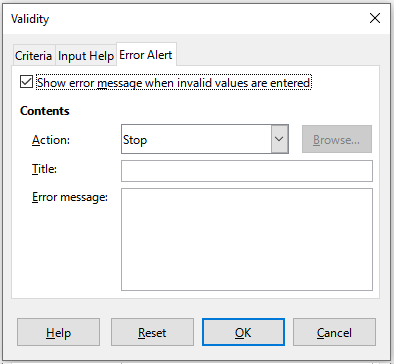
Publisher illustration from Calc Guide 26.2, Chapter 2, Figure 17: Validity dialog – Error Alert tab. © 2026 LibreOffice Documentation Team; CC BY 4.0. Original image unchanged. This publisher example locates the Stop controls; its title and message fields are blank. It does not show our Custom formula or its test results. Capture OS and exact build are not stated. The guide edition is not proof of current-version behavior, and this is not a screenshot or native test performed for this tutorial.
Criteria help documents Custom formulas, relative references and the treatment of blank cells in invalid-data marking. With B2 active, B2 means the quantity being checked; $C2 fixes the capacity column but allows the row to change. $C$2 would wrongly give every row Crate A’s limit of 10.
Error Alert help explains the Stop action. Warning or Information is not equivalent: those modes can let a user accept an invalid entry. This workflow does not use a macro action.
Test both boundaries and the row reference
Restore the initial table before each independent test, keeping the rule in place. Directly type the candidate into the specified quantity cell, rather than paste it.
| Test | Expected rule result | Expected direct-entry outcome with Stop |
|---|---|---|
| B2 = 10 | TRUE | Accept upper boundary |
| B2 = 11 | FALSE | Reject; keep prior value |
| B2 = -1 | FALSE | Reject |
| B2 = 4.5 | FALSE | Reject fractional quantity |
| B3 = 3 | TRUE | Accept Crate B’s boundary |
| B3 = 4 | FALSE | Reject even though 4 is below C2’s 10 |
| B4 = 0 | TRUE | Accept zero at zero capacity |
| B4 = 1 | FALSE | Reject |
After each test, inspect the actual retained cell value and D2:D4, not only the alert. A failed direct entry should not change the old value, so the helper may remain TRUE. To inspect a false predicate without forcing an invalid entry, use the changed-limit test below.
A text-form value is different from a number. For example, an apostrophe-prefixed '4 is a text-input test, not the numeric quantity 4. The intended ISNUMBER result is FALSE. If a pasted or imported value looks numeric, inspect its type rather than assume its display proves compliance.
Formula-engine check and logical-value limitation
A separate uncached-workbook probe used LibreOfficeDev 26.8.0.0.alpha0 on Linux, build 2c87e51eeaa2b413ff4ae097b2705eea1995d8e5. All thirteen documented predicate cases matched the independently expected outcomes. This was a headless formula-engine check, not a test of the Validity dialog, Stop alerts, pasting or the save/reopen workflow.
Three additional logical-value probes, including =TRUE(), returned TRUE from the predicate with capacity 10. They differed from a stricter model that excludes Boolean inputs. Therefore, this rule must not be used to guarantee rejection of logical TRUE/FALSE values. Inspect imported or formula-produced quantities separately when their type matters. A TRUE helper result is not proof that every input-type requirement has been enforced. These observations apply to the named development build; they do not certify other Calc releases or spreadsheet programs.
Audit when an existing limit changes
Restore B2:B4 to 4, 2, 0 and C2:C4 to 10, 3, 0. Now change C3 from 3 to 1, without touching B3. The stored quantity 2 now exceeds its limit, so D3 should become FALSE, while D2 and D4 remain TRUE.
Run Tools → Detective → Mark Invalid Data and inspect B3. This deliberately tests a changed dependency rather than a fresh quantity entry. Repair the conflict by restoring C3 to 3, or by intentionally changing B3 to a permitted value. Run the audit again after repair. Restore the complete initial fixture before continuing.
Validity of Cell Contents warns that existing values and values inserted through copying/pasting or drag-and-drop do not trigger the ordinary entry rule. Therefore validity is an entry aid, not an import barrier. After bulk edits, confirm that the destination still has the Custom rule, inspect the helper results, and mark invalid data. Some paste choices can replace cell attributes as well as values; do not assume the rule survived an unrestricted paste.
Troubleshoot and retain the limits
- B3 accepts 4: check the active-cell anchor and ensure the capacity reference is
$C2, not$C$2, when setting the range from B2. - Every result is false or an error: test the helper formula first, inspect separators and the capacity values, and check whether quantities are text. Do not replace the predicate with a constant TRUE to silence the problem.
- Blank inputs are not visibly blocked: distinguish deletion or existing blanks from new direct entries. Keep Allow blank cells off and use the invalid-data audit; do not promise a nonblank database constraint.
- A new row has no rule: the exercise covers only B2:B4. Extend both validation and helper formulas deliberately, then test the new row’s own limit.
- The workbook is converted to XLSX: reopen and test the actual destination file. The documented Custom-formula storage limit for Excel formats is 255 characters; this short predicate fits, but length alone does not certify interoperability.
Save as ODS, close and reopen, and repeat a boundary, row-relative and changed-limit check. These are acceptance instructions for your file, not native persistence evidence supplied here. If you only need a list of allowed labels, use the separate cross-sheet drop-down guide instead.