

CONCATENATE Function in ONLYOFFICE Spreadsheet Editor: Formula, Examples & Troubleshooting
Learn the CONCATENATE formula in ONLYOFFICE Spreadsheet Editor: join text fragments into one text string, with reproducible examples, expected answers and compatibility cautions.
Verification status: See the evidence and test scope described in this guide. How formula examples are checked
CONCATENATE joins its inputs in order. =CONCATENATE("Order","-","482") gives Order-482; =CONCATENATE("East"," ","Team") gives East Team. Spaces and punctuation appear only because the formulas supply them.
Joining text is useful for labels, but a joined label is not automatically a unique record key. Different input fields can produce the same combined text if their boundaries are lost.
Availability and version history
- Introduced: The original introduction version and date are not established by the checked references.
- Availability: Documented in current ONLYOFFICE Spreadsheet Editor help; no final supported-version endpoint is established.
- Scope: Desktop and Docs release separately. Older builds, mobile clients, localized parsing and imported-workbook parity remain separately unverified.
- Checked: October 14, 2026, against the official CONCATENATE reference, vendor illustration and pinned calculation source. Examples were independently calculated; these formulas were not executed in a native application.
Syntax and separators
CONCATENATE(text1, [text2], ...)
The official CONCATENATE reference lists up to 255 data values. text1 is the first required value; later values are optional. The function does not insert a delimiter between values automatically.
Use separate literal strings or individual cell references for the examples below. The pinned source handles cell ranges and explicit arrays through different paths; that does not justify treating every range as a portable row-by-row list. Array traversal, formatted-number conversion and blank-reference behavior are outside this guide’s practical contract.
Keep the two original literal examples
Create a worksheet named JoinedLabels. Reserve A1:D8 for inputs and G1:H5 for independent literal controls. Put the following formulas in H2:H3:
H2: =CONCATENATE("Order","-","482")
H3: =CONCATENATE("East"," ","Team")
Their expected results remain Order-482 and East Team. In G2:G3 add descriptive labels. H2:H3 do not depend on the input table below.
Put Prefix, Identifier, Joined label, Length in A1:D1, then enter these text-valued inputs:
| Row | A: Prefix | B: Identifier |
|---|---|---|
| 2 | Order | 482 |
| 3 | Invoice | 0042 |
| 4 | Return | 8 |
| 5 | Order | 482A |
Enter B2:B5 as ="482", ="0042", ="8" and ="482A" so their stored type is explicit. In C2 enter =CONCATENATE(A2,"-",B2); in D2 enter =LEN(C2). Fill C2:D2 through row 5.
| Row | Expected C | Expected D |
|---|---|---|
| 2 | Order-482 | 9 |
| 3 | Invoice-0042 | 12 |
| 4 | Return-8 | 8 |
| 5 | Order-482A | 10 |
The leading zeroes in row 3 come from text B3. CONCATENATE is not a recovery mechanism for zeroes already discarded from an imported numeric value.
Duplicate the whole sheet as ChangedPrefix and replace only A2 with Purchase. C2 becomes Purchase-482, length 12. H2 remains Order-482, because its prefix is a literal in the formula. Keep the two examples separate to make that dependency clear.
Reproduce the official full-name example
Create VendorName, enter John in A1 and Adams in B1. Put =CONCATENATE(A1," ",B1) in D1. The expected John Adams matches both the text and image in ONLYOFFICE’s reference.
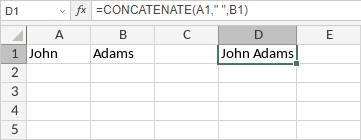
Put =CONCATENATE(A1,B1) in D3 and =LEN(D1) and =LEN(D3) in E1 and E3. The unseparated result is JohnAdams; the two lengths are 10 and 9. A name’s displayed spacing is data supplied by the formula, not a built-in rule.
A deliberate empty-field policy
Create OptionalSuffix with A1:E4. Use headers First fragment, Second fragment, Always-space label, Conditional label, Same text. Enter A2:A4 as East, West, North; enter B2 as Team, B3 as the formula ="", and B4 as Ops.
Enter C2:E2 and fill through row 4:
C2: =CONCATENATE(A2," ",B2)
D2: =IF(LEN(B2)=0,A2,CONCATENATE(A2," ",B2))
E2: =EXACT(C2,D2)
Rows 2 and 4 give East Team and North Ops in both result columns, with TRUE in E. Row 3’s C result is West , including one trailing space; D3 is West, and E3 is FALSE. This example deliberately uses an explicit empty string rather than assuming that every blank-looking imported cell has the same type.
Why a delimiter does not guarantee uniqueness
Create LabelKeys with A1:F5. Put these literal text pairs in A2:B5:
| Row | A | B |
|---|---|---|
| 2 | AB | C |
| 3 | A | BC |
| 4 | A-B | C |
| 5 | A | B-C |
Enter C2 =CONCATENATE(A2,B2) and D2 =CONCATENATE(A2,"-",B2), then fill both through row 5. Enter F2 =EXACT(C2,C3), F3 =EXACT(D2,D3) and F4 =EXACT(D4,D5).
C2 and C3 both equal ABC, so F2 is TRUE. D2 is AB-C and D3 is A-BC, so F3 is FALSE. The added delimiter separates those first two pairs.
However, D4 and D5 both equal A-B-C, making F4 TRUE. The delimiter already occurs inside the supplied fields. A reliable identifier scheme needs a defined encoding or separate fields; adding a hyphen alone does not prove uniqueness.
Troubleshooting and portability
If a label has an unexpected space, inspect both the source text and literal separators. If a numeric identifier loses leading zeroes, check how it was stored before concatenation. The examples intentionally avoid number/date formatting and range-traversal assumptions.
The help lists a 255-value limit, but it does not fully specify output-length limits, coercion errors, historical client behavior or imported-workbook parity. Use the appropriate local function names and separators, and validate unusual inputs in the destination application before replacing source records.