

REPT Function in ONLYOFFICE: Repeat Text and Build Labels
Repeat text in ONLYOFFICE with explicit counts, token-width checks, labels and source-scoped limits.
Verification status: See the evidence and test scope described in this guide. How formula examples are checked
=REPT("ab",3) produces the independently calculated text ababab. REPT builds one repeated string; it does not create three cells or fill three rows.
A repeat count and an output length are different quantities. Repeating a two-character token three times creates six characters, while repeating a three-character token three times creates nine.
Availability and version history
- Introduced: The original introduction version and date are not established by the checked references.
- Availability: Documented in current ONLYOFFICE Spreadsheet Editor help; no final supported-version endpoint is established.
- Scope: Desktop and Docs release separately. Older builds, mobile clients, localized parsing and imported-workbook parity remain separately unverified.
- Checked: October 14, 2026, against the official REPT reference, vendor illustration and pinned calculation source. Examples were independently calculated; these formulas were not executed in a native application.
Syntax and the count argument
REPT(text, number_time)
Both arguments are required. text is the content to repeat and number_time is the repeat count. The singular parameter spelling follows the ONLYOFFICE reference; it is a documentation placeholder, not a named argument to type into a formula.
The short help does not specify fractional conversion, zero-count results or a length ceiling. The pinned calculation source adds source-level evidence: after conversion, it rejects negative counts and checks both the count and text.length*count against 32767 before applying string repetition. That snapshot is not evidence of identical behavior in every installed release.
Rebuild the original worksheet
Create RepeatedText with space through column F and row 10. Put Token in A1 and Count in B1. Enter:
| Row | A: Token | B: Numeric count |
|---|---|---|
| 2 | ab | 3 |
| 3 | - | 5 |
| 4 | 0, stored as text | 4 |
| 5 | OK | 0 |
For A4, enter ="0" to establish a text-valued zero explicitly. Do not enter the explanatory words from the table. Keep result cells in general format.
Enter these eight original formula cases in D2:D9, and put labels in C2:C9 if useful:
D2: =REPT("ab",3)
D3: =REPT(A2,B2)
D4: =REPT(A4,B4)&"42"
D5: =REPT(A3,B3)
D6: =LEN(REPT(A2,B2))
D7: =REPT("=",4)
D8: =REPT(A2,1)
D9: =IF(B5=0,"(none)",REPT(A5,B5))
| Cell | Expected result | Type or interpretation |
|---|---|---|
| D2 | ababab | Text |
| D3 | ababab | Same inputs through references |
| D4 | 000042 | Text with four zero characters |
| D5 | —– | Five hyphens |
| D6 | 6 | Numeric length |
| D7 | ==== | Four equals signs |
| D8 | ab | One copy |
| D9 | (none) | Explicit zero-count policy |
D4 constructs a label; it does not recover leading zeroes previously lost from an imported numeric identifier. D9 deliberately supplies a readable no-repeat branch rather than relying on zero-count output.
Duplicate this sheet as ChangedCount and change only B2 from 3 to 4. D2 remains ababab because it uses a literal count; D3 becomes abababab; D6 becomes 8. D4, D5, D7, D8 and D9 remain unchanged. This separates a fixed example from a calculation driven by an input cell.
Match the vendor example
Create VendorRepeat, enter Text in A1, and put =REPT(A1,3) in A2. The expected TextTextText matches the vendor illustration. Put =LEN(A2) in B2: the expected numeric result is 12.
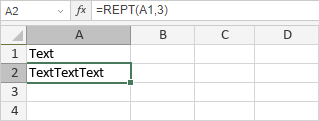
In A4 enter =REPT("Text ",3) and in B4 enter =LEN(A4). The result has three copies of the five-character token, including a space after each copy: Text Text Text , length 15. The final space is part of the result, even if it is difficult to see.
Counts, token widths and simple bars
Create a separate CharacterBars sheet with A1:F4. Put Count, One-character bar, Length, Two-character bar, Length, Copies from length in row 1. Enter 3, 5 and 2 in A2:A4. Enter B2:F2 and fill through row 4:
B2: =REPT("|",A2)
C2: =LEN(B2)
D2: =REPT("[]",A2)
E2: =LEN(D2)
F2: =E2/2
C2:C4 are 3, 5 and 2. E2:E4 are 6, 10 and 4; F2:F4 recover the original counts. The two-character token makes the text twice as long without doubling the repeat count.
Duplicate the sheet as SpacedBars. Change D2 to =REPT("[] ",A2) and fill D2 down through D4. E2:E4 now become 9, 15 and 6, while the old F formulas incorrectly report 4.5, 7.5 and 3 copies. Change F2 to =E2/3 and fill through F4 to restore 3, 5 and 2. A length-based calculation must use the actual token width.
These strings can help in small plain-text summaries. They are not substitutes for chart scales, actual cell borders or accessible labels.
Zero, fractional counts and limits
For ordinary ASCII strings, the pinned source’s repeat operation gives an empty string for count 0 and uses the integer part of a positive fractional count. Thus its source-based expectations for REPT("ab",0) and REPT("ab",2.8) are empty text and abab. These observations are narrower than a verified product-wide contract; the primary worksheet retains its explicit zero-count IF policy.
The length guard runs before repetition. Do not reduce the source rule to “only the final truncated output length matters,” especially for fractional counts near a boundary. Its numeric and text conversions, the exact error token, Unicode string length and huge-input behavior are not established here by application execution.
Use positive integer counts for the practical patterns, set an appropriate input bound for your own worksheet, and inspect the token for spaces. The examples use English names and commas; follow your editor’s formula-language and regional settings when entering them.
Related guides
- LEN counts characters in the result.
- IF supplies an explicit no-repeat label.
- CONCATENATE joins different fragments rather than repeating one token.