

PRODUCT Function in ONLYOFFICE Spreadsheet Editor: Syntax, Examples and Troubleshooting
Multiply numeric factors in ONLYOFFICE with PRODUCT: documented syntax, stepwise workbook inputs, compounding examples and troubleshooting.
Verification status: See the evidence and test scope described in this guide. How formula examples are checked
PRODUCT multiplies supplied numeric factors. For example, =PRODUCT(3,5,2) gives 30. It is useful for dimensions, scaling and successive growth factors; it does not add per-row products as SUMPRODUCT does.
Availability and version history
- Introduced: The original introduction version and date are not established by the checked sources.
- Availability: Documented in the current ONLYOFFICE Spreadsheet Editor help; no final supported-version endpoint is established.
- Scope: Docs and Desktop Editors release separately. The unversioned help does not establish identical support in older builds, mobile clients or every deployment.
- Checked: October 14, 2026, against the official PRODUCT reference and the cited implementation. Examples were independently calculated; these particular formulas have not been run in the native application.
Syntax and input scope
PRODUCT(number1, [number2], ...)
The official help shows one required argument and optional additional arguments, describing up to 255 numeric values. Ranges can represent several factors; that argument description is not a worksheet-cell limit. Brackets mark optional arguments and are not typed. Use the formula language and separators accepted by your installation.
The short help does not enumerate every mixed-type rule. The pinned source implementation skips empty and logical cells in its reference/range branch and attempts numeric conversion of other values. Its direct-argument path differs. This source revision is not proof of every deployed application’s behavior; the exercises below keep factors numeric and do not import another spreadsheet’s coercion rules.
Complete numeric worksheet
Create NumericFactors, leaving space through column H and row fourteen. Enter the following numeric inputs; labels may go in adjacent unused cells.
| Cell | Value | Meaning |
|---|---|---|
| A2 | 3 | First factor |
| A3 | 5 | Second factor |
| A4 | 2 | Third factor |
| A5 | 0 | Zero control |
| A6 | -4 | Negative factor |
| A7 | 1.5 | Decimal factor |
| A8 | 0.5 | Decimal factor |
| B2 | 1.05 | 5% increase factor |
| B3 | 0.98 | 2% decrease factor |
| B4 | 1.08 | 8% increase factor |
| B5 | 1.02 | 2% increase factor |
Put these formulas in H2:H12:
| Cell | Formula | Expected result |
|---|---|---|
| H2 | =PRODUCT(A2:A4) |
30 |
| H3 | =PRODUCT(A2,A3,A4) |
30 |
| H4 | =PRODUCT(A2:A3,10) |
150 |
| H5 | =PRODUCT(A2:A5) |
0 |
| H6 | =PRODUCT(A2:A3,A6) |
-60 |
| H7 | =PRODUCT(A7:A8) |
0.75 |
| H8 | =PRODUCT(A2:A4)*2 |
60 |
| H9 | =PRODUCT(1.05,1.05,1.05) |
1.157625 |
| H10 | =PRODUCT(B2:B5) |
1.1335464 |
| H11 | =1000*PRODUCT(B2:B5) |
1133.5464 |
| H12 | =PRODUCT(A2) |
3 |
A genuine zero factor makes the mathematical product zero. A single negative factor reverses its sign. Do not use a numeric zero as a placeholder for missing information unless that meaning is intended.
For an overlap check, enter =PRODUCT(A2:A3,A3:A4) in H13 for 150. The factor five appears twice. In H14 use =H13/H2 for 5. PRODUCT does not remove repeated references or repeated numeric values.
Advanced example: reconstruct compound growth period by period
Create GrowthSchedule with columns A:D and five rows. Put Period, Factor and Balance in A1:C1. Enter periods 1–4 in A2:A5 and 1.05,0.98,1.08,1.02 in B2:B5.
In C2 enter =1000*B2; in C3 enter =C2*B3 and fill through C5. The balances are:
| Period | Expected balance |
|---|---|
| 1 | 1050 |
| 2 | 1029 |
| 3 | 1111.32 |
| 4 | 1133.5464 |
In D2 enter =1000*PRODUCT(B2:B5) for 1133.5464, and in D3 enter =D2-C5 for 0. In D4 use =PRODUCT(B2:B5)-1 for 0.1335464, or 13.35464%. Keep full precision until applying an explicit final rounding policy.
Simply adding 5%,−2%,8%,2% gives 13%, which would produce 1130 from 1000. It misses the changing base; the difference is 3.5464. The factors must be 1 plus the fractional rate, not literal percentages such as 5 or 0.05 entered as if they were growth multipliers.
Reversing all four factors leaves their product unchanged, but intermediate balances differ. That identity does not account for withdrawals, deposits or fees between periods; those would require a cash-flow model.
Reconstruct the official grid
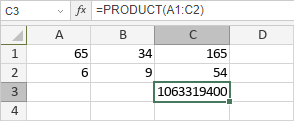
Create VendorProduct and enter the following numbers in A1:C2:
| Row | A | B | C |
|---|---|---|---|
| 1 | 65 | 34 | 165 |
| 2 | 6 | 9 | 54 |
In C3 enter =PRODUCT(A1:C2) for 1063319400, matching the official illustration. Multiplying the first row gives 364650; the second gives 2916; their product gives the same final value. C3 lies outside the input grid.
Limits and related functions
The source’s numeric conversion does not establish every imported text format or locale. Exact responses to empty-only inputs, malformed arguments, error cells and extreme magnitudes are outside these numeric examples. A direct * expression and PRODUCT can be compared safely here because the inputs are explicit numbers; matching arithmetic on these values is not a universal mixed-type equivalence.
SUM adds values, SUMPRODUCT adds corresponding products, and POWER raises a value to a supplied exponent. Choose the operation from the data model rather than the similarity of function names.