

SUMPRODUCT Function in ONLYOFFICE Spreadsheet Editor: Formula, Examples & Troubleshooting
Learn the SUMPRODUCT formula in ONLYOFFICE Spreadsheet Editor: multiply aligned values row by row and sum the results, with reproducible examples, expected answers and compatibility cautions.
Verification status: See the evidence and test scope described in this guide. How formula examples are checked
SUMPRODUCT multiplies corresponding entries and adds the products. In the eight-record example below, the Amount×Units arithmetic totals 6035. Whether that quantity has a useful business meaning depends on what Amount represents: if it is already a row total, multiplying it by Units again is not revenue.
Availability and version history
- Introduced: The original introduction version and date are not established by the checked sources.
- Availability: Documented in the current ONLYOFFICE Spreadsheet Editor help; no final supported-version endpoint is established.
- Scope: Docs and Desktop Editors release separately. The unversioned help does not establish identical support in older builds, mobile clients or every deployment.
- Checked: October 14, 2026, against the official SUMPRODUCT reference and the cited implementation. Examples were independently calculated; these particular formulas have not been run in the native application.
Syntax, shape and input types
SUMPRODUCT(array1, [array2], [array3], ...)
The official reference describes up to 255 cell ranges or arrays, with one leading argument and optional further arguments. For the paired and multi-array examples, select equally sized ranges with corresponding records in the same positions. Matching dimensions do not prove that the records belong together.
The help says nonnumeric values are treated as zero. The pinned source distinguishes ordinary nonnumeric strings from numeric-convertible strings and treats logical entries as zero in its multiplication loop. This source revision is not a native test or a universal cross-client rule. The numeric exercises avoid depending on text conversion, and the text example below is explicitly source-scoped.
The source also checks dimensions, but these guides do not predict every unequal-shape result or error code. Keep ranges aligned rather than relying on implicit padding or broadcast behavior. Use the separators accepted by your locale; brackets are documentation notation.
Preserve the original eight-record example
Create AmountUnits, with source data in A1:F9 and free output columns H:I. Enter the following records, keeping D and E numeric:
| Row | A: Item | B: Team | C: Status | D: Amount | E: Units | F: Agent |
|---|---|---|---|---|---|---|
| 2 | Pen | East | Paid | 120 | 12 | Ana |
| 3 | Pad | West | Pending | 75 | 5 | Bo |
| 4 | Box | East | Paid | 210 | 7 | Ana |
| 5 | Tape | North | Paid | 90 | 0 | Cy |
| 6 | Folder | West | Paid | 150 | 3 | Bo |
| 7 | Pen | East | Pending | 60 | 8 | Dee |
| 8 | Pad | West | Paid | 125 | 12 | Ana |
| 9 | Box | North | Pending | 80 | 4 | Cy |
In H2 enter =SUMPRODUCT(D2:D9,E2:E9) for 6035. In H3 use =SUMPRODUCT(D2:D4,E2:E4) for 3285.
For a visible reconciliation, enter =D2*E2 in I2 and fill through I9. The products are 1440,375,1470,0,450,480,1500,320. In H4 enter =SUM(I2:I9) for 6035, then =H2-H4 in H5 for 0. The zero-unit row contributes zero without deleting its position in either range.
Advanced example: a weighted mean with explicit units
Create WeightedScores. Put scores 80,90,70 in A2:A4 and weights 2,3,5 in B2:B4. In C2 enter =A2*B2 and fill to C4, producing 160,270,350.
| Cell | Formula | Expected result |
|---|---|---|
| E2 | =SUMPRODUCT(A2:A4,B2:B4) |
780 |
| E3 | =SUM(B2:B4) |
10 |
| E4 | =E2/E3 |
78 |
| E5 | =AVERAGE(A2:A4) |
80 |
The weighted numerator has score×weight units; dividing by the total weight restores score units. The ordinary average gives each row equal influence instead. This example uses positive weights and a nonzero denominator; negative weights or a zero total need a separate model.
Copy the sheet to EqualWeights and change B2:B4 to 1,1,1. E2 becomes 240, E3 becomes 3, and E4 becomes 80, matching E5. Changing the weights does not overwrite the original weighted example.
Reconstruct the four-array vendor example
The official illustration supplies four horizontal ranges, not just two columns. On VendorProducts, enter this grid in A1:D4:
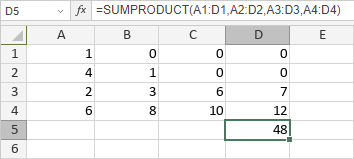
| Row | A | B | C | D |
|---|---|---|---|---|
| 1 | 1 | 0 | 0 | 0 |
| 2 | 4 | 1 | 0 | 0 |
| 3 | 2 | 3 | 6 | 7 |
| 4 | 6 | 8 | 10 | 12 |
In D5 enter =SUMPRODUCT(A1:D1,A2:D2,A3:D3,A4:D4) for 48. The four corresponding column products are 48,0,0,0. Every column multiplies one entry from each of the four arguments before those column products are summed.
Source-scoped ordinary-text control
Create TextPairing. Enter numeric 2 and 3 in A2:A3, the ordinary text pending in A4, and numeric 10,20,30 in B2:B4. In D2, =SUMPRODUCT(A2:A4,B2:B4) has the pinned source-model result 80: 2×10+3×20+0×30.
On a copy named NumericPairing, replace A4 with numeric 5. The expected result becomes 230. This is a different input, not a formatting adjustment. Neither of these two worksheets was executed in the native application, and the source model does not establish all numeric-text grammars or array-entry methods.
Troubleshooting and related functions
- Plausible but wrong total: Check the meaning of each column and the record pairing, not only the dimensions.
- Changed result after sorting: Sort the complete source records together. Sorting one vector alone changes the pairings.
- Unexpected type behavior: Inspect stored types and the relevant client build; do not transfer PRODUCT’s conversion rules automatically.
- Errors or large magnitudes: This guide does not establish all error propagation or numerical precision limits.
SUM adds helper products. PRODUCT instead multiplies all selected factors into one product. AVERAGE is the equal-weight comparison, while SUMIFS is designed for multiple criteria rather than an arbitrary weighted total.