

ONLYOFFICE MODE.MULT: All Tied Modes and Vertical Array Examples
Return every tied numeric mode in ONLYOFFICE, enter a vertical array, inspect result ordering and extract known positions with INDEX.
Verification status: Nine scalar INDEX extractions, two ordinary imported anchors and two three-cell vertical array entries checked in ONLYOFFICE Desktop Editors Community 10.0.0.169 Linux x64; automatic spill and other clients unverified. How formula examples are checked
MODE.MULT returns all equally most frequent numbers. In 7, 3, 7, 3, 9, 0, 0, 5, the numbers 7, 3 and 0 each appear twice. A single-value mode can hide that tie; MODE.MULT makes the three candidates visible.
The examples below distinguish an explicitly entered vertical array from a formula imported into one ordinary cell. Both routes were checked on ONLYOFFICE Desktop Community 10.0.0.169 for Linux, with the array results saved separately.
Availability and version history
- Introduced: MODE.MULT’s original introduction release is unknown; the checked Desktop changelog does not establish it.
- Availability: Documented in current Spreadsheet Editor help and tested in Desktop Community 10.0.0.169 on Linux. No final supported-version endpoint is established.
- Scope: Desktop, Docs and mobile release separately. Explicit vertical array entry in this build does not establish automatic spill or other-client behavior.
- Checked: October 14, 2026, against the official entry, array-entry instructions, pinned source and recalculated native workbooks. Numeric tie and ordering cases were tested; supporting frequency calculations were independently checked.
Syntax and array entry
MODE.MULT(number1, [number2], ...)
The function reference describes up to 255 numeric arguments and says the result is an array. Brackets indicate optional arguments; do not type them. A numeric range can supply the observations.
Follow ONLYOFFICE’s array-formula instructions: select the intended result cells, enter the formula, and confirm with Ctrl+Shift+Enter. Do not type surrounding braces yourself. When editing an existing array formula, confirm the change as an array again.
For the two three-mode examples below, the tested output ranges were three cells tall and one cell wide. In a separately saved ordinary-cell import, only the first result cell was populated. That observation does not establish every possible entry method or a general dynamic-spill contract.
Show all three tied modes
Create TiedModes, reserving A1:F12. Put Observation in A1 and enter 7,3,7,3,9,0,0,5 in A2:A9. Put Modes in C1, Frequency in D1 and Share in E1.
Select C2:C4, type =MODE.MULT(A2:A9), and press Ctrl+Shift+Enter. The native test of this input sequence produced the vertical result 7,3,0.
Enter D2 =COUNTIF($A$2:$A$9,C2) and fill through D4. Enter E2 =D2/COUNT($A$2:$A$9) and fill through E4. Format E2:E4 as percentages.
| Cell C | Mode | D: frequency | E: share |
|---|---|---|---|
| C2 | 7 | 2 | 25% |
| C3 | 3 | 2 | 25% |
| C4 | 0 | 2 | 25% |
COUNTIF supplies the frequency; MODE.MULT itself returns values, not counts. COUNT gives eight numeric observations in this fixture. The three modal groups account for six observations, or 75% of the data, while no individual group is a majority.
Keep the input column and output rectangle separate. Do not place a summary inside C2:C4, where the array owns the cells.
Reordering changes the observed output order
Copy TiedModes as ReorderedModes. Replace only A2:A9 with 0,3,7,0,3,7,9,5. Reconfirm the existing C2:C4 array formula using the documented edit procedure. The tested output for this reordered sequence was 0,3,7. Frequencies stay 2,2,2, and shares stay 25%,25%,25%.
The observations have the same values and counts, so the set of modes has not changed. Their displayed order has. The pinned implementation counts values in insertion order, consistent with these native results. The short help entry does not promise a sorted result.
Do not attach permanent labels such as “smallest mode” to the first output cell, or assume that the first mode is statistically more important than the others. If downstream reporting needs a stable order, specify and check that ordering step separately.
Extract known positions with INDEX
For this known three-mode fixture, you can inspect individual positions without placing a multi-cell result beside the data. On a separate ModePositions sheet, copy the original eight observations into A2:A9, put positions 1,2,3 in C2:C4, and enter:
D2: =INDEX(MODE.MULT($A$2:$A$9),C2,1)
Fill D2 through D4. Expected values are 7,3,0. The native workbook confirmed the corresponding three scalar INDEX formulas. The explicit final 1 selects the only result column; see INDEX for its row/column form.
This is a known-size example. It does not discover how many modes an arbitrary dataset contains, and it does not establish the behavior of an out-of-range position.
On SignedPositions, put -2,4,-2,4,0,8,9,10 in A2:A9. Put positions 1 and 2 in C2:C3 and use the same INDEX pattern in D2:D3. The native results were -2,4: both numbers occur twice. On UniquePosition, use 4,2,4,6,4,8,2,0, put position 1 in C2 and enter the same D2 formula. The tested result was 4, which occurs three times. These examples show that the returned array can contain one, two or three modes; the number of inputs does not determine its output length.
Compare the single-result functions
On TiedModes, enter F7 =MODE(A2:A9) and F8 =MODE.SNGL(A2:A9). Both yielded 0 for this sequence in the native test. They select one tied value rather than returning all three.
MODE and MODE.SNGL share a calculation in the checked source. MODE.MULT has its own multi-result calculation, so it remains a distinct function rather than another spelling of the single-value contract.
Reproduce the vendor’s one-mode example
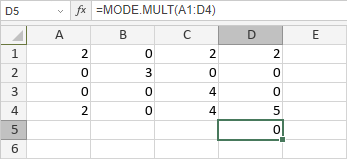
On VendorModes, enter this complete grid in A1:D4, with no header cells inside it:
| Row | A | B | C | D |
|---|---|---|---|---|
| 1 | 2 | 0 | 2 | 2 |
| 2 | 0 | 3 | 0 | 0 |
| 3 | 0 | 0 | 4 | 0 |
| 4 | 2 | 0 | 4 | 5 |
The official image shows =MODE.MULT(A1:D4) returning 0 in D5. Zero occurs eight times, more often than any other value. Follow the documented array-entry method when reproducing it. The screenshot’s single displayed value alone does not reveal how the formula was entered.
Errors and practical boundaries
The help says that no repeated value produces #VALUE!, while the pinned implementation selects its not_available error branch. That contradiction remains unresolved for native no-repeat input; none of the tested sequences has that condition.
Do not assume that selecting too many output cells will yield empty padding, or that selecting too few will safely show every mode. Oversized, undersized and horizontal array ranges were not tested here. The examples deliberately use known result sizes and numeric inputs. Text, Boolean, blank and error-containing data, cross-platform entry shortcuts and import/export preservation require separate checks.