

ONLYOFFICE Spreadsheet Editor · Formatting · Beginner
Reset Cell Formatting Without Erasing Formulas in ONLYOFFICE
Repair inconsistent cell formatting, preserve formula text, and copy a known-good style to separate ranges with explicit before-and-after checks.
Documentation-qualified; native execution and save/reopen checks pending · Editorial standards
Quick answer
Use Home → Clear → Format, not All, when the values and formulas must survive. For matching another cell’s appearance, use Home → Copy style. Check the formula text and calculated result afterward rather than judging success from color alone. These controls are documented in ONLYOFFICE’s formatting reference.
Scope and safe practice
This is a documentation-qualified exercise for the free Desktop Editors, using an English interface and a local XLSX workbook. Official help is rolling documentation, checked on 21 October 2026, not a frozen manual for a native-tested build. No ONLYOFFICE execution, application screenshot, or save/reopen result is claimed here. Cloud accounts, paid services and AI integrations are not needed for this practice.
Use a new practice workbook or a copy of the download below, never your only production copy. The deliberately inconsistent formatting lets you test the commands without risking real records.
Optional practice download
Download the formatting practice workbook (XLSX). Its single Practice sheet contains the exact A1:D4 and F1:F2 example below, with the deliberately different D2/D3 formats already applied. When using the download, skip the data-entry and deliberate-formatting setup. Check the four formulas and total, then start at Remove appearance, not calculations. Work on a copy.
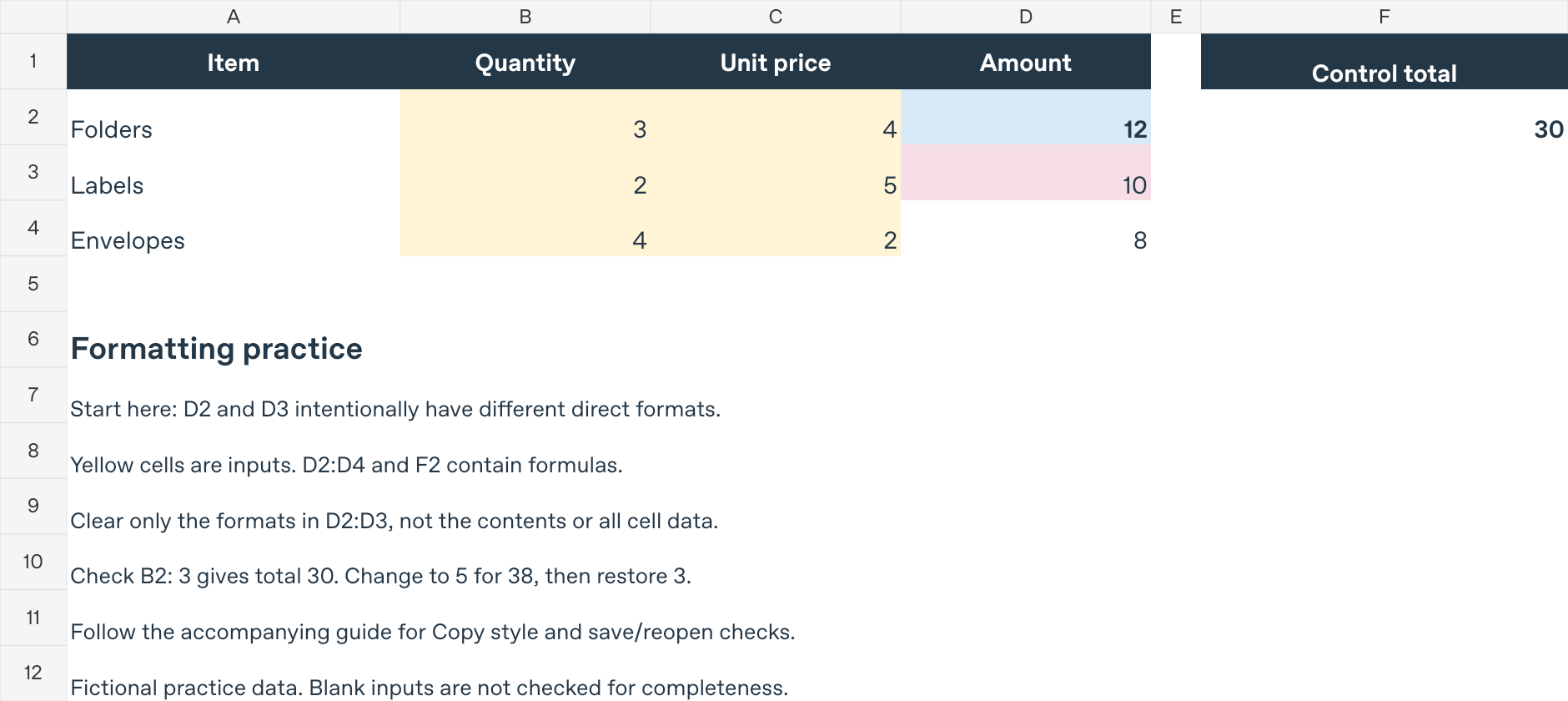
This is a workbook preview generated by an artifact renderer, not an ONLYOFFICE screenshot. The formulas were checked in that engine and in free LibreOfficeDev 26.8.0.0.alpha0 on Linux, not in ONLYOFFICE. Those checks included the 30 → 38 → 30 quantity test and blank, zero and decimal inputs. Blank and zero quantities produced zero Amount values in those checks; this practice workbook does not flag missing inputs. ONLYOFFICE opening, Clear Format, Copy style and save/reopen behavior remain reader checks, not reported native test results.
Build a small formula check
Enter this table in A1:D4. The entries beginning with = are formulas, not labels.
| Item | Quantity | Unit price | Amount |
|---|---|---|---|
| Folders | 3 | 4 | =B2*C2 |
| Labels | 2 | 5 | =B3*C3 |
| Envelopes | 4 | 2 | =B4*C4 |
In F1 enter Control total and in F2 enter =SUM(D2:D4). Expected arithmetic is 12, 10 and 8 in D2:D4, with 30 in F2. These numbers have been independently calculated, not observed in ONLYOFFICE.
Write down the formula text in D2, D3, D4 and F2 before experimenting. Give D2 a bold font and colored fill using Home’s controls. Give D3 a different fill. Leave D4 plain. Save this deliberately inconsistent practice file.
Remove appearance, not calculations
Select only D2:D3 and choose Home → Clear → Format. The official reference distinguishes Format, which retains text and functions, from All, which removes content as well. Do not substitute a keyboard deletion or a similarly named Clear option.
After the command, inspect the selected cells and record:
- D2 still contains
=B2*C2and calculates to 12. - D3 still contains
=B3*C3and calculates to 10. - D4 still contains
=B4*C4and calculates to 8. - F2 still contains
=SUM(D2:D4)and calculates to 30.
The intentionally added bold/fill should no longer be the selected cells’ direct formatting. If visual differences remain, investigate their source before clearing a larger range. Conditional rules and structured-table styling are separate mechanisms; this exercise does not certify how every such layer behaves under Clear Format.
If a formula vanished, stop and restore from your saved practice copy. Replacing the visible result with a typed number is not a repair: typing 12 in D2 loses the relationship to quantity and price even though the total initially looks right.
Apply one reference style to separate cells
Make D4 the reference by giving it the plain font and restrained fill you want for all three Amount cells. Select D4, then double-click Home → Copy style. Click D2 and then D3 as separate targets. Press Esc to leave the repeated-application mode. For a single adjacent destination range, the documented alternative is one click on Copy style followed by selecting that destination.
Check D2 and D3 against D4 visually, then repeat all four formula-text checks. Treat style copying as a formatting operation, not a reason to expect the value 8 from D4 in the other cells. If D2 or D3 now contains 8, check whether you used ordinary copy/paste instead of Copy style; return to the saved copy before repeating.
Prove that the formulas remain live
Change B2 from 3 to 5. Expected Amount values are now 20, 10 and 8, and F2 should be 38. D2’s formula must still be =B2*C2. This distinguishes a functioning calculation from a typed replacement that happened to match the earlier answer.
Save, close and reopen the practice workbook yourself. Recheck the formula text, the new results and the matching appearance. This is a reader verification step, not a reported test result. Keep XLSX for the exercise; a CSV export is not a substitute for a formatted workbook checkpoint.
When the repair still looks wrong
- Only some cells changed: compare your selected addresses with D2:D3. Do not expand to the entire sheet just to make the mismatch disappear.
- Other cells keep taking the style: exit Copy style with Esc before continuing normal cell selection.
- The total is correct but an Amount formula is gone: a control total alone cannot prove every formula survived. Inspect each formula, then perform the quantity-change test.
- Dates or identifiers look different in a real file: this numerical practice does not cover every number-format consequence. Use a copy, inspect underlying values, and consult the number-formatting guide before repairing that field.
For the initial report design, see readable report formatting. For rule-driven colors, use conditional rules and scales; do not assume a direct-format reset is a complete rule audit.