

CHOICE in FreeOffice PlanMaker: Syntax and Worked Examples
Select one of three outcomes by whether a number is positive, zero or negative, and preserve editable formulas in native files.
Verification status: See the evidence and test scope described in this guide. How formula examples are checked
Quick answer
=CHOICE(-42,"Positive","Zero","Negative") is expected to return Negative. CHOICE branches on the sign of its first argument: positive, exactly zero, or negative.
CHOICE is distinct from CHOOSE. CHOOSE selects by a position in a list; CHOICE uses three sign conditions. A large positive value and a small positive value select the same positive branch.
Syntax and branch order
=CHOICE(Number, IfGreater, [IfZero], [IfLess])
The number and positive outcome are required. The zero and negative outcomes are optional according to the official help. For predictable worksheets, supply all four arguments explicitly: the reference does not specify what an omitted selected branch returns.
The branch order is positive, zero, negative. Text outcomes need quotation marks; cell references and numeric outcomes do not. A returned text label is a value, not formatting applied to the tested cell.
Step-by-step: label signed changes
Put 42 in A2, 0 in A3 and −42 in A4. In B2 enter:
=CHOICE(A2,"Positive","Zero","Negative")
Fill the formula down through B4. The expected labels are Positive, Zero and Negative respectively. The direct formulas provide useful controls:
| Formula | Expected result |
|---|---|
=CHOICE(42,"Positive","Zero","Negative") |
Positive |
=CHOICE(0,"Positive","Zero","Negative") |
Zero |
=CHOICE(-42,"Positive","Zero","Negative") |
Negative |
=CHOICE(0.25,"Positive","Zero","Negative") |
Positive |
=CHOICE(-0.25,"Positive","Zero","Negative") |
Negative |
There is no requirement that the tested number be an integer. Fractions are classified by sign in the same way.
Practical case: compare actual and target
For a fictional production check, put a target of 100 in C2 and actual production of 104 in D2. The difference is 4. A suitable formula is =CHOICE(D2-C2,"Above target","On target","Below target"), expected to select Above target. If actual production becomes 100, the zero branch applies; if it becomes 96, the negative branch applies.
Decide the meaning of positive and negative before choosing labels. A positive production difference may be desirable, while a positive spending difference could mean over budget. CHOICE classifies the sign; it does not decide whether the result is good or bad.
Exact zero is also different from a displayed zero. A very small calculated residual can display as 0.00 while remaining positive or negative. If your model needs a tolerance, implement and document that tolerance separately instead of assuming that number formatting changes the tested value.
Optional branches and error safeguards
Supply explicit zero and negative outcomes when either is possible. An omitted argument is not documented as equivalent to an empty string or numeric zero. Do not build a downstream numeric calculation on an assumed omitted-branch default.
The official page does not state a complete conversion/error table or promise that unused branches are evaluated lazily. Avoid relying on numeric text conversion or placing a deliberate division error in an unused branch without a separate test. Validate the tested number where data entry can contain text or errors.
Important Excel-file warning
SoftMaker explicitly says CHOICE is absent from Microsoft Excel and that saving in an Excel format replaces calculations using it with their current fixed result. After that conversion, changing the input will not update a flattened result as an editable CHOICE formula.
Keep the editable master in PlanMaker’s native PMDX format. If you need an Excel-format copy, check whether a portable conditional expression can represent the intended logic, and inspect the exported file rather than assuming that a correct-looking label proves formula preservation. CHOICE and CHOOSE are not interchangeable names or aliases.
Native branch results and omitted outcomes
The five explicit-branch cases returned Positive, Zero, Negative, Positive and Negative in FreeOffice PlanMaker 2024 revision F1238.1005. Two additional observations, =CHOICE(0,"Positive") and =CHOICE(-1,"Positive"), both returned Boolean FALSE. The saved native cell type confirms a Boolean, not numeric zero. These omitted-branch results are observations for this build; the help does not establish a universal default. All seven formulas remained editable after native PMDX save and reopen.
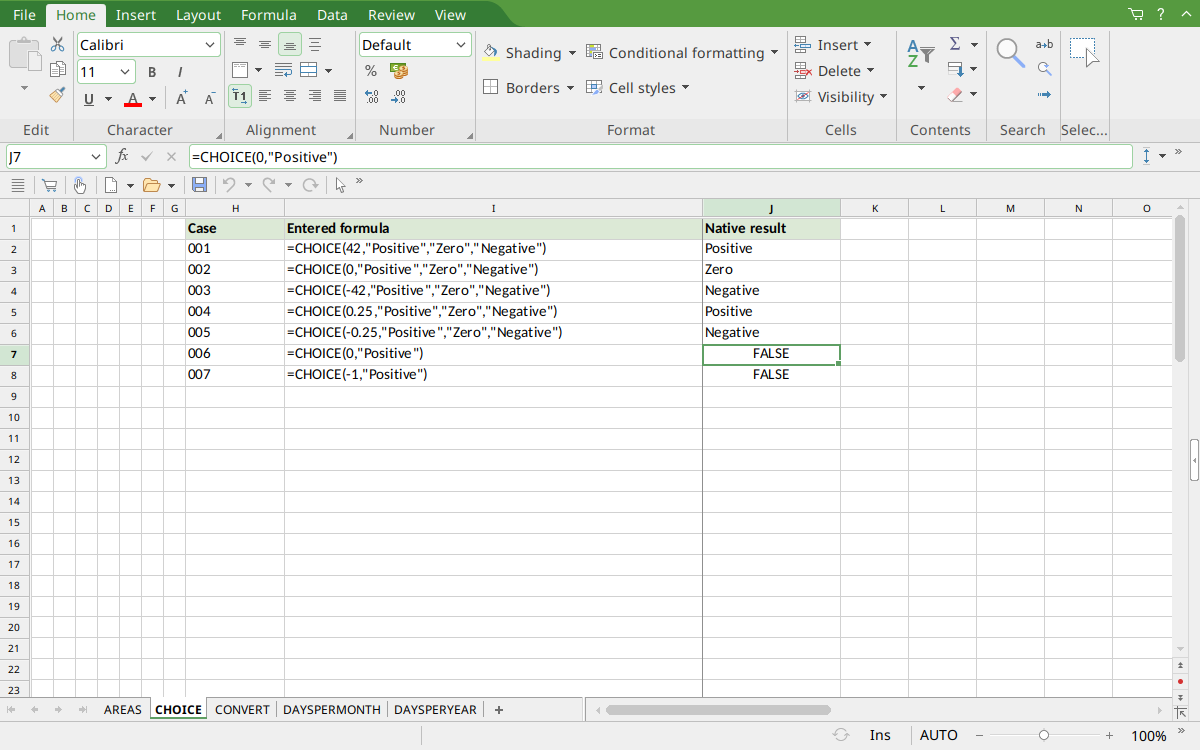
Selected J7 shows CHOICE with an omitted zero outcome and displays FALSE. J8 shows the omitted negative outcome, also FALSE; J2:J6 show the explicit sign branches.
Version and verification scope
The official FreeOffice PlanMaker 2024 reference was checked October 18, 2026. The installed application is FreeOffice PlanMaker 2024 revision F1238.1005. The original introduction version is not established by this evidence; the current reference does not identify the function as deprecated or retired. No availability claim for a different edition or a 2026 release is implied.
The native section identifies the exact tested subset and results from revision F1238.1005. Other examples are documentation-derived or independently calculated as indicated. Screenshots were captured after saving and reopening the native workbook. Excel-export behavior is a vendor warning, not an export test performed here. English formulas in this guide use commas; use the separators required by your formula settings.