

PlanMaker DVAR Function: Sample variance of selected records
Use DVAR in FreeOffice PlanMaker 2024 with exact datasets, independent calculations, statistical interpretation and compatibility limits.
Verification status: See the evidence and test scope described in this guide. How formula examples are checked
Quick answer: =DVAR(A11:D20,"Amount",A1:A2) returns 100 for the East records in the example below. It uses the sample variance denominator, n − 1, after selecting the records and identifying their numeric amounts.
Syntax and the denominator choice
=DVAR(DatabaseArea, Column, SearchCriteriaArea)
The database range includes its column headers. Column identifies the field to evaluate by a quoted header such as "Amount" or a one-based position within the database. The criteria range includes its own headers and condition rows. All three positions are part of the documented syntax; there is no optional weights or degrees-of-freedom argument.
DVAR treats the selected observations as a sample used to estimate population variance. Dividing by n−1 is the usual sample-variance correction; interpreting it as an unbiased estimate requires the corresponding sampling assumptions, not merely a spreadsheet formula.
The other function, DVARP, uses the different denominator. Do not choose between them by which result is smaller. Both return squared units: if Amount is measured in units, variance is measured in units squared.
Enter a headed database
Use a new worksheet. Enter the following cells exactly, including headers on row 11. pending is text, D18 is genuinely empty, and D20 is the Boolean TRUE.
| Row | A: ID | B: Region | C: Item | D: Amount |
|---|---|---|---|---|
| 11 | ID | Region | Item | Amount |
| 12 | 1 | East | Pen | 10 |
| 13 | 2 | East | Pen | 20 |
| 14 | 3 | East | Book | 30 |
| 15 | 4 | West | Pen | -5 |
| 16 | 5 | West | Book | 0 |
| 17 | 6 | East | Pen | pending |
| 18 | 7 | East | Book | (leave empty) |
| 19 | 8 | West | Pen | 40 |
| 20 | 9 | East | Pen | TRUE |
Put Region in A1 and East in A2, then enter =DVAR(A11:D20,"Amount",A1:A2) in J2. The criteria are above the database and do not overlap it, following the official database-function instructions.
The six selected East records contain three numeric amounts: 10, 20, 30. The independent numeric-only model excludes the text, Boolean, and blank. The native results for the exact mixed-type database agree with this numeric-only calculation; behavior for other data types is not inferred from another program.
The numeric mean is 20. Deviations are −10, 0, 10, and squared deviations sum to 200. The sample calculation divides by 2, giving 100. =DVAR(A11:D20,4,A1:A2) targets the same Amount field, because Amount is the fourth column within A11:D20.
Use AND, OR, and two bounds
Create these additional criteria blocks above the database:
| Range | Enter | Selection |
|---|---|---|
| C1:D2 | Headers Region, Item; conditions East, Pen | East AND Pen |
| F1:F3 | Header Region; East and West on separate rows | East OR West |
| A5:B6 | Headers ID, ID; conditions >=1, <=2 |
IDs 1 through 2 inclusive |
The first and third selections have numeric amounts 10 and 20, mean 15, and squared-deviation sum 50. =DVAR(A11:D20,"Amount",C1:D2) and the A5:B6 version therefore both have expected result 50.
The OR selection includes all six numeric amounts 10, 20, 30, −5, 0, 40. Their sum is 95, mean 95/6, and squared-deviation sum 9125/6. Dividing by 5 gives 304.1666666667. Negative numbers and zero remain numeric observations.
Practical use: show sample size beside variability
Place =DCOUNT(A11:D20,"Amount",A1:A2) next to the variance to show the independently expected numeric count 3. That is different from the six matching East records. A variance calculated from three values should not be presented as though all six amounts were observed.
The two denominator choices are connected for the same nonconstant numeric data: sample variance equals population variance multiplied by n/(n−1). Here (200/3)×(3/2)=100. This is a useful independent consistency check; it does not justify switching definitions partway through a report.
To return to the original unit, take the square root of the variance. For this East dataset the sample standard deviation is 10, while the population standard deviation is approximately 8.1649658093. If every numeric amount is multiplied by 10, either variance is multiplied by 100. Adding the same constant to every numeric value leaves variance unchanged.
Small selections and setup errors
Put Region in D5 and South in D6 to create a no-match check. Put ID in C5 and the number 1 in C6 to select exactly one record. A sample variance is mathematically undefined for one observation; a one-observation population has mathematical variance zero. In FreeOffice PlanMaker 2024 rev F1238.1005, both the no-match South selection and the single-record ID1 selection return #DIV/0! for DVAR.
A nonexistent field such as "Missing" is a different failure from a valid field with no matching records. The tested "Missing" field returns #REF! in this build. Check headers and range boundaries before interpreting an output. Avoid an accidental blank criteria row, and preserve the actual blank in D18 rather than typing the table’s explanatory words.
Weights, text-number coercion, error-valued data, wildcard criteria, and the exact behavior of all-nonnumeric selections are outside these bounded examples. Large nearly equal values can also expose numerical cancellation; the independent small-data calculation does not establish the proprietary implementation’s numerical algorithm.
Compatibility and related functions
Use the separators accepted by your locale; these examples follow the English reference’s commas. A database range is an ordinary headed cell range. Moving a visible filter or hiding a row is not a replacement for specifying the criteria argument. Use absolute references when copying a formula that should keep the same database and criteria.
Related tools: DCOUNT checks numeric coverage; AVERAGE calculates an unfiltered mean; SQRT converts a nonnegative variance to a standard deviation. Read each function’s input contract rather than assuming all type-coercion rules match.
Native example
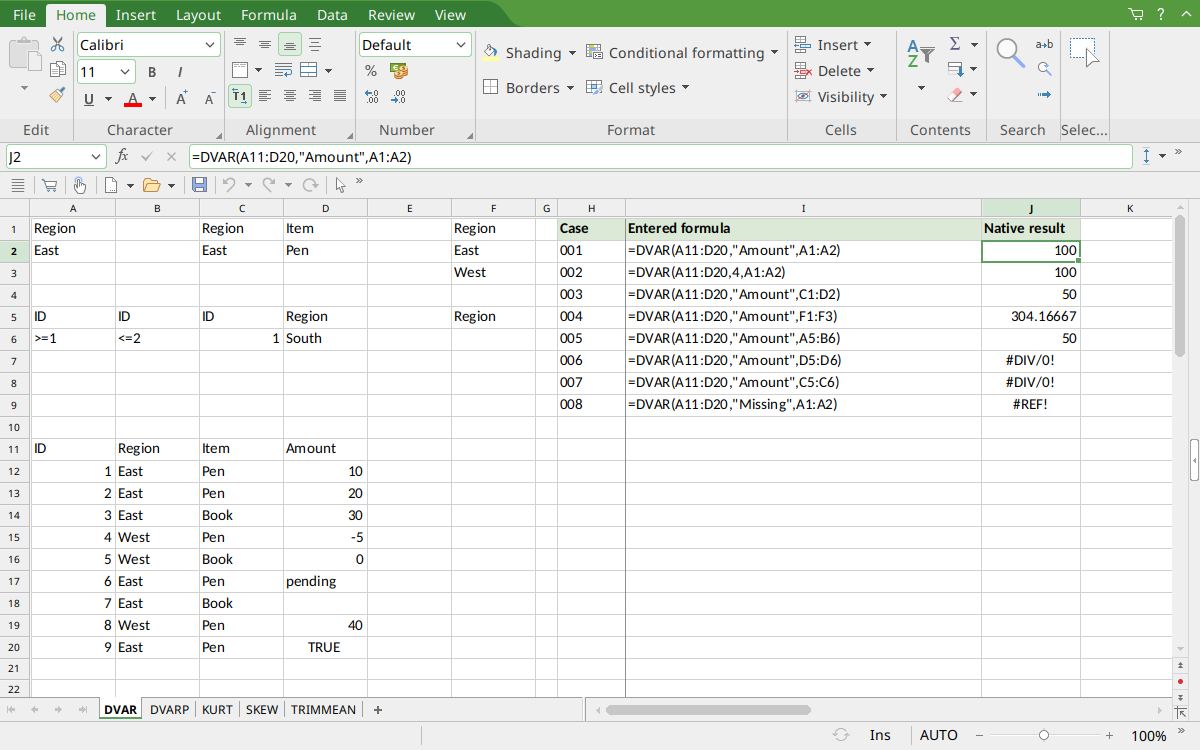
FreeOffice PlanMaker 2024 rev F1238.1005: selected cell J2 contains =DVAR(A11:D20,"Amount",A1:A2) and displays 100. The criteria are above the headed database; additional rows include the single-record and no-match errors.
Version and evidence scope
The official FreeOffice PlanMaker 2024 DVAR reference was checked October 18, 2026. The first introduction release is unknown from this reference; documentation in this edition does not establish retirement, deprecation, or support in every other edition.
Selected formulas were tested on October 18, 2026 in FreeOffice PlanMaker 2024 rev F1238.1005, 64-bit. The 8 native cases for this function were saved in PMDX format, closed, and reopened with formulas and results preserved. Typed inputs, including genuine blanks and Boolean values, were checked separately. The primary dataset and listed comparison formulas agree with the independent calculations; advanced derived comparisons and interpretation are not all separately executed formulas. The proprietary implementation has not been inspected, so mathematical models explain the observed bounded results without claiming a source-code trace or universal cross-version behavior.