

SWITCH in FreeOffice PlanMaker: Syntax and Worked Examples
Map an expression to the first exact case, use a deliberate default, and distinguish case matching from thresholds.
Verification status: See the evidence and test scope described in this guide. How formula examples are checked
Quick answer
=SWITCH(2,1,"New",2,"Active",3,"Closed") is expected to return Active. SWITCH compares the first expression with case values and returns the result associated with the first match.
If no case matches, it returns #N/A unless you provide a final default value. The case values and returned values alternate; reversing their roles changes the lookup.
Syntax and argument order
=SWITCH(Calculation, Result1, Value1, [Result2, Value2], ..., [DefaultValue])
Calculation is the initial value or expression. Result1 is the first comparison value; Value1 is what to return when that comparison matches. Additional comparison/result pairs are optional. A final unpaired argument supplies the default for no match.
The vendor’s names can be easy to misread: its Result1 is the case being compared, while Value1 is the output. In practical terms, read the formula as input, case, output, case, output, then optional default.
Step-by-step: a small status-code map
Put status code 2 in A2. Enter:
=SWITCH(A2,1,"New",2,"Active",3,"Closed","Unknown")
Expected result: Active. Change A2 to 1 for New, 3 for Closed or 4 for Unknown. The default makes the unrecognized code visible rather than silently assigning a valid status.
| Formula | Expected result |
|---|---|
=SWITCH(1,1,"New",2,"Active",3,"Closed") |
New |
=SWITCH(2,1,"New",2,"Active",3,"Closed") |
Active |
=SWITCH(4,1,"New",2,"Active",3,"Closed","Unknown") |
Unknown |
=SWITCH(4,1,"New",2,"Active",3,"Closed") |
#N/A |
=SWITCH(1+2,1,"New",2,"Active",3,"Closed") |
Closed |
The initial expression can be calculated, as the last row illustrates. It need not be a literal or a single cell reference.
First-match behavior and duplicate cases
=SWITCH(2,2,"First",2,"Second","Unknown") is expected to return First. Once a matching case is found, its assigned value is the result. A later duplicate case does not override the earlier one.
For a maintainable mapping, avoid duplicate cases unless precedence is intentional and documented. If a mapping grows frequently, a separate lookup table may be easier to review than a long formula. A default should flag an unrecognized value in a way downstream users can understand; an empty string can hide a data-quality problem.
Practical distinction: equality is not a threshold
SWITCH directly compares an initial value with listed cases. A case of 100 matches 100; it does not mean every value greater than 100. Do not build price bands or age bands by listing boundary numbers and expecting them to act as inequalities.
For threshold rules, choose a conditional structure that explicitly evaluates the required comparisons. Keep numeric codes numeric and text labels quoted. The official page does not define all case-sensitivity or number-versus-text coercion behavior, so do not rely on a code stored as text being interchangeable with the same-looking numeric value without testing it.
Errors and compatibility
No match without a default is documented as #N/A. This is different from a malformed formula or an error in the input expression. Fix the actual cause rather than treating every error as “Unknown.” The help does not promise lazy evaluation of unused outputs, so do not assume that a deliberately invalid branch is harmless.
The FreeOffice 2024 reference warns about older Excel compatibility and identifies support in Excel 2019 or later. That is the vendor’s compatibility guidance, not a native export test or a claim about every subscription build. Inspect formula preservation and results in the actual target version when exchanging files.
Native first-match and default checks
All six direct SWITCH formulas in the table and duplicate-case example were calculated in FreeOffice PlanMaker 2024 revision F1238.1005. In screenshot row order, they returned New, Active, Unknown, #N/A, First and Closed. Their formulas survived native PMDX save and reopen. This confirms the stated cases, not lazy evaluation or undocumented text/number coercion. The A2-based walkthrough was not a separate native case.
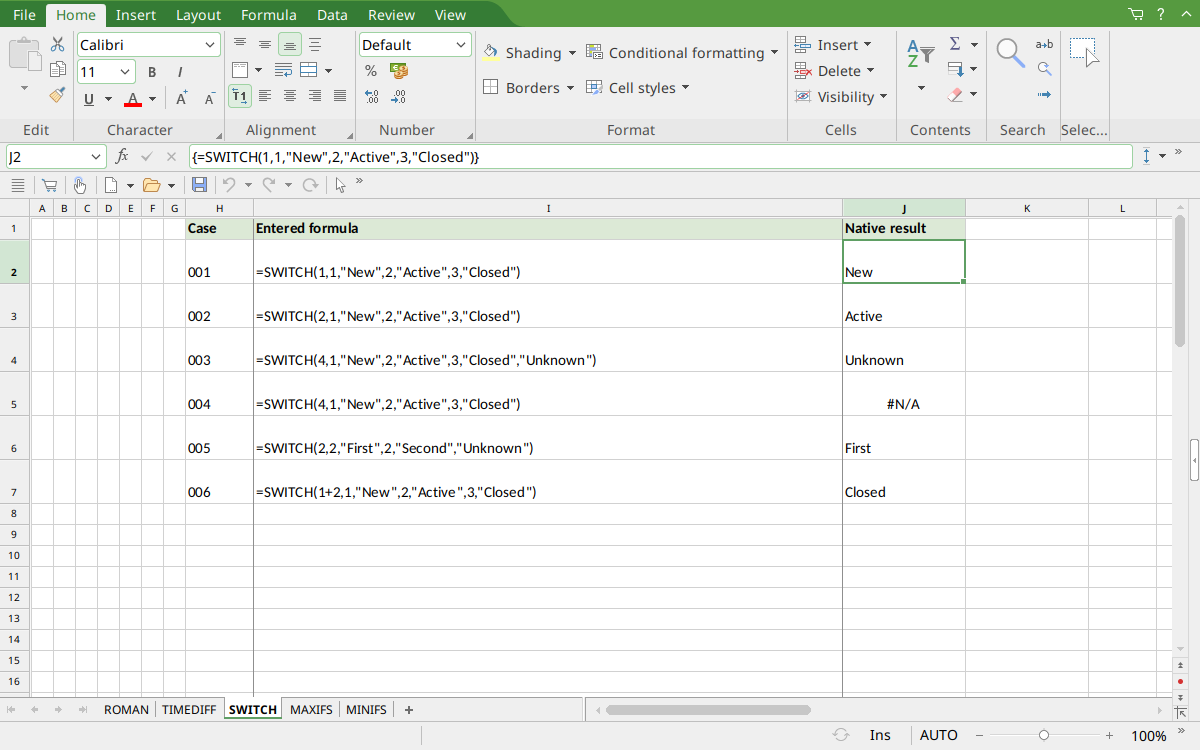
Selected J2 displays New. PlanMaker’s formula bar shows array braces around the SWITCH expression; those braces are native presentation, not extra characters to type in the formulas in this guide. Column J shows the actual outputs.
Version and verification scope
The official FreeOffice PlanMaker 2024 reference was checked October 18, 2026. The installed application is FreeOffice PlanMaker 2024 revision F1238.1005. The original introduction version is not established by this evidence; the current reference does not identify the function as deprecated or retired. No availability claim for a different edition or a 2026 release is implied.
The native section identifies the exact tested subset, saved results and screenshots from revision F1238.1005 after native PMDX save and reopen. Other worked arithmetic and cell-reference variations are explanatory unless identified as tested. File-exchange compatibility statements are vendor guidance; no Excel-export test was performed here. English formulas in this guide use commas; use the separators required by your formula settings.