

PlanMaker TRIMMEAN Function: Average a dataset after symmetric trimming
Use TRIMMEAN in FreeOffice PlanMaker 2024 with exact datasets, independent calculations, statistical interpretation and compatibility limits.
Verification status: See the evidence and test scope described in this guide. How formula examples are checked
Quick answer: =TRIMMEAN(A2:A11,20%) returns 42.75 in the tested build for the ten values below. The 20% is the total proportion removed across both tails: one smallest and one largest observation, not 20% from each side.
Syntax and the trimming count
=TRIMMEAN(Area, Percentage)
Both arguments are required. Area is the range or array of observations. Percentage specifies the total share to exclude. For a bounded, ordinary use choose a numeric percentage at least 0 and less than 1, such as 20% or 0.2.
The official reference says the number excluded is rounded down to an even integer so the same count can be removed from each tail. For n contributing numbers and percentage p, the independent rule is:
removed per tail = floor(n*p/2)
removed total = 2*floor(n*p/2)
Sort conceptually, remove that many smallest and largest observations, and average the remaining numbers. Sorting the source cells is not required to understand the calculation; the function’s meaning depends on value order, not original row order.
Enter the exact ten-value dataset
| Cell | Value |
|---|---|
| A2 | 43 |
| A3 | 45 |
| A4 | 42 |
| A5 | 0 |
| A6 | 44 |
| A7 | 45 |
| A8 | 42 |
| A9 | 1234 |
| A10 | 40 |
| A11 | 41 |
In J2 enter =TRIMMEAN(A2:A11,0.2). The native result is 42.75, agreeing with the independent calculation. The sorted observations are 0,40,41,42,42,43,44,45,45,1234. With n=10 and p=0.2, remove one value from each end. The eight retained values sum 342, giving 342/8 = 42.75.
All ten values sum 1576, so the untrimmed mean is 157.6. The official help prints 159.2 for its untrimmed example, but that number does not follow from the ten values it lists. Its trimmed result 42.75 does agree with the arithmetic. This discrepancy is confined to that printed untrimmed example; it is not evidence of an application calculation defect.
Understand the steps in the percentage argument
| Formula | Removed from each tail | Independently expected mean |
|---|---|---|
=TRIMMEAN(A2:A11,0) |
0 | 157.6 |
=TRIMMEAN(A2:A11,0.1) |
0 | 157.6 |
=TRIMMEAN(A2:A11,0.2) |
1 | 42.75 |
=TRIMMEAN(A2:A11,0.3) |
1 | 42.75 |
=TRIMMEAN(A2:A11,0.8) |
4 | 42.5 |
=TRIMMEAN(A2:A11,0.9) |
4 | 42.5 |
At 10%, the requested total of one removal is rounded down to zero. At 30%, the requested three removals are rounded down to two. At 80% or 90%, four values are removed from each side, leaving 42 and 43 and mean 42.5. The output therefore changes in steps as the percentage crosses trimming-count boundaries; it is not a continuous interpolation between averages.
Practical use: compare sensitivity without declaring values invalid
Show the untrimmed mean 157.6 alongside the 20% trimmed mean 42.75 and the retained count 8. This makes clear that the two summaries describe different sets of observations. A large difference signals sensitivity to the tails; it does not prove that 0 or 1234 is an error.
Choose and document a trimming rule for the intended analysis rather than adjusting the percentage until a preferred result appears. Symmetric trimming removes the same number of low and high observations even if only one side contains a suspicious value. It does not identify which observations were mistyped or establish an appropriate exclusion policy.
TRIMMEAN differs from winsorizing: trimming removes observations from the average, while winsorizing replaces extreme values with boundary values. It also differs from a median. In this particular even-sized dataset, very heavy trimming leaves the two central values and gives 42.5, but that numerical coincidence does not make the two operations interchangeable for all inputs.
Errors, types, and reproducibility
A percentage of 1 would remove every observation in the ordinary trimming model; a negative percentage is not a meaningful trimming amount. In FreeOffice PlanMaker 2024 rev F1238.1005, =TRIMMEAN(A2:A11,1) and =TRIMMEAN(A2:A11,-0.1) both return #NUM!.
The help accepts a range or array but does not spell out every text, logical, blank, or error-cell rule. Keep the main example numeric. For a bounded mixed-range check, put numbers 1, 2, 3, 4 in C2:C5, text note in C6, Boolean TRUE in C7, and leave C8 genuinely blank. The native result of =TRIMMEAN(C2:C8,0.5) is 2.5, consistent with retaining the middle numbers 2 and 3 after excluding 1 and 4. This does not establish every error-cell or text-number coercion case.
Distinguish a true blank from zero and from a formula returning empty text. The zero in the ten-value dataset is an actual observation. It participates in the untrimmed mean and is removed at 20% because it is the smallest value, not because zero automatically means missing.
Compatibility and related functions
The examples use the English documentation’s separators. Enter 20% or 0.2, not 20, when you mean one-fifth. The percentage is total trimming across both tails. Confirm the other program’s definition and contributing data types before comparing results.
AVERAGE gives the untrimmed arithmetic mean, MEDIAN summarizes the middle of the ordered values, and COUNT can help report how many numeric observations are present. Keep the retained count and the chosen percentage visible in a reproducible report.
Native example
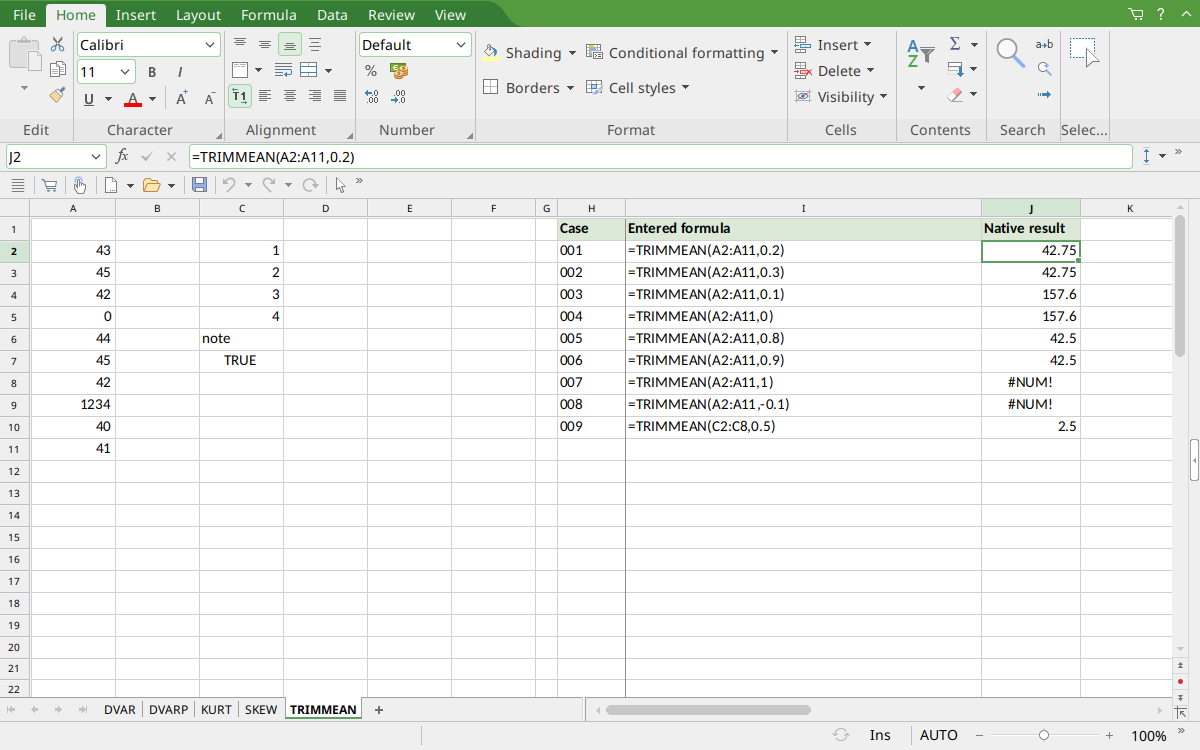
FreeOffice PlanMaker 2024 rev F1238.1005: selected cell J2 contains =TRIMMEAN(A2:A11,0.2) and displays 42.75. The 20% and 30% cases both display 42.75; the untrimmed and 10% cases both display 157.6.
Version and evidence scope
The official FreeOffice PlanMaker 2024 TRIMMEAN reference was checked October 18, 2026. The first introduction release is unknown from this reference; documentation in this edition does not establish retirement, deprecation, or support in every other edition.
Selected formulas were tested on October 18, 2026 in FreeOffice PlanMaker 2024 rev F1238.1005, 64-bit. The 9 native cases for this function were saved in PMDX format, closed, and reopened with formulas and results preserved. Typed inputs, including genuine blanks and Boolean values, were checked separately. The primary dataset and listed comparison formulas agree with the independent calculations; advanced derived comparisons and interpretation are not all separately executed formulas. The proprietary implementation has not been inspected, so mathematical models explain the observed bounded results without claiming a source-code trace or universal cross-version behavior.