

Calligra Sheets · Data entry and validation · Beginner
Restrict Order Quantities to Whole Numbers in Calligra Sheets
Set Calligra Sheets validity to Integer between 1 and 100, choose a blank policy, enable Stop alerts and check boundary examples.
Native-tested scoped in 25.04.2; documentation/source reviewed in 26.08.2 · Editorial standards
Select your quantity cells, open Data → Validity, and allow Integer values between 1 and 100. Explicitly enable the error message and use Stop. This defines an input rule for whole-number quantities; displaying zero decimal places would only change their appearance.
Version and testing: Direct-entry boundaries, Stop rejection, the total and ODS close/reopen were tested in Calligra Sheets 25.04.2 on Linux (Debian 13, Qt 6.8.2), with English UI and the default en_US environment, on October 16, 2026. Two limitations were observed: clearing a cell bypassed Allow blanks off, and the custom error title disappeared after reopening. The documentation review uses official v26.08.2 source and the hosted handbook revision 2.7, dated March 11, 2013; v26.08.2 was not run. The relevant validity dialog and engine source match v25.04.2. Other locales, paste/import validation and formula-result checks were not tested. Screenshots show the test installation’s text-only toolbar controls; menu actions worked.
Prepare an order-entry example
On an empty sheet, enter these headers and product labels. Leave the quantity cells empty while setting the rule.
| Cell | Entry |
|---|---|
| A1 | Product |
| B1 | Quantity |
| A2 | Notebooks |
| A3 | Pens |
| A4 | Folders |
For this exercise, blank quantity cells are permitted while an order is being prepared. Before using the order, review each product row for a quantity. Allowing blanks is not a completeness check.
Set the rule
- Select B2:B4, excluding the heading.
- Choose Data → Validity and open Criteria.
- Set Allow to Integer, then set Data to between.
- Enter 1 as Minimum and 100 as Maximum. Both endpoints are included by the current implementation.
- Select Allow blanks for this draft-entry workflow. Do not rely on clearing that checkbox to require completed quantities: in the tested release, both Delete and an empty formula-bar edit still cleared a cell with Allow blanks off. Review missing quantities separately before using the order.
- Open Error Alert. Explicitly select Show error message when invalid values are entered, choose Stop, and enter title
Quantity requiredwith messageEnter a whole number from 1 to 100.Do not rely on the checkbox’s default state. - Select Apply, then Close. Select one of the target cells and reopen Validity to inspect the saved criteria before using the sheet. The tested dialog is modeless; closing it without applying is not the procedure used here.
Select a screenshot to open the full-size image.
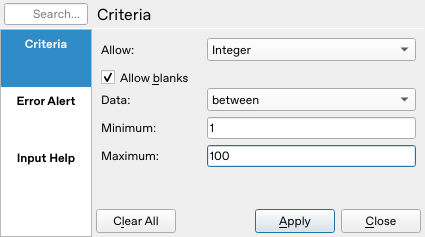
The native Criteria page sets Integer, inclusive bounds 1–100 and Allow blanks on.
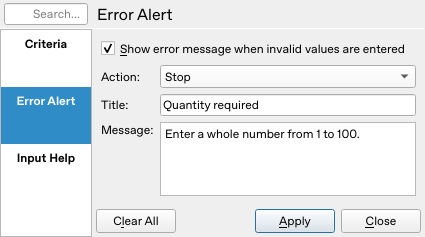
The native Error Alert page explicitly enables Stop and its message. This screenshot is before saving; the custom title did not survive reopening.
The source also contains Warning and Information actions. Their interaction outcomes were not tested for this guide, so the example uses Stop rather than suggesting those actions are equivalent.
Check the boundaries before real work
Try each value by typing into B2, completing the entry, and observing both the message and the cell’s final contents. Restore an accepted value between invalid attempts so you can detect a rejected edit. The following direct-entry results were observed in 25.04.2. Before each invalid probe, B2 contained 12; after dismissing the alert, its stored value was inspected:
| Typed value or action | Observed result |
|---|---|
| 1 | Accepted lower boundary |
| 100 | Accepted upper boundary |
| 0 | Stop alert; prior 12 retained (below minimum) |
| 101 | Stop alert; prior 12 retained (above maximum) |
| 2.5 | Stop alert; prior 12 retained (not a whole number) |
| many | Stop alert; prior 12 retained (not numeric) |
| Delete with Allow blanks on | B2 cleared without an alert |
| Delete or empty formula-bar edit with Allow blanks off | B2 still cleared without an alert; see the limitation below |
Use your locale’s decimal separator for the fractional test. Afterwards put 12, 25 and 3 in B2:B4. In B6 enter =SUM(B2:B4); the independently calculated total is 40, also obtained in the native test. Recheck that the same rule applies to B3 and B4, not just B2. All three rules were inspected after reopening the tested ODS.
Two limits to check before relying on the rule
Blank clearing is not blocked in the tested paths. In a separate copy, Allow blanks was explicitly turned off for B2. Pressing Delete cleared B2 without an alert. After restoring 12, selecting all of its formula-bar text, pressing Backspace and committing with Enter also cleared it. With only 25 and 3 remaining, the total became 28. The source engine has an empty-value check, but these observed clearing paths did not enforce it. This is why required quantities need a separate completeness review. Other blank-entry paths were not tested.
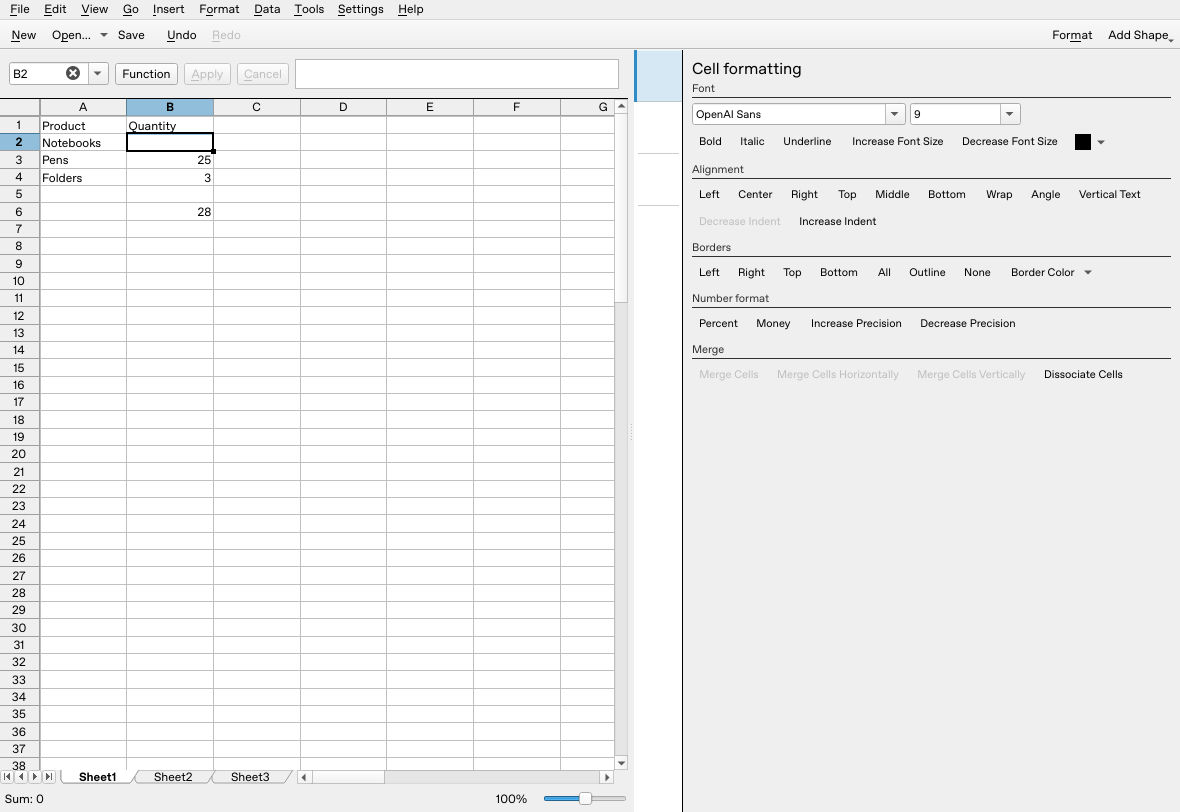
The separate-copy Delete probe leaves B2 empty and the total at 28 despite Allow blanks being off. The original working copy was restored to 12, 25 and 3.
Recheck alert text after reopening. The original ODS retained Integer, between 1–100, Allow blanks on, enabled Stop and the message. Its custom error title was empty after reopening, so subsequent alerts used the generic title Error. The boundary check still worked: 1 was accepted, 101 was rejected with 1 retained, and a later 2.5 probe retained 12. Do not assume every alert field round-trips merely because the rule still rejects invalid values.
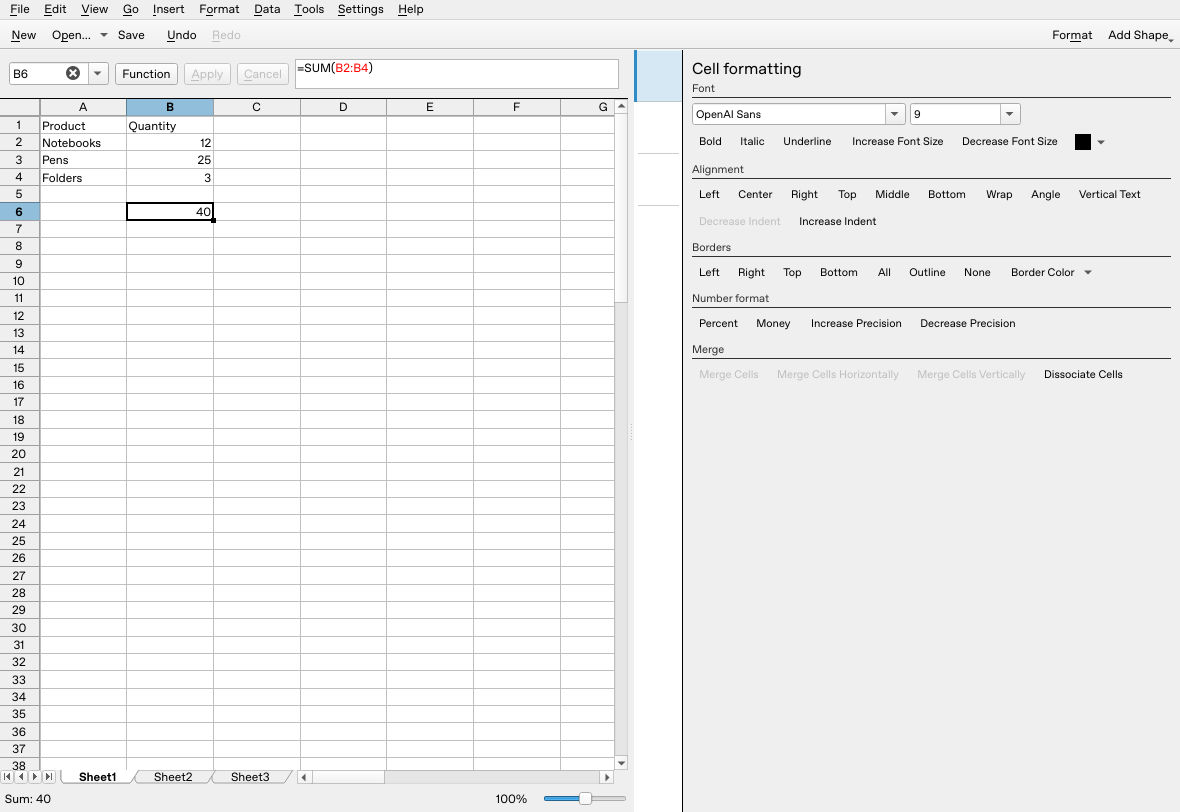
The reopened working copy, restored after the boundary checks, shows 12 + 25 + 3 = 40.
Understand what the rule does not prove
Integer validity checks the numeric value, not the number of visible decimal places. A mathematically whole value such as 2.0 can satisfy the integer test. Cell protection controls editing permissions and number formatting controls display; neither substitutes for this input-domain rule.
KDE’s handbook describes validity for entered data and points to conditional cell attributes for formula results. Keep those tasks separate: conditional styles can highlight results, while the expense-sheet guide introduces calculations. This walkthrough does not establish that every pasted/imported value or later formula recalculation is covered. Audit imported and pre-existing data separately.
Current source includes a List restriction, but this is an Integer exercise. It does not demonstrate an in-cell dropdown.
If the result differs
Check the selected range, Integer rather than Number, inclusive bounds, Allow blanks, the enabled error-message checkbox and Stop action. If an invalid typed value remains after completing the edit, stop using the sheet for controlled input until you have established behavior in your installed version. Save a separate .ods copy and repeat the boundary tests after reopening. Inspect the criteria on each intended cell and the alert text as well; the tested persistence limits above show why a successful total alone is insufficient.
For the total formulas used here, see SUM in Calligra Sheets.
Official evidence
- KDE Validity Checking handbook and Data menu.
- v26.08.2 Validity dialog: Integer, between, Allow blanks and alert controls.
- v26.08.2 validity engine: whole-number checks, inclusive bounds and empty-value handling.