

Calligra Sheets · File compatibility · Beginner
Check Excel Formatting Changes in Calligra Sheets
Diagnose XLSX column widths, styles, dates and numeric displays in Calligra Sheets while preserving the original and checking export limitations.
Native import attempts failed in 25.04.2; compatibility checklist documentation/source reviewed · Editorial standards
If an Excel workbook opens successfully in Calligra Sheets, it can still look different. Keep the original .xlsx, compare values separately from appearance, and save a new .ods working copy before repairing the layout. Do not assume that an import filter guarantees a faithful round trip.
Evidence and applicability: The compatibility checklist below is documentation/source-reviewed; its imported-workbook checks were not completed in the application. On October 16, 2026, Calligra Sheets 25.04.2 on Linux (Debian 13, Qt 6.8.2), with English UI and the default en_US environment, rejected both tested synthetic XLSX fixtures with Format not recognized. No control cells loaded, so no imported appearance, value conversion, ODS save/reopen or recipient-side round trip is claimed. Official source review uses v26.08.2; that runtime was not run. The online handbook is revision 2.7, dated March 11, 2013. Menu wording can vary by release and translation.
What the native import attempts established
The original test file was a synthetic XLSX generated with a spreadsheet artifact tool, not an Excel-authored workbook. Independent ZIP/XML inspection confirmed the intended control values and types. Its built-in preview did not reliably display the leading-zero ID, so that preview was not used as a native result or a known-good reference image.
A second, independently reviewed fixture added only an explicit /xl/workbook.xml content-type declaration; all other archive member contents, including cells, styles and formulas, were byte-identical. Both files produced the same import error. This does not establish a confirmed cause or show that every XLSX file is unsupported. The original and both failure outcomes were retained.
Select a screenshot to open the full-size image.
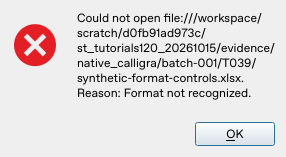
The original synthetic fixture failed before any worksheet controls loaded.
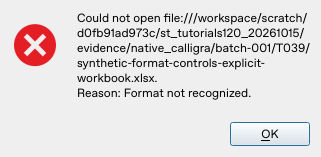
The minimal packaging variant failed too. The checks below remain a workflow to perform with a workbook that your installation can actually open.
A concrete reason widths can change
The v26.08.2 XLSX worksheet reader converts Excel column widths using a simplified calculation with a fixed font-size assumption. Its source explicitly marks that calculation as approximate. That is a verified implementation reason to inspect column widths; it is not a claim that every workbook will visibly break or that your particular change has only that cause.
The XLSX style reader translates fonts and number formats into the destination representation. Inspect those results too. A custom format, unavailable font or locale-sensitive display warrants a targeted comparison rather than a blanket assumption that all formatting is supported or broken.
Compare a small control area first
Use a copy of the workbook and ask its creator for a known-good PDF or reference view when appearance matters. For a reproducible control, record these intended values and displays in the source application:
| Control | Intended value | Appearance to compare |
|---|---|---|
| Amount | 1234.5 | Currency with two displayed decimals |
| Percentage | 0.075 | 7.5% |
| Date | October 14, 2026 | An agreed unambiguous date display |
| Item ID | Text 00123 |
Five characters, including zeros |
| Long heading | Quarterly service revenue | Full heading visible at agreed width |
| Formula | =10*12.5 |
125 |
These are synthetic diagnostic targets, not results observed in an imported Excel file. Both native attempts stopped at the import error before this comparison could begin. Keep a record of both the stored values and the expected presentation so you can distinguish a layout issue from changed data.
Diagnose and repair in order (documentation-backed checklist)
- Open a copy of the XLSX in Calligra Sheets. If the filter is unavailable or import reports an error, stop and retain the original. Filter availability depends on the build; a file extension alone proves nothing.
- Check the control formula result, date meaning and exact ID characters before adjusting appearance. If these differ, investigate conversion or data interpretation first. Cosmetic changes do not repair incorrect underlying data.
- Inspect the long heading and ordinary text. If the text is correct but clipped, widen the column or review wrapping and row height in the working copy. Compare the actual layout with the reference view.
- In Format → Cell Format, inspect the font and data format of representative cells. Correct only the diagnosed mismatch: a currency symbol, precision, percentage display or date presentation. Check the preview.
- Recheck the numeric value after formatting. For example, 0.075 should represent 7.5%; displaying a different percentage is not a reason to multiply the stored value without understanding it.
- Save the repaired workbook under a new
.odsfilename, choosing the OpenDocument spreadsheet filter. Reopen that copy and compare the controls, sheets and formulas again. - If someone needs an editable exchange copy, check which export formats your installation actually offers, then test the resulting copy in the recipient application. Keep the original until that test passes.
XLSX import does not establish XLSX export
The pinned XLSX filter builds an XLSX-to-ODS importer. The inspected filter definition does not establish a matching XLSX exporter. The tested 25.04.2 installation also did not offer an XLSX option in the inspected native export-format list; that check used an existing ODS document because the test XLSX files never loaded. No export was performed. The older handbook’s general Save As advice is not evidence that XLSX export is available in every current build. Do not change .ods to .xlsx in the filename and call it a conversion.
If the recipient specifically requires XLSX, confirm a supported export route and a real recipient-side test before relying on it. Otherwise, agree on ODS for editable work or PDF for a fixed visual reference. Use CSV/TSV only for a flat data table: it does not preserve multiple sheets, workbook formatting, charts or the full formula model.
Expand the check before trusting the workbook
Inspect more than the first sheet: formulas using dates/text or less-common functions, number formats, named references, charts, conditional styling, validation, hidden rows/sheets, protection, comments and print areas. Do not assume macros or automation will run just because cell values imported. When a feature is business-critical, test that feature in the receiving application before retiring the source file.
For appearance-only repair, see conditional styles and create a chart. Keep an audit note of what was changed and why; it makes a later comparison much easier.
Official evidence
- KDE saving handbook: native ODS and filter-based saving, not format-by-format fidelity.
- v26.08.2 XLSX worksheet reader: approximate column-width conversion.
- v26.08.2 XLSX style reader and filter build definition.