

Calligra Sheets · Formulas · Beginner
Reference Cells on Another Sheet in Calligra Sheets
Use sheet-qualified references in Calligra Sheets, quote sheet names with spaces, fill down safely and diagnose incorrect references.
Native-tested scoped in 25.04.2; documentation/source reviewed in 26.08.2 · Editorial standards
Start a cross-sheet formula with =, then the source sheet name, an exclamation mark and the cell address: =January!B2. For a sheet name containing spaces, put single quotes around the name: ='January Costs'!B2.
Version and testing: Individually entered same-document references, the fixed rate, source-change recalculation and ODS close/reopen were tested in Calligra Sheets 25.04.2 on Linux (Debian 13, Qt 6.8.2), with English UI and the default en_US environment, on October 16, 2026. The documentation review uses official v26.08.2 source and the hosted handbook revision 2.7, dated March 11, 2013; v26.08.2 was not run. The successful native procedure below enters each formula separately. An earlier combined formula-bar Apply and Fill Down attempt produced malformed references; its cause was not isolated, so successful copying is not claimed. External-file references and structural-edit repair were not tested. Labels may differ in other releases or translations.
Create a source and summary
Use two sheets in the same document. Rename the source sheet January Costs and the other sheet Summary using each sheet tab’s Rename Sheet command. Keep the names’ spelling and capitalization exact. Enter this source data:
| Cell on January Costs | Entry |
|---|---|
| A1 | Category |
| B1 | Amount |
| A2 | Travel |
| B2 | 120 |
| A3 | Supplies |
| B3 | 35 |
| A4 | Training |
| B4 | 80 |
| D1 | 0.10 |
D1 is a synthetic 10% planning uplift, not a tax rate. None of these formulas links to a different file or an online document.
Bring the amounts into Summary
- On Summary, put Category in A1 and Amount in B1; enter the same three category labels in A2:A4.
- In B2 type
='January Costs'!B2and press Enter to commit the entry. Expect 120. - Enter
='January Costs'!B3separately in Summary B3 and='January Costs'!B4in B4, pressing Enter after each. Inspect each committed formula. Expected values are 35 and 80; both were observed. - In B5 enter
=SUM(B2:B4). Expect 235. This is an independent arithmetic checkpoint; a correct total alone does not prove all labels match their amounts. - Change January Costs B3 from 35 to 40. The expected updated Summary B3 is 40 and B5 is 240. Restore 35 after checking. Both updated values were observed before and after native reopening.
Single quotes enclose the sheet name only. The exclamation mark and cell address stay outside. Use straight apostrophes ('), not curly quotation marks copied from prose. A simple name without spaces, such as January, can be used as =January!B2.
Select a screenshot to open the full-size image.
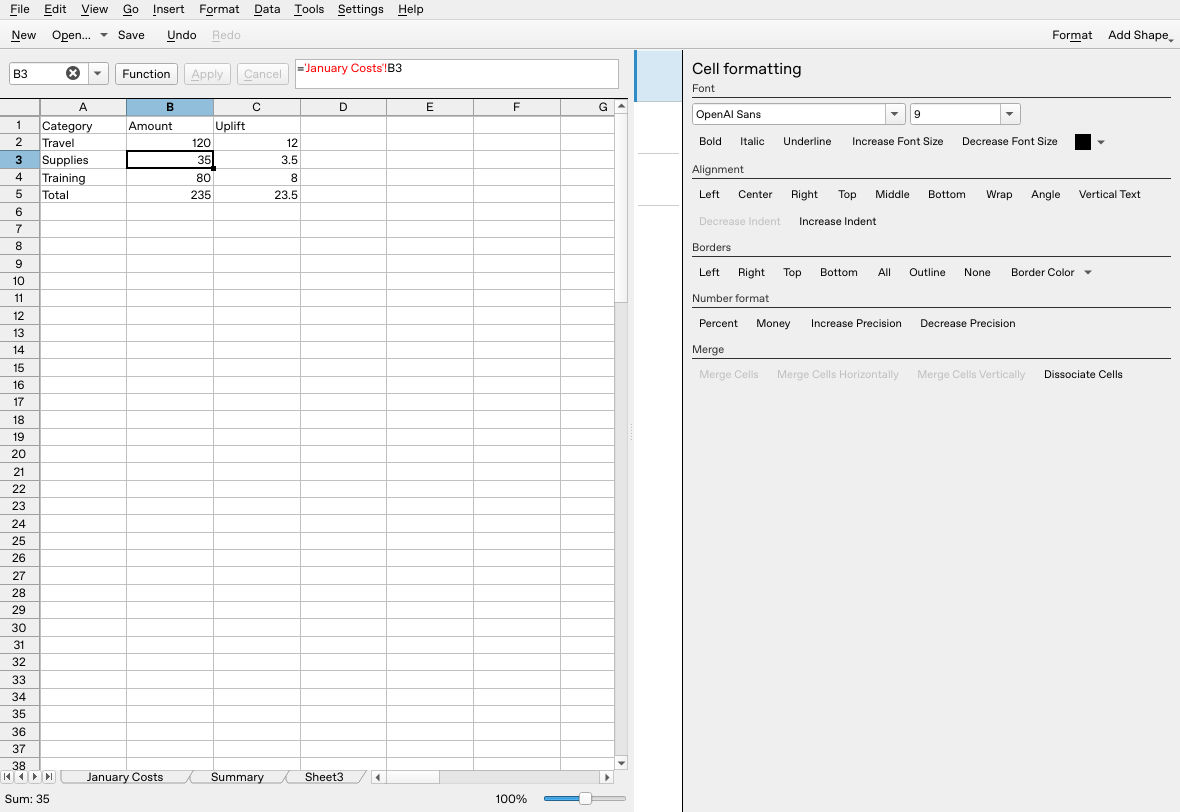
The individually entered B3 reference retains the quoted sheet name and returns 35.
Use a fixed shared cell
To calculate the planning uplift, put Uplift in Summary C1. Enter in C2:
=B2*'January Costs'!$D$1
Press Enter, then enter =B3*'January Costs'!$D$1 in C3 and =B4*'January Costs'!$D$1 in C4 separately. The source amount changes from B2 to B3 and B4, but the shared rate remains D1. In C5 enter =SUM(C2:C4). Expected results are 12, 3.5 and 8, totaling 23.5. These independently calculated checkpoints were also observed in the native session. Changing the source Supplies amount from 35 to 40 gives an uplift of 4 and an uplift total of 24; restoring 35 returns 3.5 and 23.5.
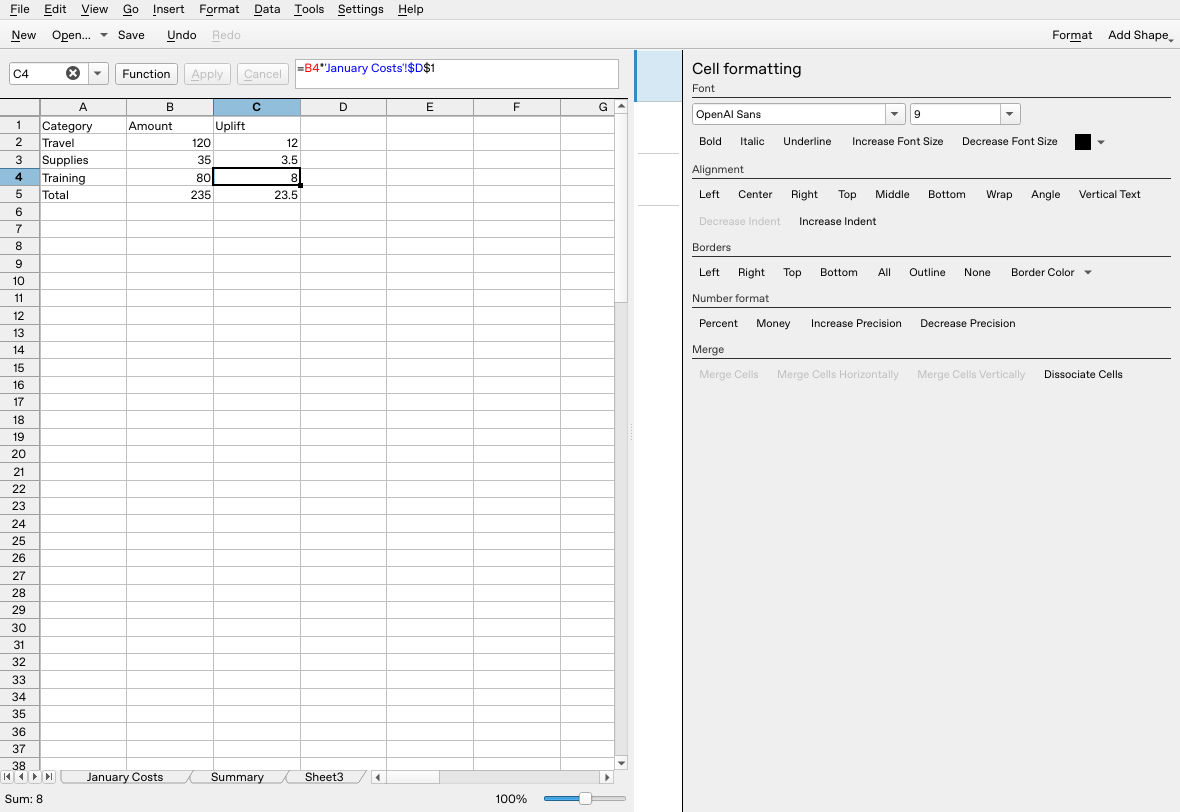
C4 uses the fixed source rate $D$1; all three individually entered uplift formulas produce the expected amounts.
Optional copying, documentation-backed: copying B2 or C2 down is intended to advance relative row references while retaining $D$1. Inspect every copied formula and compare the checkpoints before using it. The initial combined Apply/Fill Down attempt in this test lost the required quote structure and produced errors. Individual entry with Enter recovered the correct results; this does not establish a general Fill Down defect or a successful copied-formula workflow.
Without the dollar signs, copying down would move the rate reference to D2 and D3. A sheet prefix identifies the sheet; it does not automatically freeze the cell address. See absolute and relative references for the four locking combinations.
Diagnose a wrong value or reference error
- Wrong category, plausible number: compare the formula’s row with the source label. A formula connects addresses, not category meanings.
- Formula appears as text: check the leading equals sign, literal apostrophes and the cell’s text handling. An apostrophe before the equals sign is not the same as quoting the sheet name inside a formula.
- Invalid or unresolved reference: verify that the sheet still exists, check capitalization, and look for missing quotes or
!. Restore the source sheet or edit the formula to a verified replacement; do not hide the error with a zero until you understand it. - Copied results use the wrong shared rate: inspect
$D$1in every formula. - Names contain punctuation or apostrophes: the simple space-containing name above is the reviewed example. Prefer a simple unambiguous name for this exercise rather than assuming another application’s escaping rules.
After renaming, moving or deleting source data, inspect dependent formulas and rerun the known-value checks. This guide does not promise that every structural edit repairs references automatically. Save a separate .ods copy, reopen it and check the formulas before relying on the document; the native test reopened the baseline 235/23.5, repeated the source change to 40 (240/24), restored 35 (235/23.5) and saved. The final restoration save was not reopened a second time.
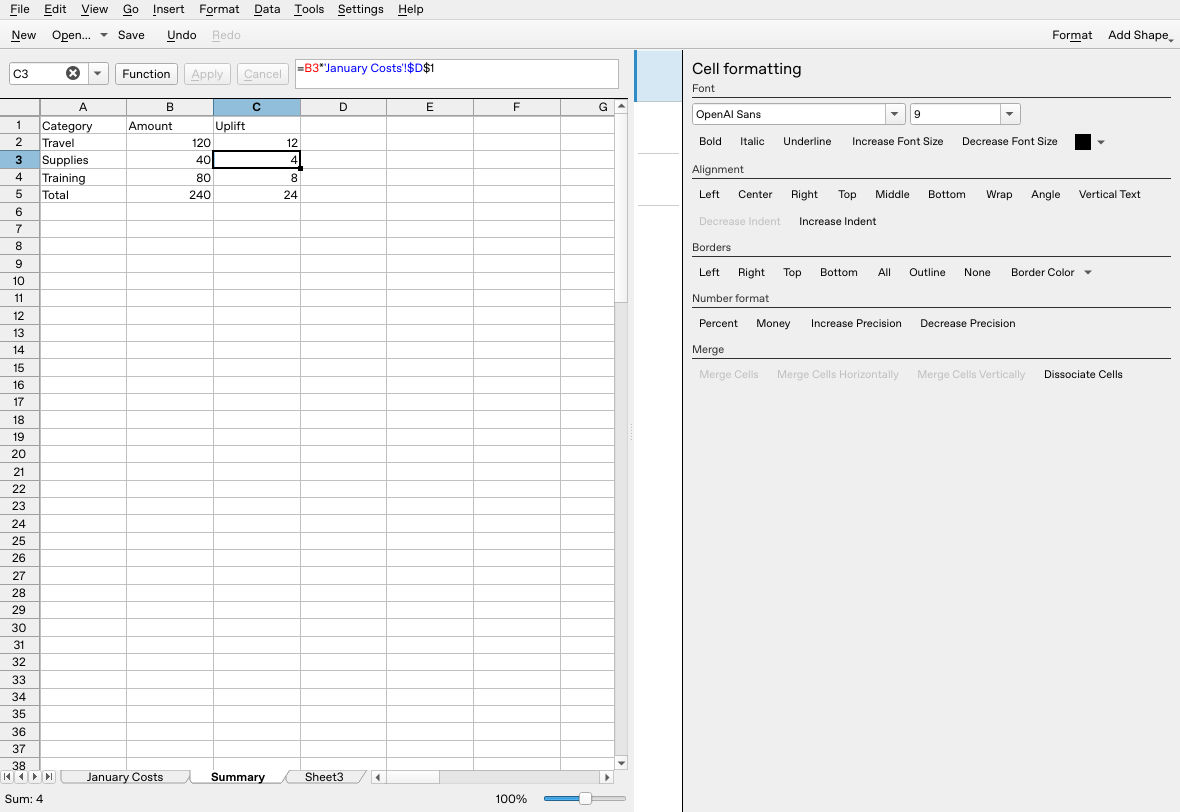
After native reopening, changing Supplies to 40 recalculates the amount and uplift totals to 240 and 24.
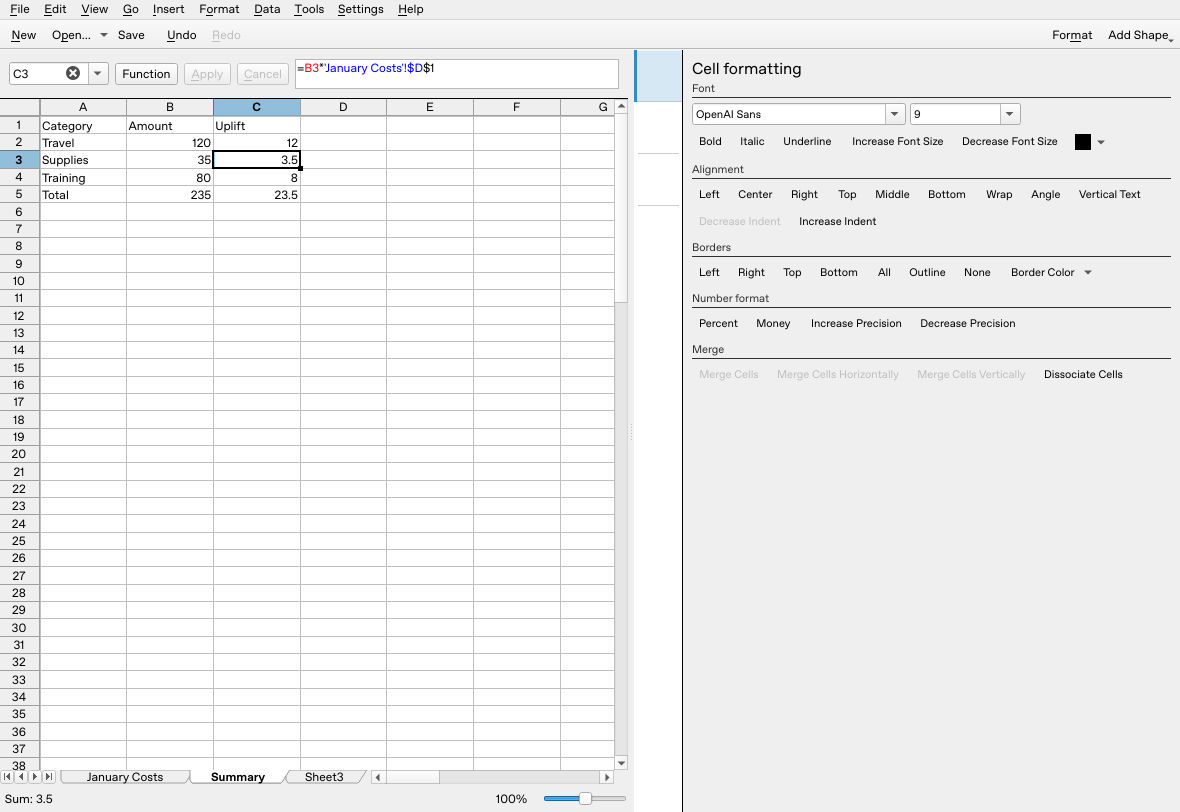
Restoring Supplies to 35 after reopening returns totals to 235 and 23.5; this state was saved.
For a complete beginner table see the first expense sheet. For a visual check of its totals, see create a chart.
For the total formulas used here, see SUM in Calligra Sheets.
Official evidence
- KDE multiple-worksheet handbook: sheet-qualified references and case-sensitive sheet names.
- KDE formula handbook: copying and dollar-sign locking.
- v26.08.2 formula parser and reference name construction: quoted sheet names and sheet/cell reference structure.