

Gnumeric · Cleaning data · Beginner
Split an Existing Text Column in Gnumeric
Use Text to Columns with delimiter and quote previews, preserve the source column, and leave room for the results on its right.
Pipe and quoted-field splitting, source preservation and Undo/Redo verified in Gnumeric 1.12.57 · Editorial standards
Select one existing text column and use Data → Text to Columns. In Gnumeric 1.12.62, the implementation places the parsed fields one column to the right of the source, so reserve empty space there before running it.
Requirements and practice records
The pipe/quoted-field example below was tested on 2026-10-16 in Gnumeric 1.12.57, Debian 13.6 Linux, English interface/C locale. Official 1.12.62 source and the shared text-import manual were also reviewed; 1.12.62 was not the tested runtime. Do not assume another program’s destination picker or overwrite behavior applies. Reopening, overwrite warnings and the edge cases listed below were not tested.
On a new sheet put Raw in A1 and enter these three literal cell values:
| Cell | Raw text |
|---|---|
| A2 | A101|Notebook|2 |
| A3 | B202|"Pen|Blue"|3 |
| A4 | C303|Labels|5 |
Each value belongs in one cell. You can also download the one-column CSV. In the native run, File → Open detected this file correctly and retained each raw record in one column. If your import prompts for settings, use CSV’s comma separator and double-quote text delimiter, not pipe; that manual initial-import branch was not exercised in this test. The file’s outer CSV quoting preserves each raw record as one cell; the pipe split happens afterward.
B2:D4 must be empty. B1:D1 may contain the headings Code, Item, Quantity. Keep a separate original copy before working with valuable data.
Split the column safely
- Select A2:A4, not the entire A:D table. The 1.12.62 command rejects input selections wider than one column.
- Choose Data → Text to Columns. It opens the shared text-parsing dialog using the selected cells’ text.
- Choose separated fields rather than fixed-width parsing. In the separator controls use pipe (
|) as the custom separator and turn off unrelated separators. - Set Text indicator to double quote (
"), using the actual 1.12.57 control label. Inspect the middle record:"Pen|Blue"must stay together as the Item field. Without quote handling that row would split into four fields. - Inspect all rows in the preview. The expected field count is three for every row, as observed in the native test. Leave See two separators as one and Ignore initial separators unchecked for this example. In the final column-format panel, treat Code and Item as text and Quantity as a numeric/general column. For purely numeric identifiers, explicitly choose Text before conversion to retain leading zeros.
- Finish the dialog. With A2:A4 as the source, the native output appeared in B2:D4, matching the reviewed source. Check that the raw values remain in A2:A4 and that no neighboring content was lost.
The source sets the target one column to the right and pastes contents and formats. It does not provide a general destination selector in this command. Use a blank practice sheet or clear working area rather than relying on an overwrite warning.
Expected result
| Code | Item | Quantity |
|---|---|---|
| A101 | Notebook | 2 |
| B202 | Pen|Blue | 3 |
| C303 | Labels | 5 |
The enclosing quotes are parsing syntax; the pipe inside Pen|Blue is literal item text. In unused cells, =COUNT(D2:D4) should return 3 and =SUM(D2:D4) should return 10. Confirm B3 is B202 and C3 is Pen|Blue. The native run returned COUNT=3 and SUM=10, matching these independent expectations, and preserved the raw source values in A2:A4.
Native preview and preserved source
Select a screenshot to open the full-size image.
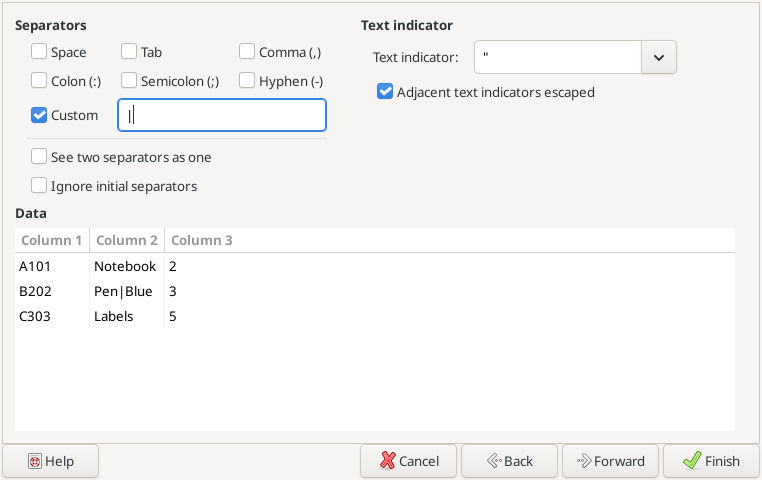
Actual preview, 2026-10-16: Pen|Blue remains one field, with three columns in every row.
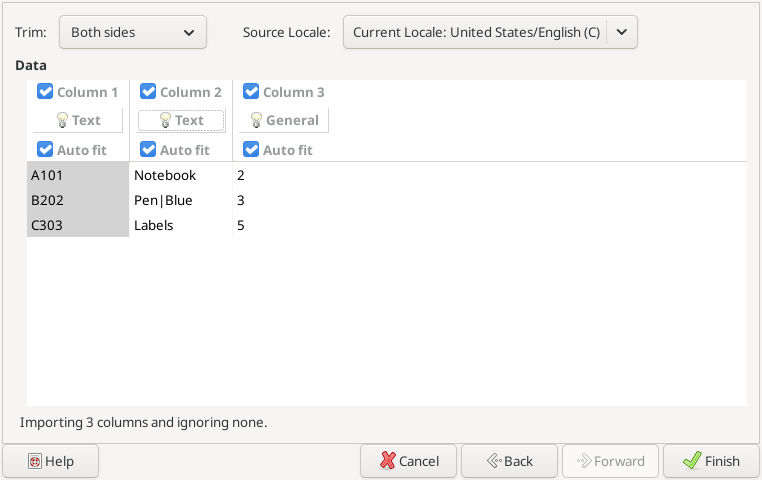
Code and Item are Text; Quantity remains General in the C source locale.
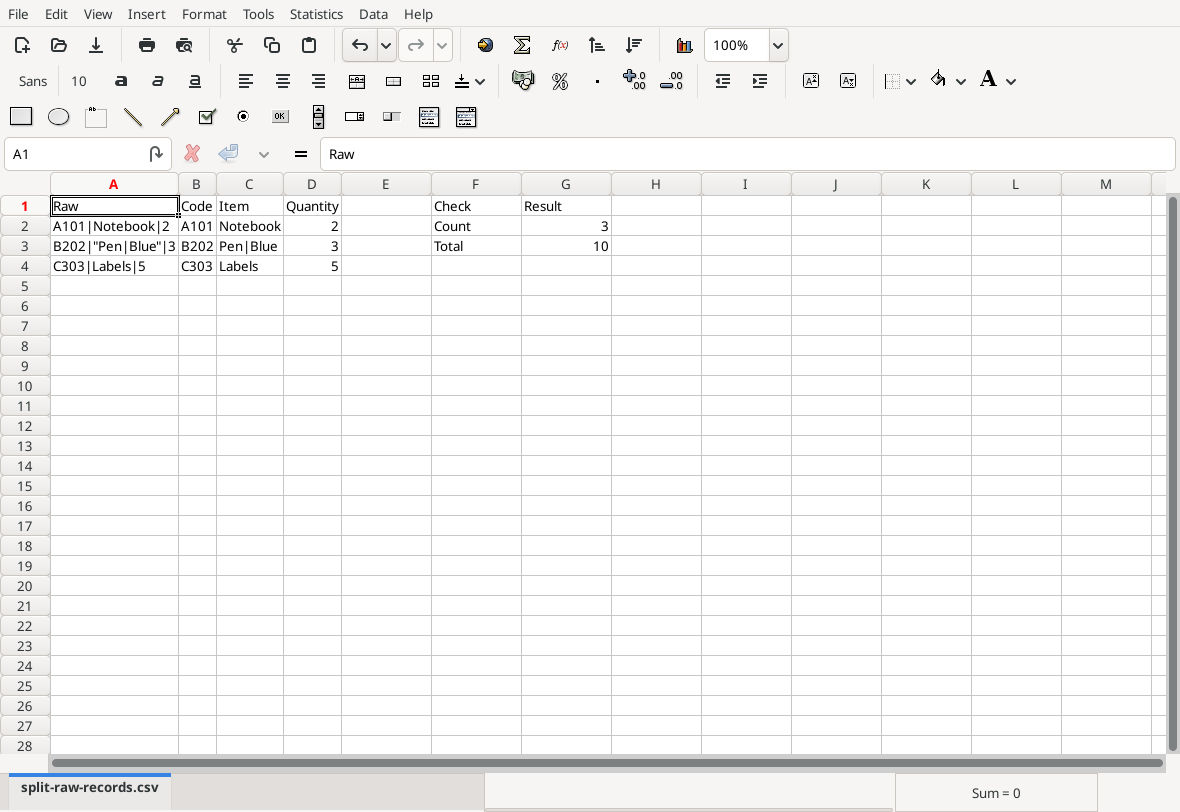
Actual output to the right of the raw column, with numeric checks 3 and 10.
Undo removed the parsed output while retaining the raw data and headings; Redo restored it. Download the saved native split workbook. Saving was verified, but reopening and a fresh full parse after Undo were not tested.
Troubleshooting and recovery
- One output field per row: confirm the separator is pipe, not comma or tab.
- Four fields in the middle row: check double-quote text delimiting. More columns can overwrite more neighboring cells, which is why the preview matters.
- An empty field disappears: inspect options that merge separators or trim data before applying them. In a record such as
A101||2, the empty middle field may have meaning; do not collapse it unintentionally. - Numeric identifiers lose zeros: undo promptly or restore the source copy, then parse that field as Text. A later numeric format does not restore unknown original characters.
- Multiple-column selection rejected: select only the raw input column.
- Results already occupy the right-hand area: use a fresh copy or empty sheet. Do not keep rerunning the operation over unrelated data.
Undo and Redo worked for this native example, but a saved backup remains the safer recovery option, especially after closing the workbook. Save the resulting workbook in Gnumeric format; CSV alone cannot preserve formats or later formulas.
See COUNT and SUM for the result checks.
Official references
- Gnumeric menu reference.
- Importing Text Files, for separated fields, text delimiters, previews and column types.
- Official 1.12.62 source:
src/stf.c,stf_text_to_columns, establishes the one-column requirement and right-hand target;src/commands.cimplements the paste and undo.