

Google Sheets DOLLARFR: Encode Thirty-Second Quotes
Use DOLLARFR to encode decimal amounts as thirty-second quotes. Check exact tick alignment, a round trip and a source-documentation limitation.
Verification status: See the evidence and test scope described in this guide. How formula examples are checked
Quick answer: =DOLLARFR(75.375,32) is expected to produce 75.12 under the thirty-second convention: 0.375 contains twelve increments of 1/32. The result is an encoded quote, not an ordinary decimal amount for subsequent arithmetic. See Google’s DOLLARFR reference.
Verification: Reviewed October 21, 2026. Expected values were derived with exact rational arithmetic, not by executing Google Sheets. Only positive amounts aligned to whole thirty-seconds are covered. No native application screenshot, Google Sheets XLSX import, truncation rule or exact invalid-input error has been verified.
Syntax and source limitation
=DOLLARFR(decimal_price, unit)
Supply the ordinary decimal amount first and the desired fraction denominator second. This guide fixes unit at 32 and uses two digits for the fractional numerator.
Google’s DOLLARFR notes contain an apparent formula-name error: one inverse-direction example names DOLLARDE. We do not treat that expression as a tested DOLLARFR result. The expectations below follow the documented conversion direction and the thirty-second convention explicitly illustrated by Google’s DOLLARDE documentation. Eighths and arbitrary denominator digit rules remain outside this guide’s verified scope.
Example 1: prepare a quote from an exact amount
Enter 75.375 in A2. In B2, enter:
=DOLLARFR(A2,32)
Expected B2: 75.12. Separate the whole amount, 75, from the fraction, 0.375. Multiplying the fraction by 32 gives the integer numerator 12. Encoding those twelve thirty-seconds after the decimal point gives 75.12.
Do not replace A2 with B2. Keep A2 as the amount for arithmetic and use B2 only where this quotation convention is required. A label such as “Quote, denominator 32” prevents a later reader from mistaking B2 for 75.12 units of ordinary decimal value.
Example 2: test a round trip
In D2 enter 42.78125. Use these formulas:
| Cell | Formula | Expected result |
|---|---|---|
| E2 | =DOLLARFR(D2,32) |
42.25 |
| F2 | =DOLLARDE(E2,32) |
42.78125 |
| G2 | =F2-D2 |
0 |
Independent check: 0.78125 × 32 = 25; decoding then gives 42 + 25/32 = 42.78125. The round trip checks that both operations use the same convention. It does not establish how unaligned amounts are rounded or whether another application implements the same behavior.
Check alignment before choosing a policy
For a separate amount of 42.78, the fraction multiplied by 32 is 24.96, not an integer. That input is not on the whole-thirty-second grid used here. Decide the required treatment with the system supplying or receiving the data; do not silently round it to fit these examples. No DOLLARFR output for this unaligned case is asserted.
Practice download
Download the shared thirty-second quote workbook (.xlsx). On the Thirty-seconds sheet, B16:B17 hold ordinary amounts and D16:D17 encode them. D20 decodes the second quote and D21 checks the difference from the original amount. Change B17 from 42.78125 to 42.96875: D17 should become 42.31, D20 should become 42.96875, and D21 should remain 0.00000. Restore 42.78125 afterward. Keep the denominator at 32 and use only positive amounts on the whole-thirty-second grid.
The workbook uses live formulas and local input warnings. Its baseline and input-change fixtures were checked with artifact-tool, exact rational arithmetic and LibreOfficeDev 26.8.0.0.alpha0 headless (build 2c87e51eeaa2b413ff4ae097b2705eea1995d8e5). This does not verify Google Sheets execution or XLSX import, resolve the source typo, or establish conversion behavior for unaligned amounts. View the artifact-rendered workbook preview (PNG, not an application screenshot).
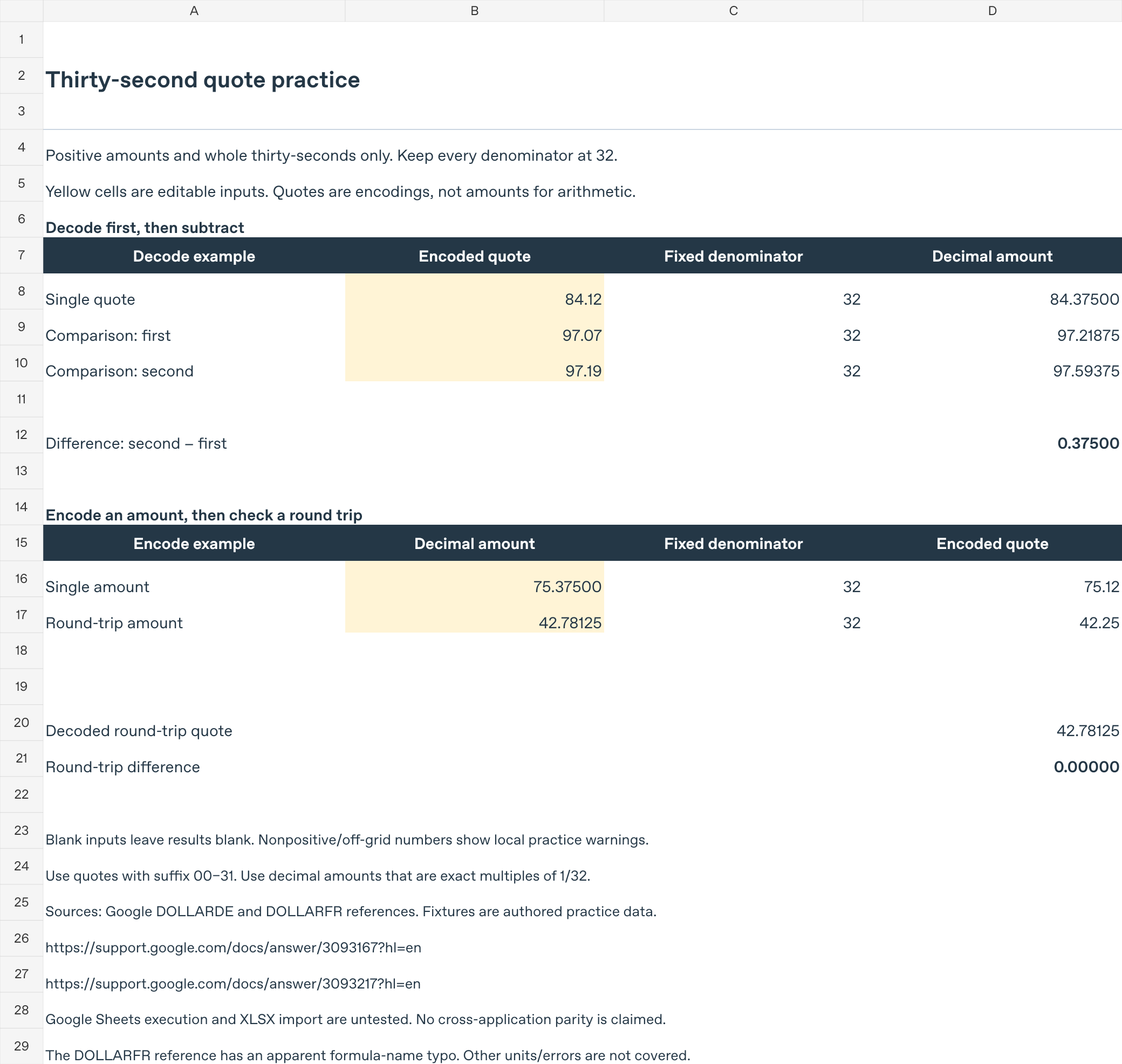
Edit only yellow cells B16:B17 for this exercise; keep denominator cells unchanged. Arbitrary text and edited denominators are outside the workbook input contract. The warnings are workbook controls, not Google Sheets error tokens.
Troubleshooting
- Arithmetic on the result looks wrong: It is a quote encoding. Use the original amount or decode the quote before adding, subtracting or comparing amounts.
- A whole-number-looking quote has no visible suffix: Preserve the denominator in a separate field. Visible decimal places alone cannot establish the quote’s convention.
- Someone supplies an invalid or noninteger unit: The reviewed reference does not explain truncation or exact error behavior. Keep a positive integer 32 for these fixtures rather than relying on another program’s rules.
- A downstream system expects text punctuation: A numeric quote and a text representation such as a dash-separated quote are different interface contracts. Verify the receiving format before exporting.
Platform and related guides
These instructions concern Google Sheets on the web with an ordinary free account, not paid desktop software. They are educational conversion examples, not financial recommendations. No native Google Sheets execution or cross-application parity is claimed.
Use DOLLARDE to decode before arithmetic, or return to the Google Sheets function reference.