

Gnumeric · Importing data · Beginner
Import Semicolon CSV and Decimal Commas in Gnumeric
Set Gnumeric’s text-import delimiter, numeric locale and text columns, then verify decimal-comma amounts and leading-zero codes.
Representative import verified in Gnumeric 1.12.57; documentation and 1.12.62 source also reviewed · Editorial standards
Use Gnumeric’s configurable text import to separate fields with a semicolon and interpret decimal commas through the import locale. These are separate settings: choosing the right delimiter does not establish that amounts became numbers.
Requirements and sample
The core import below was tested on 2026-10-16 in Gnumeric 1.12.57, on Debian 13.6 Linux with an English interface and C worksheet locale. The test used Germany (de_DE) as the import source locale. The 1.12 manual and 1.12.62 source were also reviewed, but 1.12.62 was not the tested application version. Other versions, translations and data conventions can differ.
Download the synthetic CSV. It is UTF-8 text, with this content:
Item;Amount;Code
Café;12,50;00123
Paper;7,25;00456
Ink;10,25;00789
The intended result is three columns, three numeric amounts totaling 30, and three five-character codes. The CSV itself stores no spreadsheet cell types.
Import without losing the codes
- Start with an empty workbook. Choose Data → Import Data → Import Text File, then select the downloaded CSV. This opened Text Import Configuration in the tested 1.12.57 build. The manual also describes a configurable File → Open route, but that file-type choice was not exposed in this test; use the Data import route here.
- In the first panel of the Text Import druid, choose the file’s UTF-8 encoding, include the heading and all three records, and use separated fields rather than fixed-width columns. Check that Café is readable.
- In the separator panel, enable semicolon as the field separator. Do not enable comma for this file: those commas belong inside the Amount values. The preview must show Item, Amount and Code as three columns, not split amounts.
- In the final panel, set Source Locale to Germany (de_DE), found under Western Europe in the tested build. Leave Amount in General so this locale interprets its decimal commas. Locale affects interpretation of incoming numerical text; changing a cell’s display format after a bad import does not repair the original parsing.
- Set the Code column’s import format to Text before finishing. Use the final-panel column format controls; the source implements a format selector for the selected column. The Item column can remain General for these text labels. Include all three columns.
- Click Finish. With the heading in row 1, check the values in B2:B4 and codes in C2:C4. Save a working copy as a Gnumeric workbook so spreadsheet types and later formulas are retained.
Verify values, not just appearance
In unused cells enter:
=COUNT(B2:B4)
=SUM(B2:B4)
=LEN(C2)
Expected results are 3, 30, and 5. C2 should contain 00123, not 123. COUNT is important because a total can look plausible while silently excluding a text amount. These independently calculated checks also passed in the native Gnumeric 1.12.57 run: COUNT returned 3, SUM returned 30, and LEN returned 5.
If the first amount is displayed as 12.50 rather than 12,50 after import, that can simply reflect the worksheet’s display locale. Verify its numerical value before changing appearance.
Native settings and result
Select a screenshot to open the full-size image.
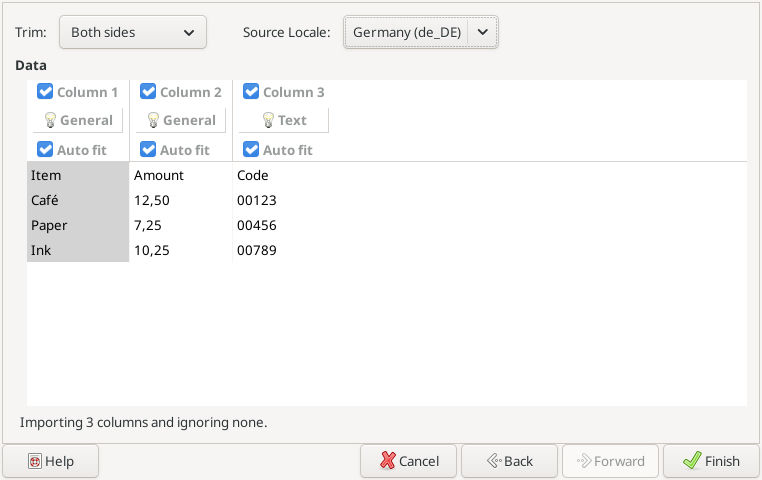
Actual Gnumeric 1.12.57 capture, 2026-10-16: Germany (de_DE), Amount General and Code Text before import.
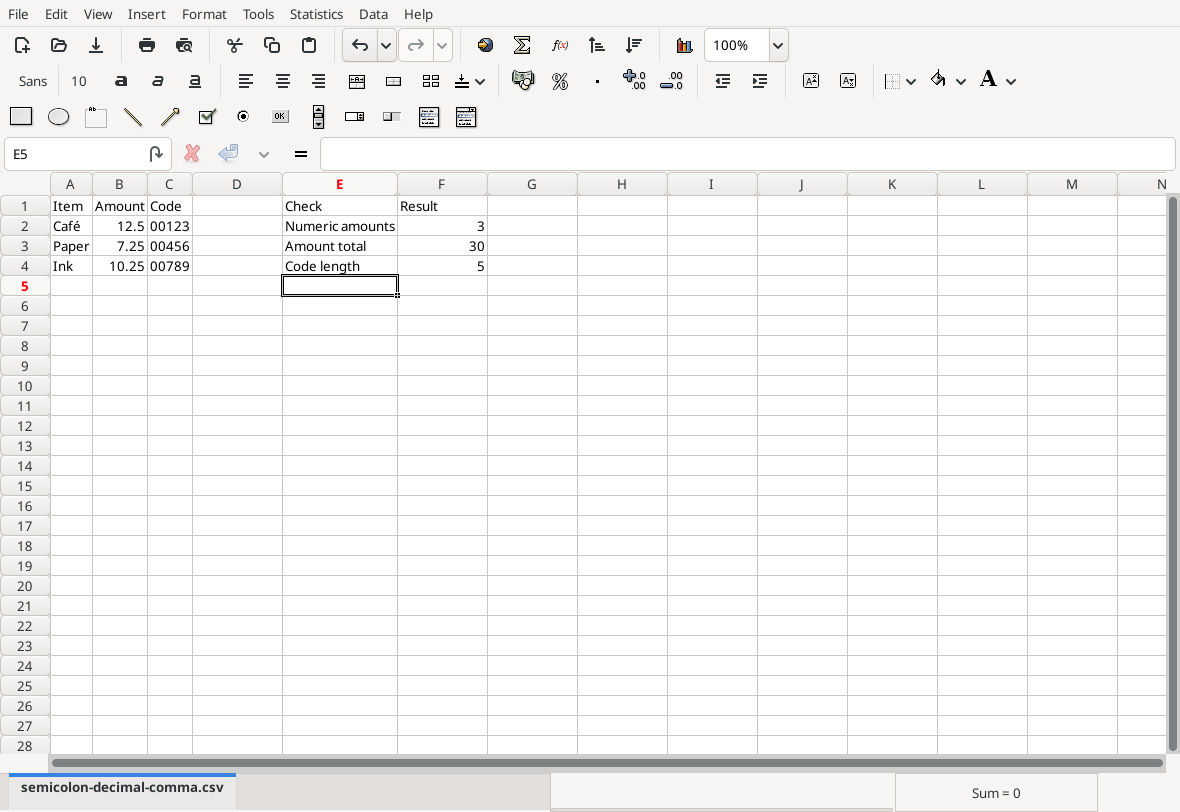
Actual imported sheet: the three checks returned 3, 30 and 5, and the original codes retained their zeros.
You can inspect the saved native practice workbook. Saving the workbook was verified; closing and reopening it was not part of this test. The troubleshooting cases below are guidance rather than additional executed variants.
Troubleshooting and safe recovery
- One long column: return to import and select semicolon.
- Amounts split into two columns: remove comma from the separators.
- COUNT is below 3: re-import with the correct numeric locale. Do not merely apply a Number format to text and assume it became numeric.
- Codes lost zeros: start again from the original CSV, setting Code to Text. Padding a damaged identifier after conversion is not a safe general repair, especially for long identifiers.
- Accented characters are garbled: correct the encoding before finishing.
- Mixed decimal conventions: ask the exporter for one consistent convention or import the ambiguous column as text for deliberate cleanup. Do not globally replace commas when they may have other meanings.
Keep the untouched CSV so the import can be reproduced. For the verification formulas, see COUNT, SUM and LEN.
Official references
- Gnumeric: Importing Text Files, including the third-panel locale and column formats.
- Gnumeric: Formatting Cells, including text formats and identifiers.
- Official Gnumeric 1.12.62 source,
src/dialogs/dialog-stf-format-page.c.