

Gnumeric · Number, date and currency formatting · Beginner
Format Numbers, Dates and Elapsed Times in Gnumeric
Separate stored values from display formats in Gnumeric, with currency, percentage, date and over-24-hour duration checks.
Documentation-backed procedure; independent fixture checks; archived Text-format screenshot; other native verification pending · Editorial standards
Use formatting to present values clearly, then verify that the calculations still use the intended numbers. A cell displaying 7.5% should represent 0.075, and a duration of 27 hours 30 minutes must not silently look like 3:30.
Enter an explicit fixture
Use Sheet1 and enter the following cells. The formulas use English function names and comma separators; adapt separators to your installation if needed.
| Cell | Label in column A | Entry in column B |
|---|---|---|
| B2 | Amount | 1234.5 |
| B3 | Rate | 0.075 |
| B4 | Review date | =DATE(2026,10,14) |
| B5 | Work duration | =27.5/24 |
| B6 | Precision sample | 1.2345 |
Enter numeric decimals using your locale’s decimal separator. DATE avoids an ambiguous typed date such as 10/11/26. The duration is expressed in spreadsheet days: 27.5 hours ÷ 24 = 1.145833333… days.
Apply formats, then audit the values
Select a cell and press Ctrl+1, then use the Number tab. Choose the indicated category and confirm its preview before applying:
| Cell | Format choice | Expected display or meaning |
|---|---|---|
| B2 | Currency, two decimals, explicitly chosen currency | Amount 1234.50 with that symbol |
| B3 | Percentage, one decimal | 7.5% |
| B4 | Date, or Custom yyyy-mm-dd |
2026-10-14 |
| B5 | Custom [h]:mm |
27:30 |
| B6 | Number, two decimals | 1.23 |
Currency symbol position, decimal separators and grouping depend on locale. The amount must remain 1234.5 regardless of those presentation choices. The format manual explicitly documents bracketed hours for durations exceeding 24 hours.
Add these audit formulas in D2:D6. Format the audit cells as General or Number rather than inheriting a date or percentage appearance.
| Cell | Formula | Expected result |
|---|---|---|
| D2 | =B2*2 |
2469 |
| D3 | =B2*B3 |
92.5875 |
| D4 | =B4-DATE(2026,10,1) |
13 |
| D5 | =B5*24 |
27.5 |
| D6 | =B6*10000 |
12345 |
D6 is the precision check: displaying 1.23 should not turn B6 into the stored value 1.23. If the calculation returns 12300 instead, investigate what was entered or changed. Do not use a display format as an instruction to round actual business calculations; use an explicit ROUND formula when rounding is the intended rule.
Change and recover
Change B3 to 0.08. Expect 8.0% and D3 98.76. Restore 0.075 and expect 7.5% and 92.5875. If entering 8 produces 800.0%, the value and the intended percentage were confused; restore the decimal fraction explicitly.
Change B5 to =30/24. Its elapsed-time display should become 30:00, and D5 30. Restore =27.5/24. As a display-only contrast, temporarily apply h:mm: the hour-of-day portion is 3:30. D5 should still be 27.5. Restore [h]:mm so the full duration is visible again.
Advanced case: identifiers are not quantities
In a separate area, set I2:I3 to Text before entry, then type 00123 and 00456. Enter =LEN(I2) and =LEN(I3) in J2:J3; expect 5 for each. This recreates the code-formatting subsection of the earlier compatibility exercise.
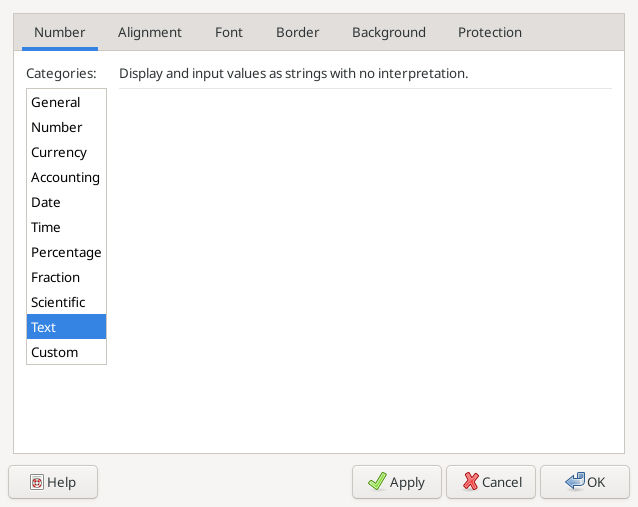
Archived native capture from 2026-10-16, Gnumeric 1.12.57 on Debian 13.6, English interface/C locale. It shows the Text category used before entering the two five-character codes in the file-compatibility exercise. It does not show or verify this article’s currency, date or duration results.
Changing an already stored number 123 to Text does not reconstruct lost zeros. Re-enter a known identifier from its authoritative source after setting Text; do not guess its original length. A numeric mask that displays 00123 also does not establish that the stored value is the text code 00123.
Troubleshooting and persistence check
- A money value that does not calculate may be imported text. See CSV delimiter and decimal import.
- A date showing a large number may simply have General format. Compare D4 before changing the data.
- A duration apparently below 24 hours needs an elapsed format and the D5 check, not an extra day typed into a text label.
- Changing a cell’s format can affect interpretation of future entries. Check existing values and subsequent input separately.
Save a .gnumeric workbook, reopen it and compare D2:D6 and J2:J3 with the expected values. If exporting, repeat these checks after reopening the exchange copy; the native master remains the recovery source.
Evidence and related functions
Reviewed 2026-10-19: Formatting Cells and cell element types, Gnumeric manual 1.12. Fixture arithmetic is independently checked. Apart from the clearly attributed archived Text-format image, this article has no native application or screenshot evidence; custom formats, locale behavior and saved-file persistence remain acceptance tests to perform.