

LibreOffice Calc · File compatibility · Intermediate
Check an ODS to XLSX Transfer in LibreOffice Calc
Keep an ODS master, build a small compatibility control workbook, and reconcile formulas, dates, names, charts and validation in an XLSX exchange copy.
Documentation-qualified worked recipe; new native workflow not executed · Editorial standards
Keep the ODS file as your working master and make a separately named XLSX exchange copy. Opening that copy without an error is only the first check. A useful acceptance test also changes an input, checks formulas and dates, and exercises the workbook’s controls in the actual receiving application.
This is a reproducible test recipe, not a passed compatibility report. Its controls have independent expected results, but this workbook has not been converted or opened in a receiving application for this article. Do not infer preservation of your own workbook from these expectations.
Scope and a safe starting point
Directions follow the English standard-menu interface in the Calc Guide 26.2 and current LibreOffice Help, labeled 26.8 when checked on 19 October 2026. Record your actual LibreOffice version, operating system and receiving application/build before testing. Excel desktop, Excel for the web and another Calc build are different receivers.
Create a new workbook with sheets named Orders and Lists. Save it as transfer-master.ods using File → Save As, with the ODF Spreadsheet file type. Keep a separate backup before the exchange test. The Save As help warns about possible feature or formatting losses in external formats.
1. Build a small, inspectable control workbook
Enter this table in Orders!A1:F4. Formulas below use English names and semicolon argument separators with Calc A1 references; adapt these to your inspected settings, as explained in formula syntax and separators.
| Row | A: ID | B: Ship date | C: Units | D: Unit price | E: Amount | F: Status |
|---|---|---|---|---|---|---|
| 2 | X-01 | =DATE(2026;11;3) |
4 | 12 | =C2*D2 |
Ready |
| 3 | X-02 | =DATE(2026;11;10) |
3 | 15 | =C3*D3 |
Hold |
| 4 | X-03 | =DATE(2026;11;17) |
5 | 8 | =C4*D4 |
Ready |
Format B2:B4 as dates through Format → Cells → Numbers → Date. Choose a display with an unambiguous four-digit year. Format E2:E4 with two decimal places. On Lists put Status in A1, Ready in A2 and Hold in A3.
Add these controls outside the record block:
| Cell on Orders | Entry | Expected |
|---|---|---|
| H1 | Amount total |
Label |
| H2 | =SUM(E2:E4) |
133 |
| H3 | =SUM(C2:C4) |
12 |
| H4 | =B4-B2 |
14; use Number format |
| H5 | =ISNUMBER(B2) |
TRUE |
The line amounts are 48, 45 and 40. Check each ID’s date, units and price, not merely the grand total: a total can remain right after records have been mismatched.
2. Add representative workbook features
Select E2:E4 on Orders and use Sheet → Named Ranges and Expressions → Define. Name it TransferAmounts, use document-wide scope, and confirm that its range is $Orders.$E$2:$E$4. Put =SUM(TransferAmounts) in H6; expect 133. The named-values help describes defining and using names.
For a validation control, select F2:F4 and choose Data → Validity → Criteria. Choose Cell range, set Source to $Lists.$A$2:$A$3, and enable Show selection list. On Error Alert enable the invalid-entry warning and select Stop. Check Ready and Hold in the drop-down; type Unknown into F2 to test rejection, then leave F2 as Ready. See the complete cross-sheet validation tutorial for the dialog and the distinction between typed entries and pasted data.
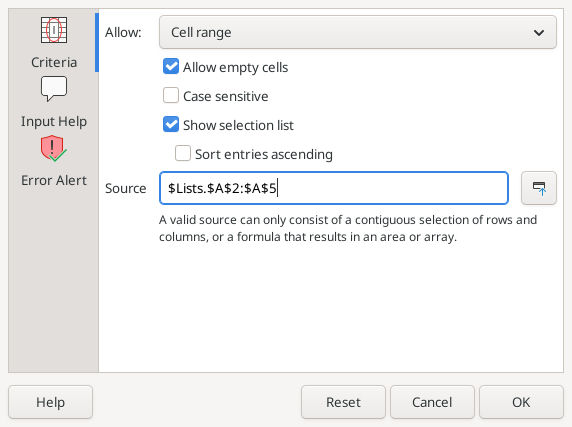
Reused native screenshot: Calc 26.8.1.1, Linux, 16 October 2026. It shows the controls in an earlier example, whose source ends at A5. Use A3 for this exercise. This is not a screenshot of an XLSX conversion or of this workbook.
For a simple chart, put Order in J1 and Amount in K1; enter X-01, X-02, X-03 in J2:J4 and =E2, =E3, =E4 in K2:K4. Select J1:K4, choose Insert → Chart, choose Column, and in Data Range use data series in columns with the first row and first column as labels. Finish the wizard. Expect three categories, X-01 through X-03, with values 48, 45, 40. Chart data-range help explains these orientation controls.
Save, close and reopen the ODS master. Check all controls before testing another format; otherwise an original setup error can be mistaken for a conversion loss.
3. Create an exchange copy without retiring the master
- With the saved master open, choose File → Save As.
- Use the separate filename
transfer-review.xlsxand select the Excel 2007–365 XLSX file type offered by your build. Merely changing the extension does not select a format. - If Calc warns about the selected format, read it and deliberately choose to keep the Excel format for this test copy. Record any specific warning.
- Close the copy. Reopen the ODS master separately when continuing ordinary work; Save As has switched the active document to the new file.
- Open the XLSX in the agreed receiver. Record its application, exact version/build, OS and test date. Reopening only in Calc does not establish behavior in Excel.
4. Reconcile, perturb and restore in the receiver
Use the receiver’s normal formula inspection and recalculation controls. Do not guess its menus from Calc’s menus.
- Verify both sheets, all three IDs, the three November dates, 12 units, 133 total, a 14-day span and a numeric B2.
- Inspect E2:E4, H2:H6 and K2:K4 as formulas, rather than accepting cached values alone. Inspect the name’s scope and its actual target range.
- Inspect the chart’s category labels and source. Check that the Ready/Hold drop-down and rejected typed Unknown test still work as required.
- Change C3 from 3 to 4. Expected E3 is 60; both amount totals become 148, units become 13, and the second chart value becomes 60. Restore C3 to 3 and recheck the original controls.
- Save the tested copy, close it and reopen it in the receiver. Repeat the controls. If a return trip is required, save a separately named return copy there, reopen that in Calc, and repeat again.
Record actual results beside the expectations. Mark an unperformed test Not tested, not Pass. For each discrepancy record the file, cell/object, expected and actual result, receiver/build, severity and workaround. A pass applies only to that fixture and those builds.
Extending the test and recovering from a failure
For a larger workbook, add at least one representative instance of every feature you rely on, including print ranges, conditional formatting and external links. Macro execution and specialized functions need their own agreement and tests. LibreOffice lists known areas of difference in Microsoft Office conversion limitations.
If a date is wrong, compare its numeric nature and date interval before changing display formatting. If a formula fails, inspect its operands and function support; bulk punctuation replacement is unsafe. If a name or chart refers to the wrong range, repair the exchange copy and repeat the change/recovery test. If an essential feature cannot be verified, keep the transfer unaccepted and retain the ODS master. CSV cannot substitute for a multi-sheet, formula-and-chart backup; see CSV import and limits.
Evidence: official instructions checked 19 October 2026; arithmetic and date expectations independently calculated. New native save/reopen, ODS↔XLSX conversion and receiving-application tests remain unexecuted. No universal compatibility or successful round trip is claimed.