

Gnumeric · Import and export · Beginner
Export a Clean CSV from Gnumeric
Export one clean Gnumeric sheet with deliberate CSV quoting, UTF-8 and decimal conventions, then check identifiers and numeric totals after import.
A clean CSV is a data contract: one rectangular table, agreed separators and encoding, and fields that survive the receiving application’s import. Keep a native Gnumeric master; the CSV is an exchange file containing text fields and calculated values, not a backup of formulas or workbook structure.
Scope and receiving requirements
This procedure follows the online manual and official Gnumeric 1.12.62 export source, reviewed 2026-10-19. English desktop labels are used. No fresh native export was run; the CSV specimen and numerical checks are independently constructed expectations. Export dialogs can differ across versions and Linux packages. The older manual’s format-preservation checkbox is represented by a Format selector in the reviewed source.
For this exercise agree on UTF-8, comma separator, double-quote text delimiter, LF line endings and decimal point. The receiver must import Code as text. Quoting a numeric-looking identifier does not force every application to preserve it as text.
The sample entries use a decimal point. If your worksheet locale uses a decimal comma, enter the equivalent numeric values in that convention and verify their types before continuing.
Prepare a dedicated export sheet
Use a new workbook with one sheet named Export. Enter exactly this rectangle in A1:E4, with no title rows, merged cells, subtotals or notes beside it.
| Code | Item | Quantity | UnitPrice | Amount |
|---|---|---|---|---|
| 00123 | Café, small | 2 | 12.50 | =C2*D2 |
| 00456 | Pen “blue” | 3 | 1.25 | =C3*D3 |
| 00789 | Paper | 1 | 7.25 | =C4*D4 |
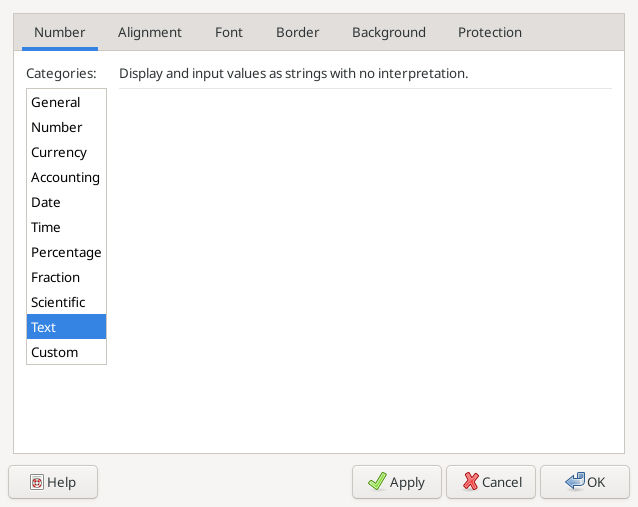
- Enter headings in A1:E1. Select A2:A4 and choose Format → Cells → Format, then Text in the Number tab before entering the codes. Enter their five characters without adding literal quotation marks.
- Enter the other inputs and formulas. The comma in Café, small and quotation marks in Pen “blue” are real content that must survive export.
- Confirm amounts 25, 3.75, 7.25, totaling 36. In a separate scratch sheet, check
=COUNT(Export!E2:E4)= 3,=SUM(Export!E2:E4)= 36, and=LEN(Export!A2)= 5. Do not place these checks in the export rectangle. - Save the workbook as
clean-export-master.gnumericbefore exporting.
The following is an archived, genuine 2026-10-16 Gnumeric 1.12.57 capture from the file-compatibility exercise. It illustrates only the Text category used before identifier entry, not this CSV export or these new inputs.
Configure the text exporter
- Activate Export. Choose Data → Export Data → Export as Text File. In the save dialog retain Text export (configurable), choose a new destination and name it
clean-orders.csv. - In the export assistant’s sheet panel, select only Export. Clear the scratch sheet and any other sheets. The exporter supports selecting multiple sheets, but concatenating them does not create a multi-sheet CSV understood by the receiver.
- Continue to formatting. Set Line termination to LF, Separator to comma, Quoting to Always, Quote character to double quote, and Character encoding to UTF-8. Always quoting makes this exercise easy to inspect; never quoting would be unsafe for the comma-containing item.
- Set Locale to a decimal-point locale, such as English (United States), and Format to Raw. Raw uses stored values instead of currency/percentage display strings. These cells contain plain numbers and text; dates need a separate contract because raw date values may be serial numbers.
- Complete the assistant with its final save/finish button. Keep the native master. Do not substitute a filename extension change for choosing the configurable exporter.
Do not assume a highlighted cell range limits this sheet exporter. A dedicated Export sheet makes the exported extent deliberate. If stray cells exist far below or right of the table, remove them from a copy or construct a clean sheet and check the resulting record count.
Inspect the file and re-import it
Open the exported file as plain text without saving changes. With the chosen Always quoting, the logical CSV should be equivalent to this specimen; insignificant numeric trailing zeros may differ:
"Code","Item","Quantity","UnitPrice","Amount"
"00123","Café, small","2","12.5","25"
"00456","Pen ""blue""","3","1.25","3.75"
"00789","Paper","1","7.25","7.25"
There must be one heading plus three records and five fields per record. The comma inside the first item is protected by quotes. The embedded quotation marks in the second item are doubled in CSV syntax; a CSV parser should return one quotation mark on each side of blue. Café must remain readable and codes must retain their zeros.
Import that exact file into a new workbook through Data → Import Data → Import Text File. Choose UTF-8 and comma, set the import source locale to the decimal-point convention, and set Code to Text before finishing. Leave the numeric columns General. Check A2:A4, B2:B3 and the three amounts again; =COUNT(E2:E4) should be 3, =SUM(E2:E4) 36 and =LEN(A2) 5. Amount contains exported results rather than the original formulas. Finally repeat the import checks in the actual receiving application before accepting the handoff.
Change test and recurring exports
In the native master change C2 from 2 to 4. E2 should become 50, and the total 61. Export to a second filename with the same settings and verify that the first amount changed while the codes and quoted item text did not. Restore C2 to 2; save the master and regenerate the final exchange copy with total 36. This catches accidentally inspecting an older file.
For recurring delivery, record the sheet name, column order, encoding, separator, locale and format choice with the receiving system’s specification. Do not mix totals into the data rows. Recheck export settings after a workbook or application update; a remembered default is not evidence of the current contract.
Troubleshooting
- Too many fields: inspect quote handling before changing the source text. Never remove a legitimate comma just to make a broken parser appear to work.
- 00123 becomes 123: inspect the CSV first. If its zeros remain, repair the receiver’s import typing; if already lost in Gnumeric, restore the original identifier as Text before exporting again.
- Accents are damaged: use UTF-8 end to end; character replacement or transliteration is not a faithful repair.
- Currency symbols or rounded amounts appear: inspect Format and choose Raw for this numeric contract.
- Extra rows or a second header appear: export only the intended sheet and inspect its used cells.
See CSV import settings, COUNT, LEN and file compatibility.
Primary references
Reviewed 2026-10-19: Exporting Text Files, Importing Text Files, and Gnumeric 1.12.62 source, src/dialogs/dialog-stf-export.ui, src/dialogs/dialog-stf-export.c and src/stf-export.c. The source establishes the newer Format/Locale controls; the specimen above is not a captured native export.