

Project Cost Planner for LibreOffice Calc
Estimate a small project’s costs on one worksheet, then compare the estimate with a budget. This original starter includes editable inputs and working formulas, not just a CSV dataset. All sample amounts are fictional Canadian dollars (CAD).
Download the workbook
Choose ODS for a Calc working copy. The XLSX is an alternative file format, not a claim of testing in Microsoft Excel. Neither file contains macros or external workbook links. These are ordinary spreadsheet documents, not registered .ots templates: save a separate copy for each project.
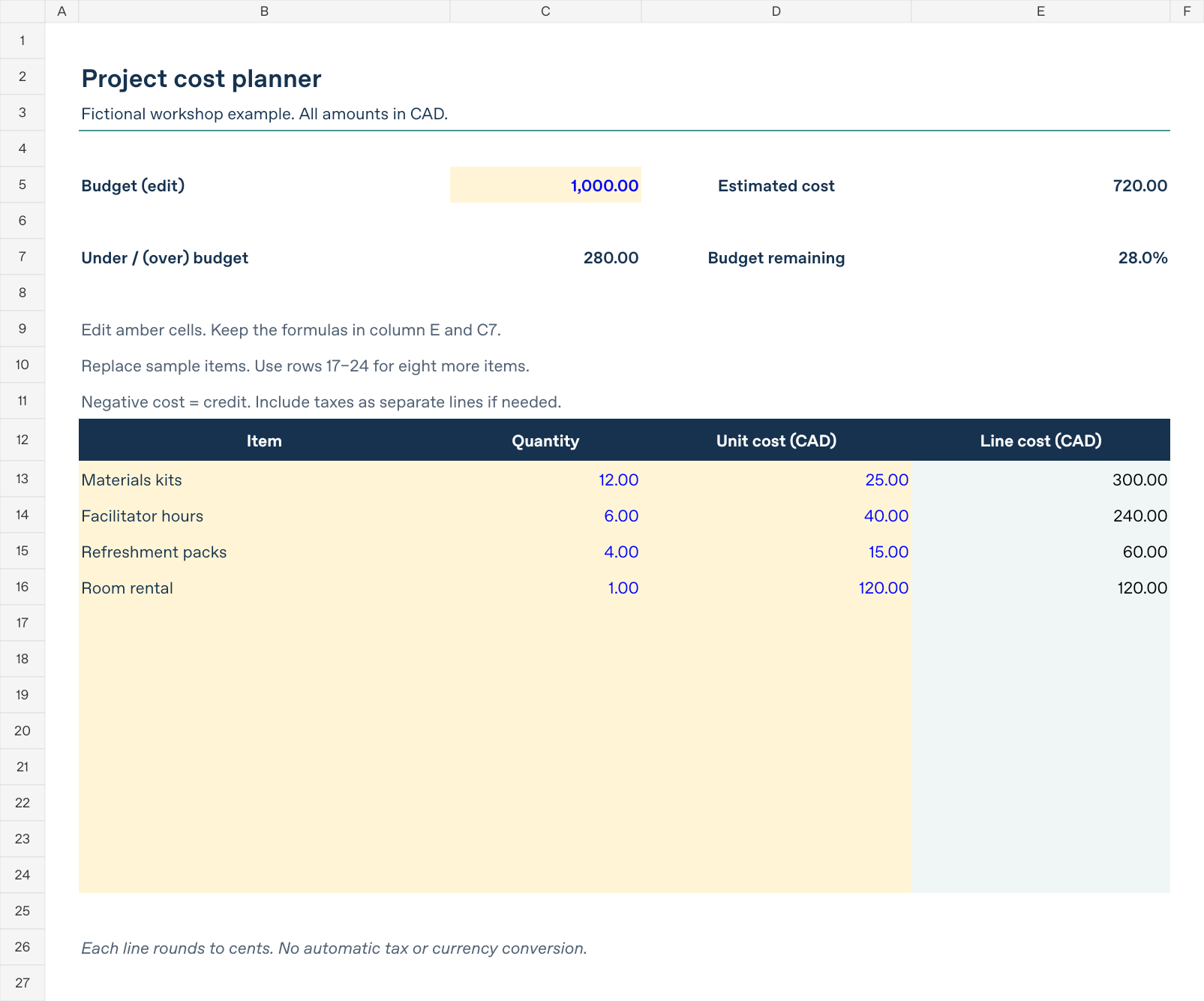
This is a rendered workbook preview, not a screenshot of LibreOffice’s interface. The layout may differ with your fonts and application settings.
What to edit
- Save your own working copy before changing the sample.
- On Project costs, enter your budget in C5.
- Replace the fictional descriptions in B13:B16, quantities in C13:C16, and unit costs in D13:D16. Amber fill identifies editable cells; numeric inputs use blue text.
- Add more items in B17:D24. All twelve item rows already have line-cost formulas in column E.
- Read estimated cost in E5, under/(over)-budget amount in C7, and budget remaining percentage in E7.
Keep formulas in E5, C7, E7 and E13:E24. The sheet is not password-protected, so it is possible to overwrite a formula accidentally. Clear only B:D when removing an item. Clearing all three inputs makes the corresponding line cost blank. Clearing only the quantity or rate leaves an incomplete item, which displays Complete inputs and makes the estimate unavailable instead of silently treating a missing cost as zero.
Check the fictional example
| Item | Quantity | Unit cost (CAD) | Line cost (CAD) |
|---|---|---|---|
| Materials kits | 12 | 25.00 | 300.00 |
| Facilitator hours | 6 | 40.00 | 240.00 |
| Refreshment packs | 4 | 15.00 | 60.00 |
| Room rental | 1 | 120.00 | 120.00 |
| Total | 720.00 |
With C5 set to 1,000, C7 is 280.00 and E7 is 28.0%. Change C13 from 12 to 13: the estimate should become 745.00, the remaining amount 255.00, and the percentage 25.5%. Restore 12 afterwards.
To check the last reserved row, enter Extra item, 2, and 10 in B24:D24. The estimate should become 740.00 and the remaining amount 260.00. Clear B24:D24 to return to the sample. Entries below row 24 are outside the supplied total range; this version has twelve item slots, not an automatically expanding table.
How the calculations work
Each completed line multiplies quantity by unit cost and rounds that line to two decimal places. The estimate sums those rounded line costs. For a valid row 13, the calculation is ROUND(C13*D13,2). The actual formula also checks that the description exists and both numeric inputs are numbers. This rounding policy can differ from rounding the sum of unrounded products. LibreOffice documents rounding behaviour in its mathematical functions reference.
The remaining amount is budget minus estimate. A positive amount means under budget; parentheses indicate a negative amount, or over budget. The percentage is remaining amount divided by budget. A zero budget is allowed, but its percentage displays n.a. because division by zero is undefined. A blank or text budget leaves the budget comparisons unavailable while still allowing a complete cost estimate.
Zero quantity or zero unit cost is a valid zero-cost line. Monetary zeros display as a dash; that is formatting, not missing data. Negative line costs can represent credits. Use consistent units within each line, such as hours multiplied by cost per hour. The workbook does not calculate taxes, contingency, exchange rates, actual payments or project dates. Add an explicit priced line for a known fee or tax rather than assuming it is included. All amounts must use the same currency.
Troubleshooting
- Complete inputs: supply a description and numeric quantity and unit cost, or clear all three input cells for an unused row. A number stored as text is not a valid numeric input here.
n.a.in the estimate: at least one row is incomplete. Fix that row before interpreting the summary.n.a.is text deliberately returned by this workbook, not Calc’s#N/Aerror.- The total does not change: confirm you edited an input, not a formula. Use Data → Calculate → Recalculate, or select an affected formula cell and press F9. LibreOffice’s Recalculate help explains how this interacts with automatic calculation.
- An added item is ignored: use rows 13–24. If you redesign the workbook for additional rows, extend both the formulas and E5’s bounded total and incomplete-input ranges, then repeat the change test.
- A formula was overwritten: return to an untouched download rather than copying a total as a fixed number.
Verification and limits
Checked October 21, 2026. The XLSX was authored and visually rendered with a workbook-generation tool. Sample totals, changed quantities, missing versus zero inputs, zero/blank budget and the last spare row were checked there. The ODS was produced with the free LibreOfficeDev 26.8.0.0.alpha0, build 2c87e51eeaa2b413ff4ae097b2705eea1995d8e5, using headless conversion on Linux. Converted baseline and changed-input files were inspected for preserved formulas and expected results.
This is a development-build, headless check, not a GUI test, stable-release certification, or Excel/web/mobile compatibility test. No native application screenshot is supplied. Repeat the short quantity-change check in your installed Calc version before using your own figures.
For related practice, see CSV starter files and reusable workbook templates. Check versions and availability before applying instructions from another edition.